

This feature is included in all new Windows 10 (UWP) package submissions and allows developers to view app usage statistics, including user sessions, active users, session length, page views, and custom events created specifically for an app (for example how many times users reach a certain level in the game). App developers are provided aggregated statistics only, and not any information about individual users or devices.
How to enable application usage
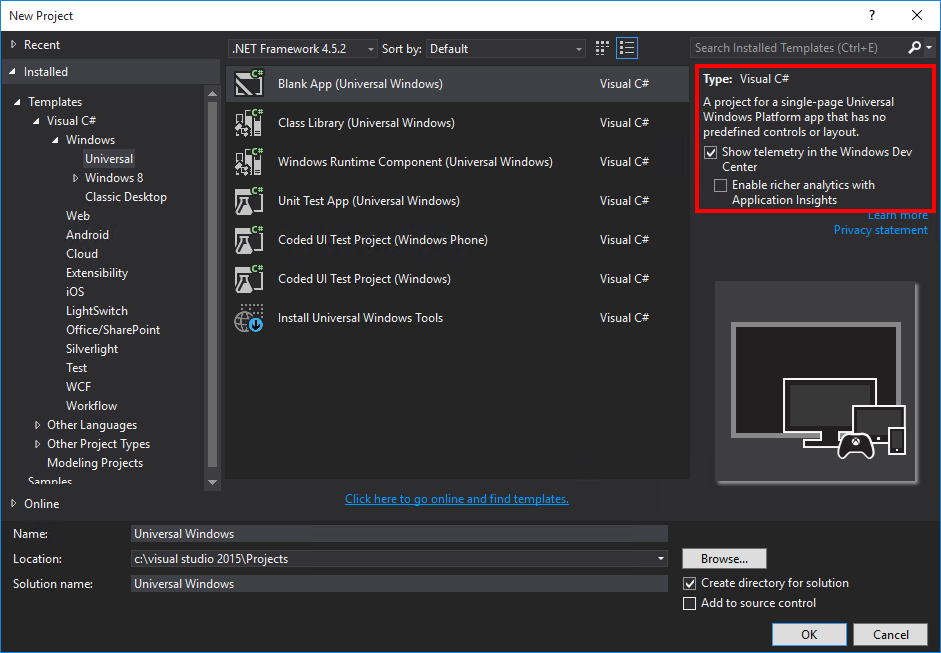
- Build a UWP package in Visual Studio 2015.
- Select “Show telemetry in the Windows Dev Center” checkbox (which adds the Visual Studio Application Insights SDK to your project).
- All Windows 10 app submissions will include the telemetry SDK. If you don’t want to use this feature, please uncheck this box to disable app usage information
- Select “Enable richer analytics with Application Insights” if you have an Azure subscription and want to see the data and do deeper analysis in the Azure portal
- Submit the packages to the Store. Data will show up after users download the updated package and start using the app.
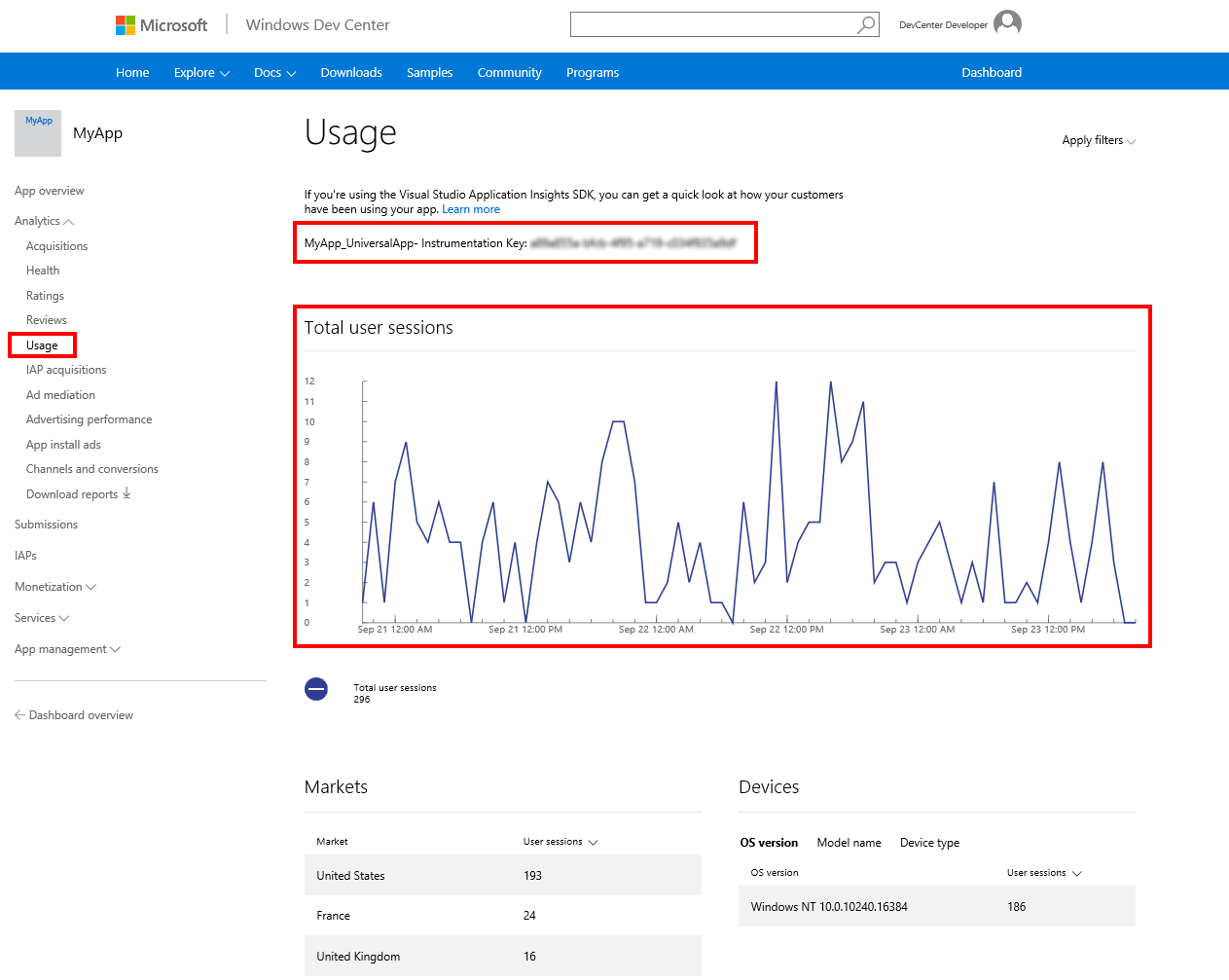
- View the report in the “Analytics/Usage” page in Dev Center. The report will show:
- An Instrumentation Key has been created for the app
- App usage telemetry for the app, if enabled
You can read more information in the documentation.