Skip to main content Skip to main content Windows Experience Devices Windows Developer Microsoft Edge Windows Insider Microsoft 365 Microsoft 365 Azure Copilot Windows Surface Xbox Deals Small Business Support Windows Apps Outlook OneDrive Microsoft Teams OneNote Microsoft Edge Moving from Skype to Teams Computers Shop Xbox Accessories VR & mixed reality Certified Refurbished Trade-in for cash Xbox Game Pass Ultimate PC Game Pass Xbox games PC games Microsoft AI Microsoft Security Dynamics 365 Microsoft 365 for business Microsoft Power Platform Windows 365 Small Business Digital Sovereignty Azure Microsoft Developer Microsoft Learn Support for AI marketplace apps Microsoft Tech Community Microsoft Marketplace Marketplace Rewards Visual Studio Microsoft Rewards Free downloads & security Education Gift cards Licensing Unlocked stories View Sitemap

Windows 10 Tip: Try reading on a full screen for a distraction-free experience in Microsoft Edge

Written By published July 23, 2018


Want to focus on a new book, report or story? But having a hard time because of the many other things vying for your attention on your computer screen?

With the Windows 10 April 2018 Update, you can take books, PDFs and Reading view pages full-screen, for a distraction-free reading experience in Microsoft Edge.

To do this, click on the double-arrow icon in the reading bar, or in the More menu, or hit F11 on your keyboard.

Here’s how to do it:
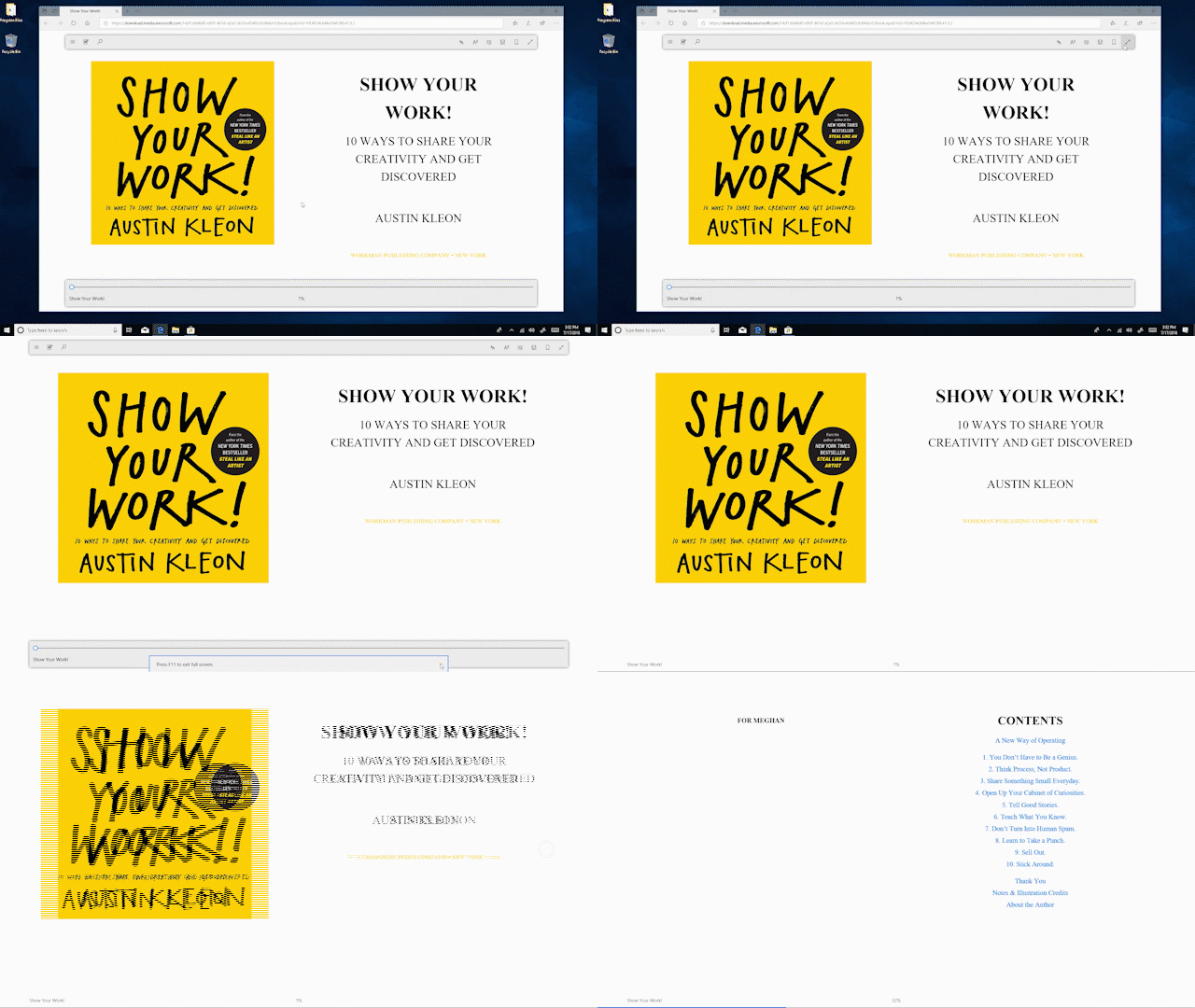
Gif shows cursor clicking on double-arrow icon in the top right corner of the screen, expanding the book page to full screen
Take your reading to a full screen for a distraction free experience.

If you like this, check out more Windows 10 Tips.

Your Privacy Choices Opt-Out Icon Your Privacy Choices
Consumer Health Privacy Sitemap Contact Microsoft Privacy Manage cookies Terms of use Trademarks Safety & eco Recycling About our ads