

How to turn your Lumia into a Wi-Fi Hotspot
Here’s how you can establish a Wi-Fi Hotspot on your Lumia and share your Internet connection with a friend.
Our lives revolve around our Lumia devices. One important feature is sharing your super-fast Internet connection with a friend or family member so you can both be online.
Known as Wi-Fi tethering in tech parlance, the Internet sharing feature on your Lumia is a great way to share your data* plan over WiFi or Bluetooth with a buddy who has a poor signal or has run out of data.
Here’s how you can share your Lumia’s cellular data connection:
- On your Lumia, tap Start, and select Settings.
- Scroll down to Internet sharing and tap Share over, and then tap WiFi.
- Under Sharing, toggle the On option.
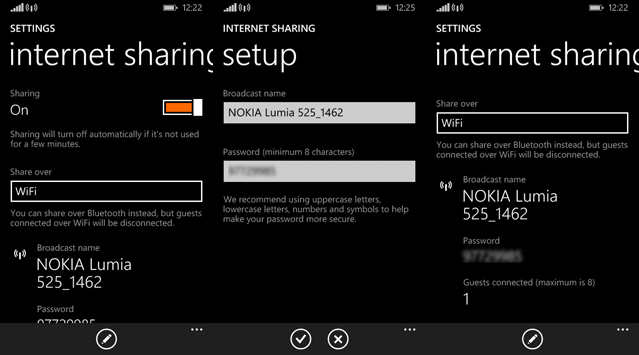
As shown above, you will see a “broadcast” name and a password assigned to your Lumia. You can change the name and password, as per your choice. Under Setup, tap more (…) option.
Now, turn on the WiFi settings on your friend’s mobile and search for your Lumia’s “broadcast” name. Once you find it in the list of available WiFi networks, tap the name to connect.
After that, you will be prompted to input a password on your friend’s mobile before he or she can start using your Internet connection.
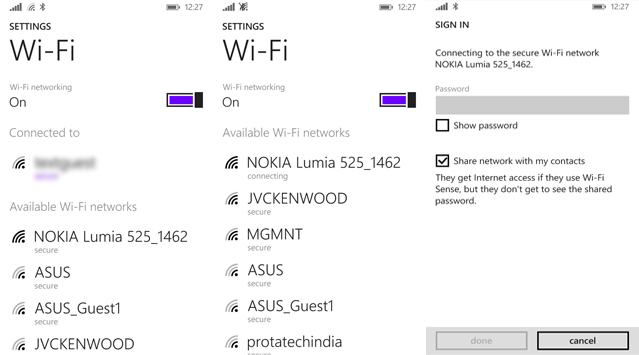
Voila, your Lumia is now connected and as shown above, you have one active “guest” connected to your network. To check, swipe to your Start screen to find an added icon (in the form of a mobile tower) on the top corner of your status bar, indicating that Internet sharing is enabled.
In the same way you can share via Bluetooth, by pairing your devices.
A word of caution: Sharing your data connection consumes more data than you’d otherwise use, and you’ll get charged for it. Unless you have unlimited data, monitor your consumption with Data Sense and WiFi Sense features.
Do you use Internet sharing? What do you think of this feature?
*To share your cellular data connection, this feature must be available from your mobile operator and often costs extra.