

Our guide to the new MS-DOS for Mobile app for Windows Phone
C:\ the fun stuff you can do in our April Fools’ Day app.
Last week, we announced the launch of MS-DOS for Mobile, an app that brings the quaint simplicity of DOS to your Lumia smartphone. (Read the full story here.)
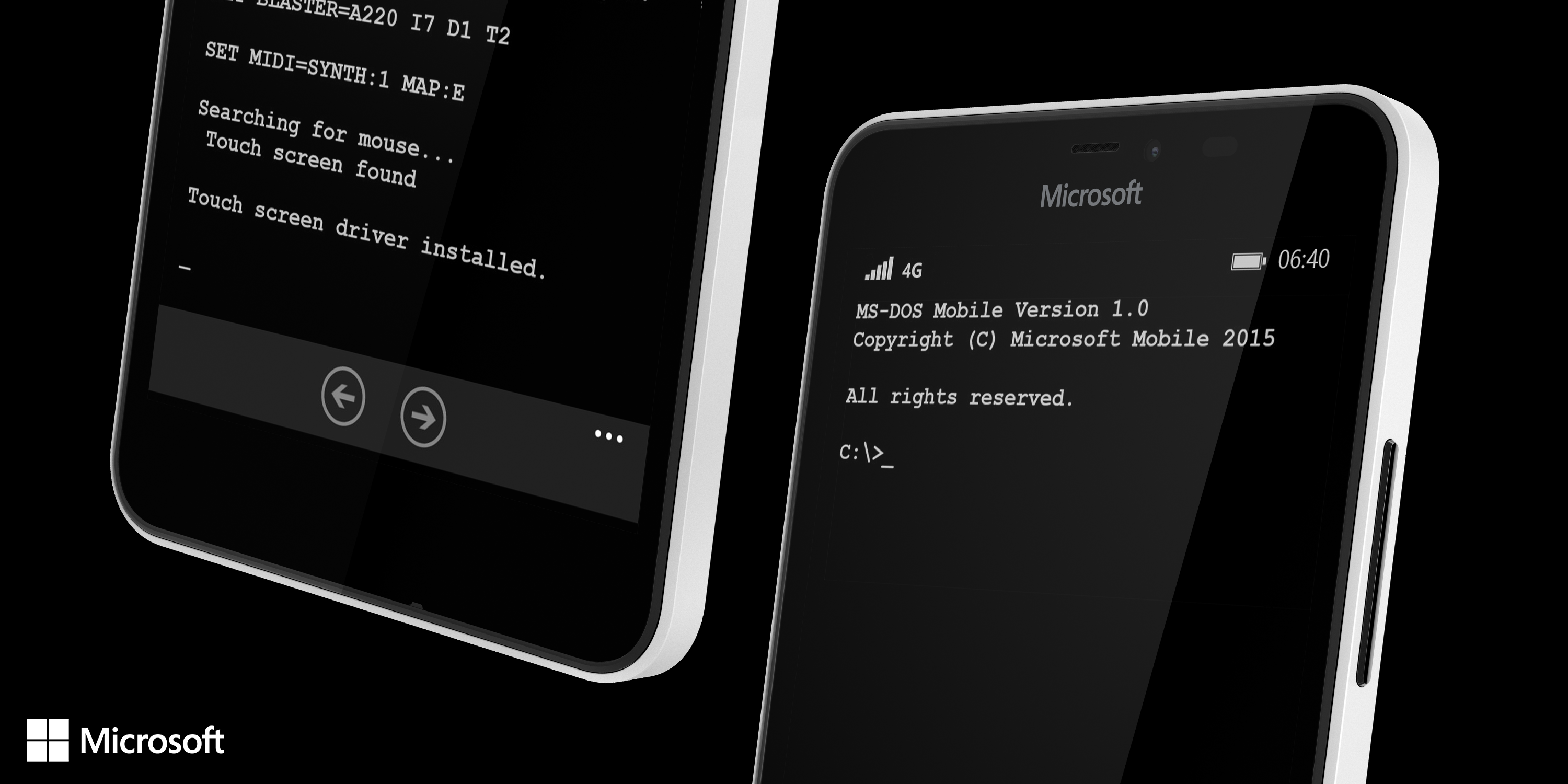

Yes, it was an April Fools’ Day prank. But the app is very real and available to download.
We’ve compiled a list of commands that really work in MS-DOS for Mobile.
Type each of these at the C:\ prompt.
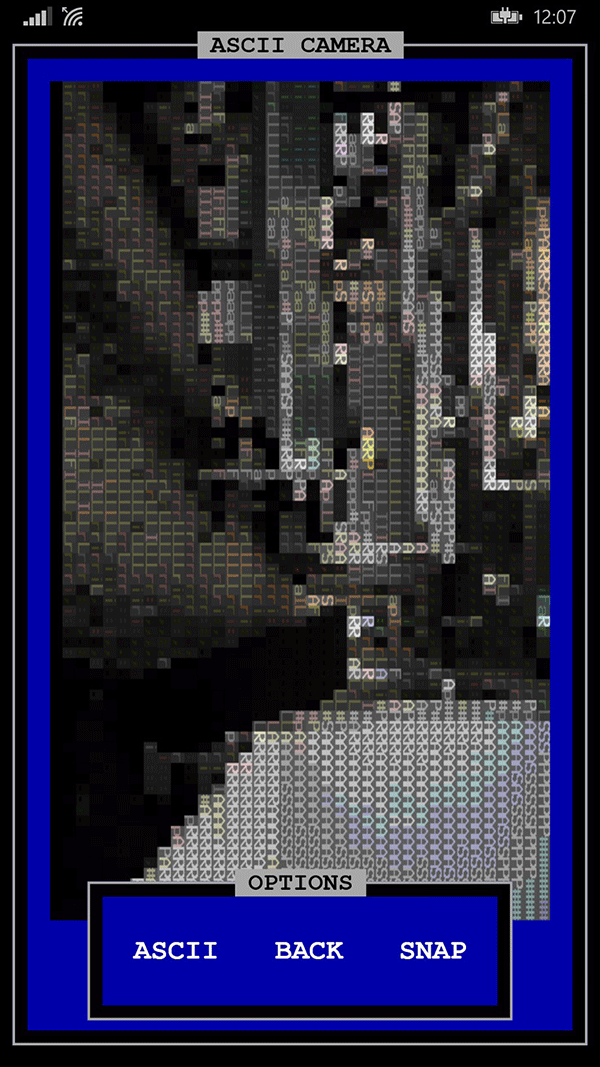
Camera – Type “camera” to launch the MS-DOS camera app and take photos in ASCII, CGA, and black-and-white modes.
Clear Screen – Type “cls” to clear the screen of all previous commands and responses.
Color – Type “color attr” to see instructions on setting the console’s foreground and background colors. (Caution: Typing “color 5c” may induce temporary blindness.)
Contact List – Type “phone select” to open your Lumia’s contact list.
Date / Time – Type “date” or “time” to see the current date or time in MS-DOS.
Directory – Type “dir” to see the contents of the current directory.
Email, SMS, Phone – Type “email,” “sms,” or “phone” followed by the appropriate email address or phone number to send an email, text message, or phone call.
Exit – Type “exit” to close the app.
Floppy Drive – Type “A:” or “B:” to access the floppy disk drive. Your Lumia will make a grinding noise and then respond with a message that it can’t find the drive.
Help – Type “help” to open up a menu of commands.

Rock, Paper, Scissors – The best hidden feature is the fighting game “Rock, Paper, Scissors IV XL: World Championship Edition – Turbo!” First, type “cd games” followed by “cd rps” and then “rps.exe”. From there, Cortana will guide you through configuring MS-DOS to run the game.
Internet – Type “internet” to be greeted by the audio squeal of a modem connecting to the Internet followed by the opening of your Lumia’s browser.
Maps – Type “maps” to open your Lumia’s Maps app.
Search – Type “search” followed by a query to launch Cortana (or Bing, if Cortana is off or unavailable).
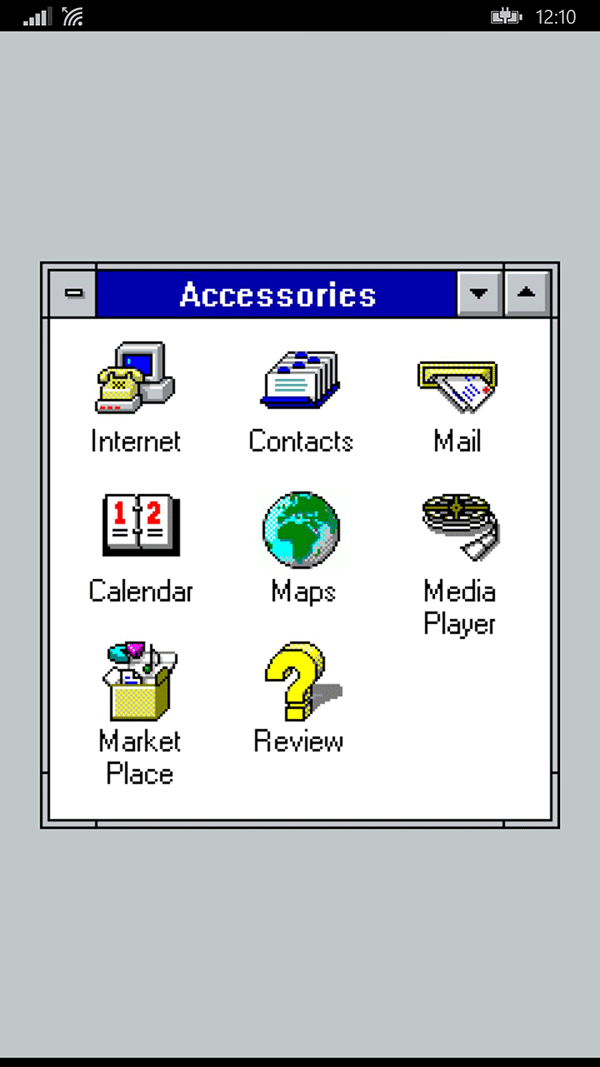
Windows 3.1 – Want to upgrade from MS-DOS? Type “win” and you’ll launch a simple Windows 3.1 menu screen. Play around with the options to uncover more secrets!
Windows Phone App Store – Type “market” to launch the app store.
Version – Type “ver” to see which version of MS-DOS you’re using. (Spoiler: It’s MS-DOS Mobile 1.0)