

How to create ringtones on your Lumia
Inject some individualism into your Lumia with a customized ringtone. We’ll show you how.
Picture this familiar scene:
A mobile phone rings on a packed bus, but to whom does it belong? That guy standing up? The elderly lady sitting in the back? Or is it yours?
Nobody knows, so everyone checks his or her phone. It’s not yours, but it sounds a lot like it.
Avoid the “is it or isn’t it?” moment and change your default ringtone to something unique and personal–one you’ll recognize instantly.
Here’s how: On your Lumia running Windows Phone 8.1, head to “settings” and then “ringtones + sounds.”
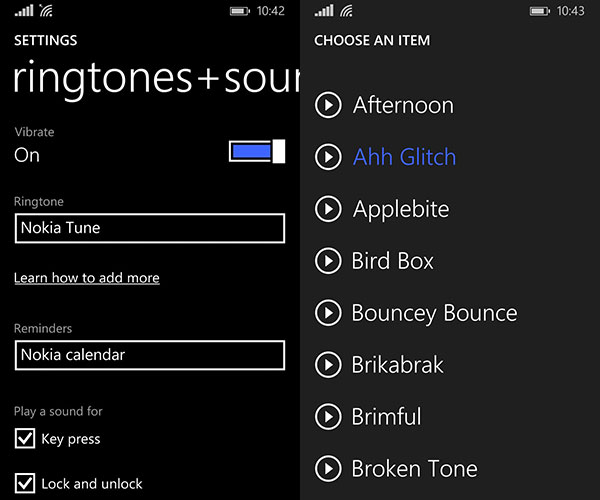
A sizeable selection of tones are preinstalled. Maybe you’ll find something unique in there, such as Symmetry, Bling, Ahh Glitch, or Good Times.
If you want a ringtone that’s even more unique, try creating your own with the free app Ringtone Maker.
Ringtone Maker can transform the songs you’ve stored on your Lumia into workable ringtones.
Load the app, browse for your favorite tune, and adjust the slider bar to select where you want the tone to end, with a maximum length of 60 seconds.
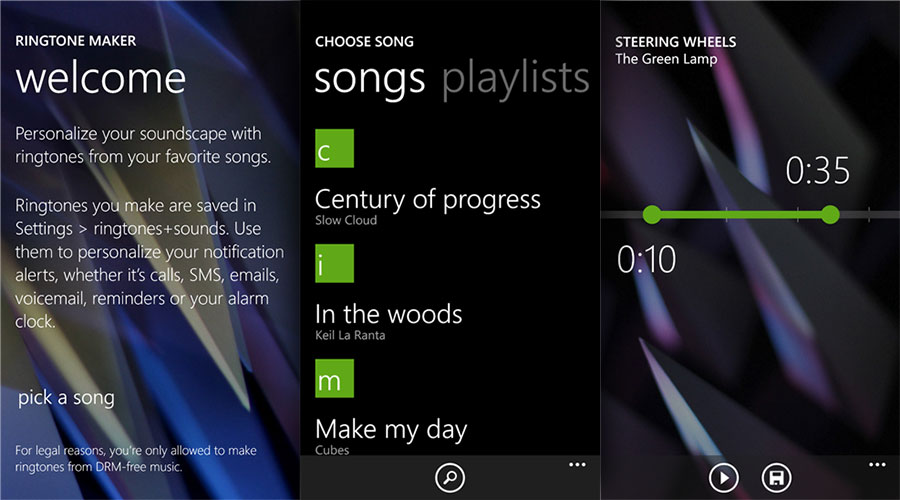
Once you’ve pressed save, your custom ringtone can be found under the “custom” subsection of your ringtone settings.
Alternatively, any music you have stored on your PC can also be used as a ringtone.
Connect your Lumia to your PC using a data cable and locate your phone in the File Explorer’s sidebar. Within “Phone” is a ringtones folder.
Simply drag and drop any tunes stored on your PC into the ringtones folder on your device.
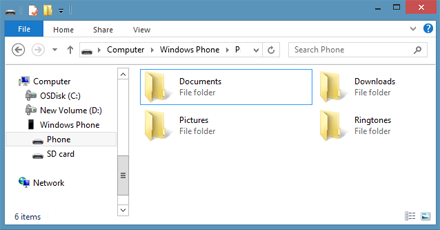
Disconnect the phone and look for the track under the “custom” list in the ringtone settings on your Lumia.
Please note: For legal reasons, you’re only allowed to make ringtones from DRM-free music.
Which is your favorite ringtone or ringtone maker? Let us know in the comments below.