

Debuting new enhanced controls for picture-in-picture in Microsoft Edge
At Microsoft Edge, we’re committed to delivering the best browsing experience possible. Our users have been asking for more controls and flexibility in our picture-in-picture feature. Today, we’re excited to announce that we’re rolling out a significantly enhanced picture-in-picture experience to all users.
Why it matters
Our enhanced picture-in-picture feature is designed to make multitasking easier and more enjoyable. Whether you’re working, studying, or just browsing the web while watching a video, this update gives you the flexibility to manage your screen space efficiently.
What’s new?
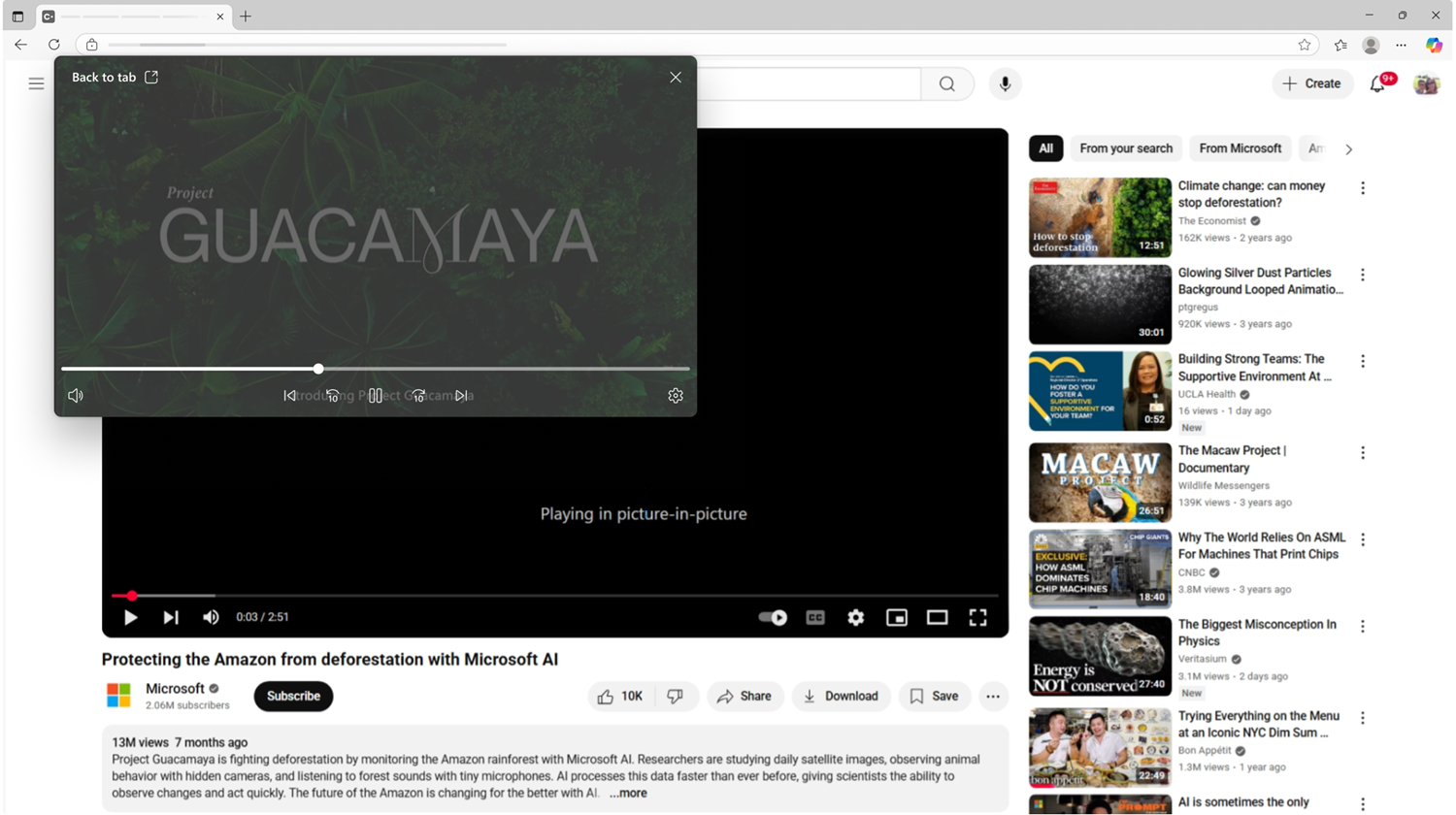
Enhanced controls: We’ve added more intuitive controls to the picture-in-picture window. You can now easily pause, play, skip forward or backward, and seek via the progress bar right from the picture-in-picture window.
How to use it
- Enable picture-in-picture: Simply click the picture-in-picture icon which shows up on hover over a supported video.

- Access controls: Hover over the picture-in-picture window to reveal the controls. We have a bunch of new controls such as mute/unmute, next/previous, forward/rewind by 10 seconds, a progress bar, and a quick access to settings.
- Resize and move: Click and drag the edges to resize or click and drag the window to move it around.
Learn more
To learn more please visit the picture-in-picture feature page.
Join the conversation
We’re excited to hear your feedback on our enhanced picture-in-picture feature! Share your experiences, suggestions, and thoughts with us on social media using the hashtag #EdgePiPEnhanced.