

It’s that time again! We’re getting ready to start releasing new builds from our Development Branch. And just like before after the release of a new Windows 10 update, you won’t see many big noticeable changes or new features in new builds just yet. That’s because right now, we’re focused on making some refinements to OneCore and doing some code refactoring and other engineering work that is necessary to make sure OneCore is optimally structured for teams to start checking in code. Now comes our standard warning that these new builds from our Development Branch may include more bugs and other issues that could be slightly more painful for some people to live with. So, if this makes you uncomfortable, you can change your ring by going to Settings > Update & security > Windows Insider Program and moving to the Slow or Release Preview rings for more stable builds.
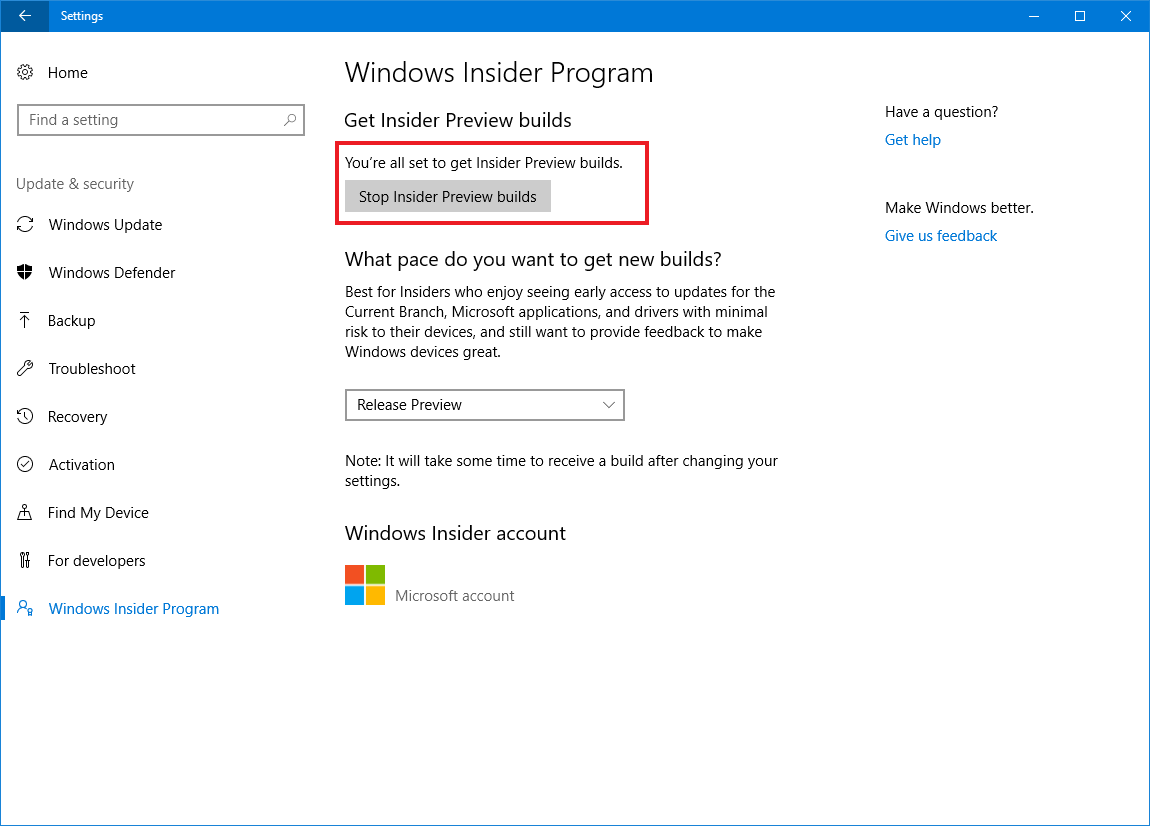
Additionally, if you are an Windows Insider who wants to stay on the Windows 10 Creators Update – you will need to go to Settings > Update & security > Windows Insider Program and press the “Stop Insider Preview builds” button.
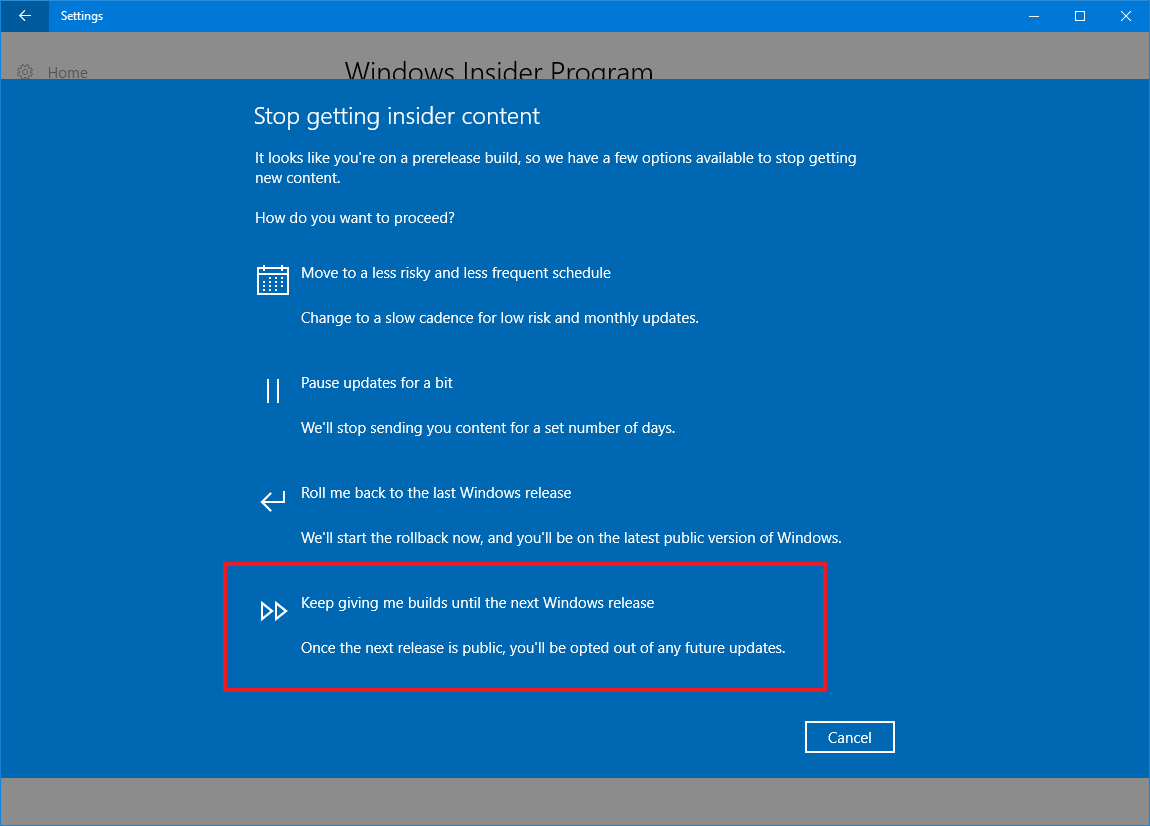
A menu will pop up and you will need to choose “Keep giving me builds until the next Windows release”. This will keep you on the Windows 10 Creators Update.
We’re excited to get some new builds out to Insiders soon!
Keep hustling,
Dona <3