

Text extractor in Snipping Tool begins rolling out to Windows Insiders
UPDATE 4/23: The following update for Snipping Tool update is now rolling out to Windows Insiders in the Beta and Release Preview Channels.
Hello Windows Insiders, today we are beginning to roll out an update to Snipping Tool to Windows Insiders in the Canary and Dev Channels on Windows 11.
Snipping Tool (version 11.2503.27.0 11.2503.29.0)
Text Extractor
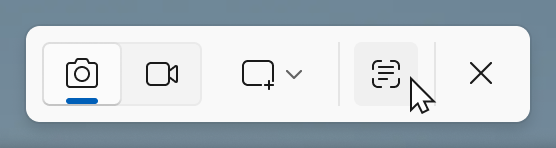
In this update, we are adding text extractor in the Snipping Tool capture bar – designed to minimize the number of steps it takes to copy text to your clipboard without having to take a screenshot of your screen.
To get started, open Snipping Tool via Win + Shift + S or launch the app and click the new “Text Extractor” button in the toolbar.
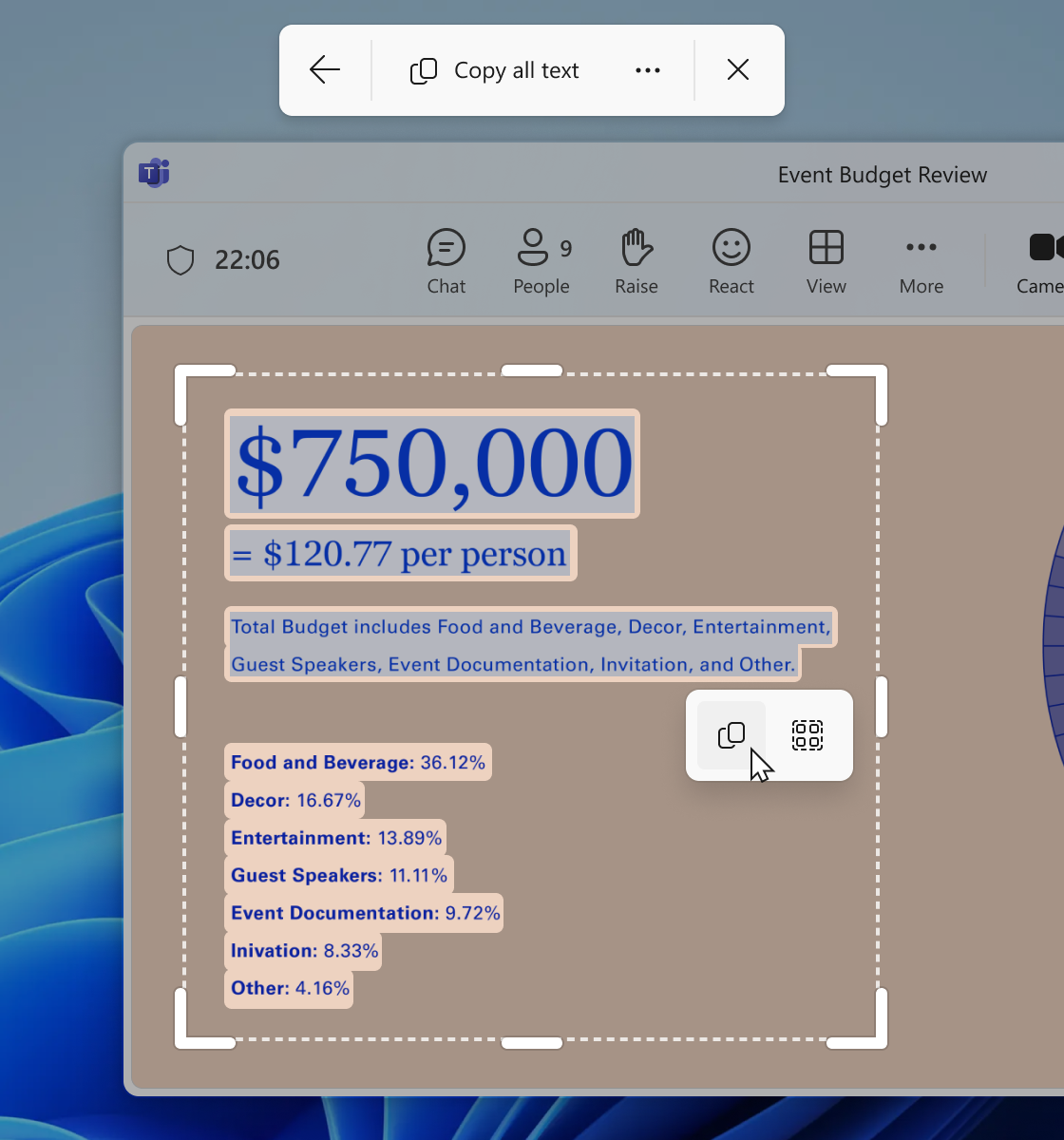
Select the region you would like to scan for text (just as you would for standard rectangle snip), and you will be able to manually select the text to copy to clipboard, or you can click on the “Copy all text” button in the toolbar to quickly copy all text in the region. You can also explore the “More options” dropdown menu to “Remove line breaks” from copied text or simplify the experience entirely with the “Automatically copy text” selection, which will dismiss Snipping Tool earlier and automatically copy all text in your selection region directly to your clipboard.
FEEDBACK: Please file feedback in Feedback Hub (WIN + F) under Apps > Snipping Tool.
As always, we love getting feedback from the community and we will be looking out for your thoughts and suggestions on these updates!
Thanks,
Dave Grochocki, Principal Group Product Manager – Windows Inbox Apps