

Full screen experience expands to more Windows 11 PC form factors for Windows Insiders
Hello Windows Insiders! We appreciate the excitement around the latest Windows handhelds and have heard feedback (and seen the creativity!) from those wanting this experience on more devices. Today, we’re excited to begin previewing a new experience for gaming on Windows 11 PCs.
Alongside today’s general availability of full screen experience on more Windows handhelds currently in market, today’s Windows Insider Preview Build 26220.7271 offered to the Dev and Beta Channels expands the Xbox full screen experience to additional devices such as laptops, desktops, and tablets.
Windows has long been the foundation for innovation with its open platform—one that has defined PC gaming. In partnership with Xbox, we’re creating experiences designed for when, where, and how, people play. Full screen experience is purpose-built for gaming and adds another way to enjoy games on your PC, delivering an immersive experience for players who want a console-like feel—while keeping the flexibility and choice that PC players value.
Designed with console-style navigation in mind, the Xbox full screen experience offers a clean, distraction-free interface for controller-first gaming. When it’s time to take a break from, grab your controller and dive into the immersive, simplified Xbox full screen experience on your PC. When you’re done gaming, switch back to your desktop and pick up right where you left off.
We’ve tailored the full screen experience for PCs to make switching in and out of the desktop as streamlined as possible. Xbox full screen experience, hover over the Task View icon on your taskbar and choose Xbox full screen experience. You can also open Task View by pressing Win + Tab.
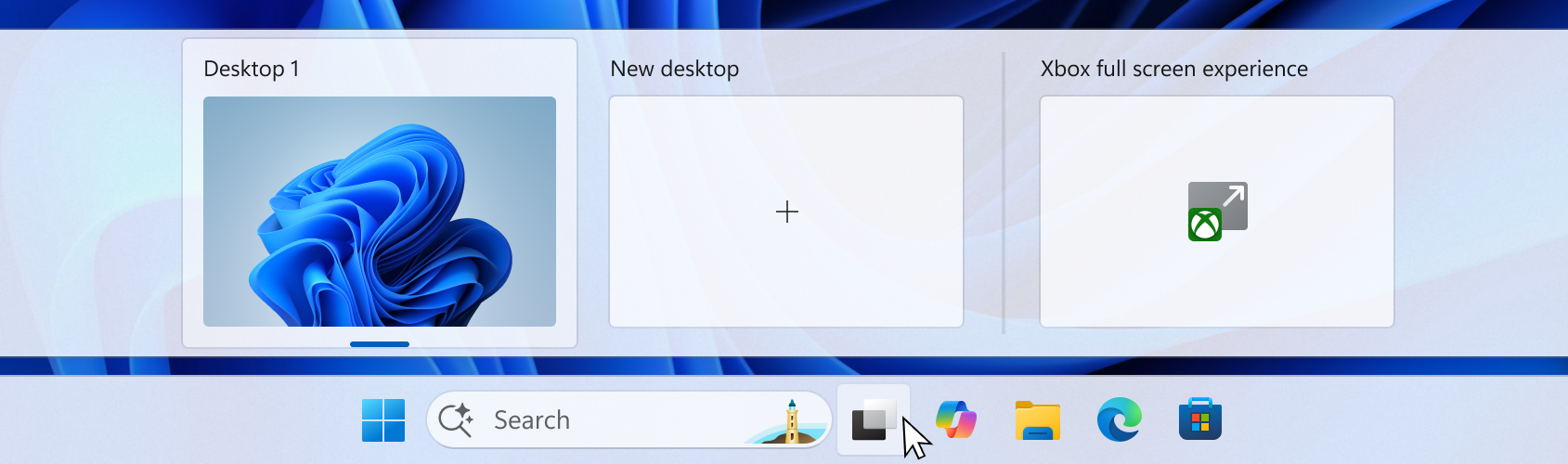
You can also open Xbox full screen experience in Game Bar > Settings or by pressing Win + F11 to toggle the experience. These entry points can be managed in Windows Settings under Gaming > Full screen experience, where you can turn off the experience entirely if you prefer.
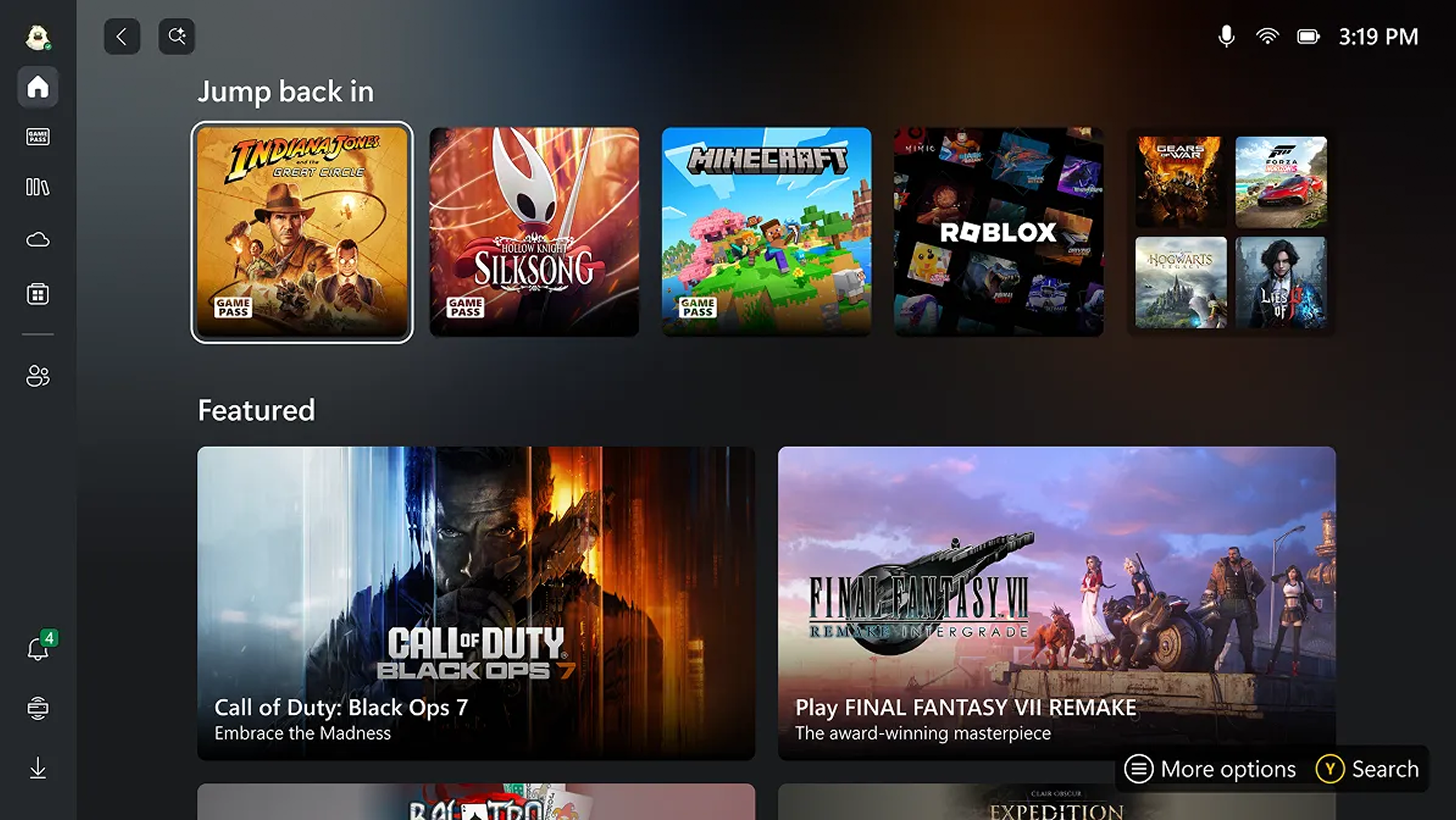
Once you’ve entered the Xbox full screen experience, you’ll see the Xbox home screen and can access your games, including Xbox, Game Pass, Xbox Play Anywhere, and your installed games from other popular storefronts.
It’s easy to switch between your open apps and games with just a long press on the Xbox button on your controller or on your keyboard.
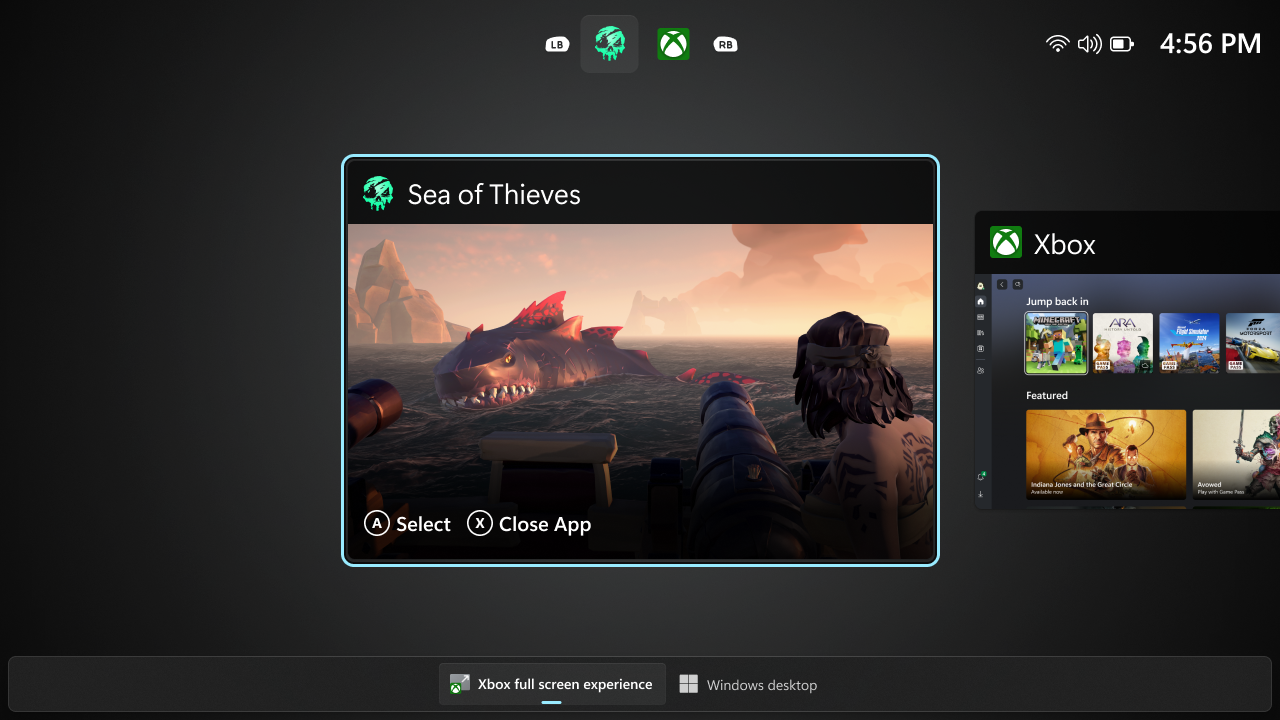
Some keyboard shortcuts, like those that show desktop or search, intentionally behave differently in Xbox full screen experience than they do on the standard desktop to keep the experience focused on gaming. When you’re ready to switch back to your desktop, you can either choose the Windows desktop option from Task View, exit from Game Bar settings, , or simply hit the Windows key on your keyboard—no reboot required.
Availability:
Starting today, the Xbox full screen experience is gradually rolling out with the Windows Insider Preview Build (26220.7271) to the Dev and Beta channels. This feature requires the Xbox app from the Microsoft Store.
The rollout is phased, so not all Insiders will receive the update right away. To be among the first to try these new features on your Windows 11 PC, join the Xbox Insiders Program and opt into the PC Gaming preview through the Xbox Insiders Hub. We’ll continue adding new Xbox Insiders to the rollout over time.
We are committed to delivering a seamless experience and look forward to hearing thoughts and suggestions from the Windows and Xbox Insider communities.
FEEDBACK: Share your thoughts in Feedback Hub (WIN + F) under Gaming and Xbox > Gaming Full Screen Experience.
Thanks,
Ian LeGrow, CVP, Windows + Devices