

Your Windows update experience just got updated
Hey Windows Insiders,
Today, we’re excited to share some improvements to the Windows Update experience that are now starting to roll out. These improvements are the direct result of your feedback.
We are continually reading the feedback submitted about the Windows update experience. Personally, I’ve had the opportunity to read over 7,621 direct verbatims over the last few months.
Across this feedback there are two key themes that persistently pop out: disruption caused by untimely updates and not enough control over when updates happen. The changes we’re rolling out today are focused on giving Windows users more control over their PC experience, while keeping devices secure by design and by default.
Let’s get into what’s new!
More control
Updates are an important part of keeping your PC secure and running smoothly. But at the wrong time, they can also critically break your flow.
To make this a better experience, we are focused on giving you more control of updates in four key ways:
- Skip updates immediately during the out of box experience (OOBE)
- Extend update pauses as many times as you need
- Always-available options to shut down and restart without updating
- More insights on available updates so you can make more informed installation decisions
1. Skip updates immediately during OOBE
Earlier this year, we added the control to immediately skip updates during device setup—giving you the option of landing on the desktop faster and getting updates later or getting updates right away and landing on a PC that has all the latest features and fixes.
If you choose to skip updates, the latest features and security updates won’t be available until you take the update(s). With immediate choice built into setup, you decide when updates happen.
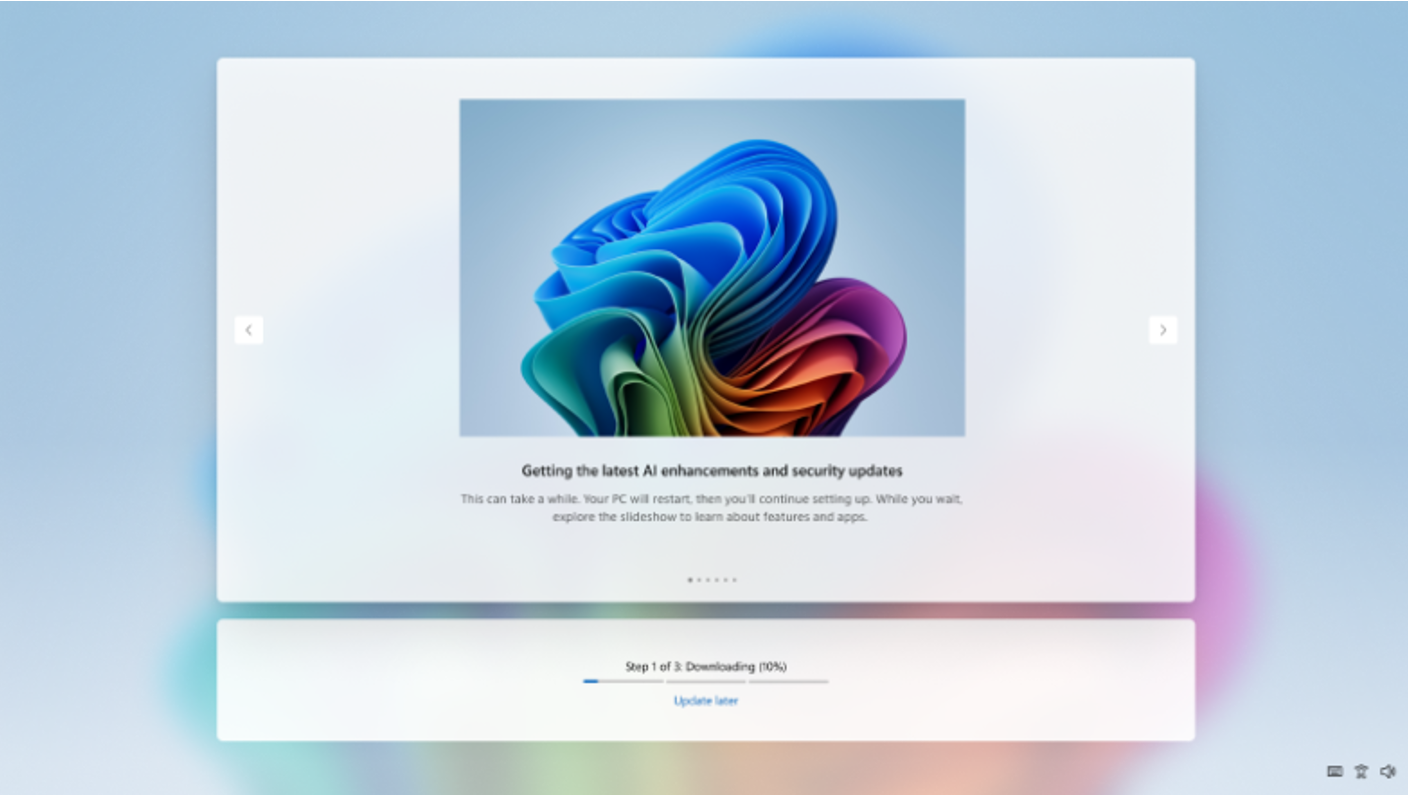
*Note – this is not applicable to commercial devices where the out of box experience is being managed or in select cases where updates are required for the device to be functional.
2. New controls for pausing updates
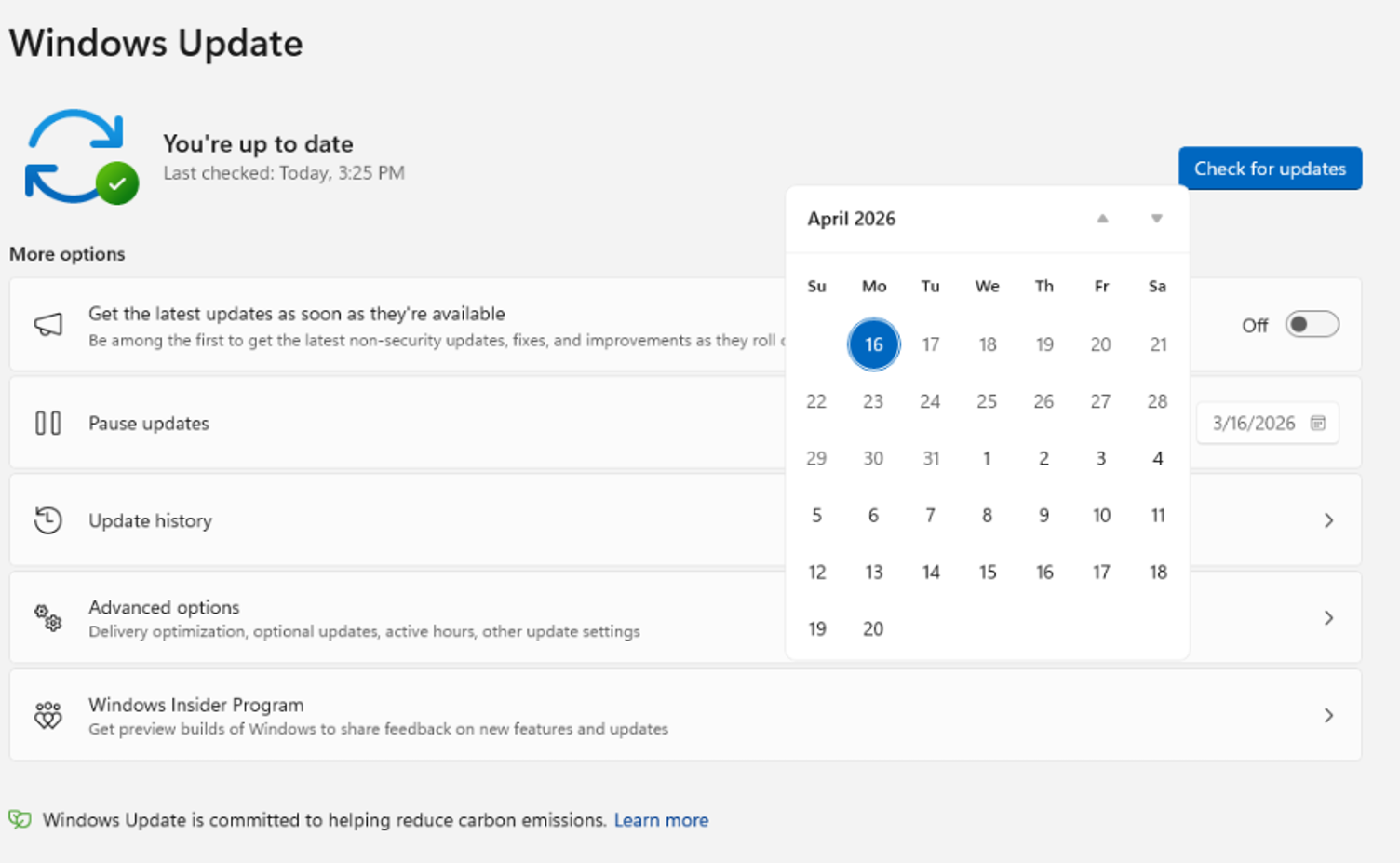
The Pause updates experience for Windows Update now puts you more in control. First, with a new calendar experience, you can choose a specific day of the month you want to pause until, up to 35 days, enabling you to plan around expected travel, conferences, exams, or even just busy weeks.
When 35 days just isn’t long enough, we are also enabling you to extend the pause end date as many times as you need. This means you can now re-pause for up to 35 days at a time, with no limits on how many times you can reset the pause end date.
3. Shutdown, Restart on your terms
Restarting or shutting down your PC should always be simple, predictable, and on your terms – even with updates waiting to be installed.
We’re improving this experience by clearly separating power actions from update actions. With this change, the Power menu will always show the standard Restart and Shut down options, meaning you will always have a choice to just restart or shut down your device without having to install the pending update. At the same time, update‑specific choices like Update and restart and Update and shut down will still be available when applicable. This gives you four clear options—and full control over what your device does next.
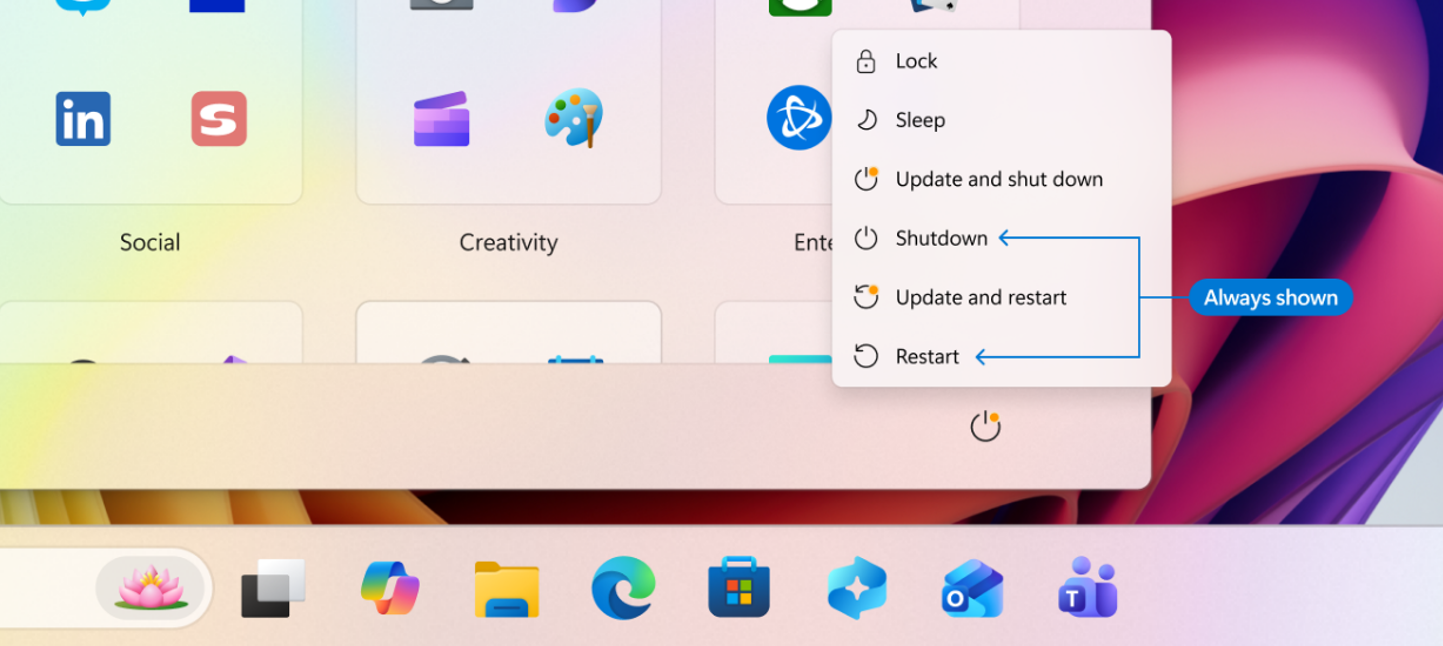
If you choose Restart or Shut down, Windows will perform exactly that action, without unexpectedly starting an update. If you’re ready to install updates, you can explicitly choose one of the update options.
After a restart, Windows will attempt to restore previously opened applications faster, allowing users to return more easily to what they were working on.
This change is about is about making the Power menu more predictable, so when you need a quick restart or want to power off before heading out, Windows does exactly what you expect.
4. More insights on available updates
One of the key pieces of feedback after moving to simplified update titles at the end of 2025 was an ask to better understand driver updates. Often, driver updates would have similar, if not identical, titles. To help provide you with more insights, we have added the device class to the driver title – ensuring pending or installed driver updates clarify whether they apply to display, audio, battery, extension, HDC, or other applicable driver update classes.
Fewer disruptions
There are few things more frustrating than sitting down to use your computer, only to find that it requires an update. Worse, is when this happens multiple times in a given month.
We know this has been a major pain point for Windows users, so as of today, we’re unifying the update experience to reduce the number of reboots you see every month.
We are starting by coordinating driver, .NET, and firmware updates to align with the monthly quality update, reducing update experience to a single monthly restart.
Windows quality updates include monthly security updates, emergency out-of-band (OOB) updates, and optional non-security updates if initiated by the user. For Windows Insiders in Experimental and Beta you will note weekly updates, Persistent Seekers in retail will see bi-monthly updates, and retail users who have not opted to get any updates early will see monthly reboots.
For users checking out the Settings > Windows Update page, you will see all of these updates collapsed into a single Available updates section.
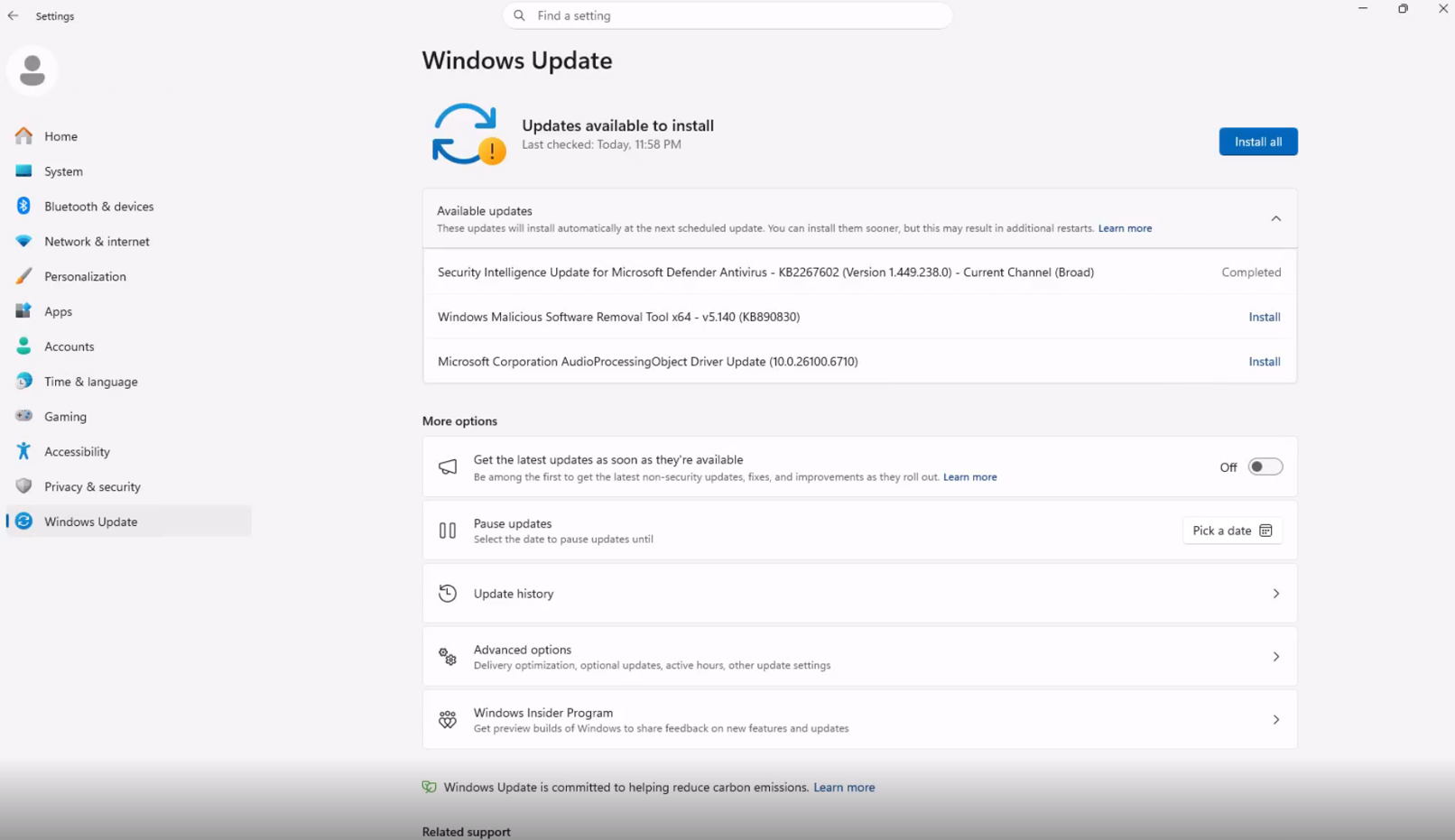
Updates will download in the background, then will wait for a coordinated installation and restart. This installation and restart will align with the next Windows quality update or other update that you manually approve.
Users can always acquire all or specific updates earlier if desired by initiating download, install, restart (if applicable) for available updates. If none of these actions are taken, updates will be downloaded in the background and applied alongside the next scheduled Windows quality update.
Keeping you secure, by default
In line with Microsoft’s Secure Future Initiative, Windows is grounded in keeping devices secure by design and secure by default, getting Windows devices onto the latest security update shortly after its released. However, we know sometimes users hit issues when attempting to take these security updates due to bandwidth constraints and update failures.
Over the last few months, we have made steady progress in reducing the download and overall time it takes to apply a Windows update and will continue to work toward reducing overall update time over the course of this year. These improvements are particularly impactful for devices that spend less time online or in areas with poor connectivity, leading to higher rates of update success.
Further, we are ensuring devices stay secure by default through automatic recovery for update failures – taking additional steps in the background to help the update complete successfully without user intervention. This means your device will automatically attempt to recover from installation failures in real time – causing some updates to take longer to complete, but ensuring they have a higher success rate.
Stay protected, with more flexibility
Updates are a critical part of helping keep your device secure and protected, and with these changes you now have more flexibility to take these updates on your terms. As always, we recommend taking these updates shortly after they are released to keep your device and your data secure.
We are excited for these changes to reduce disruption and provide you with more control to all now be available, with many beginning to roll out to devices in the Dev Channel and the new Experimental channel today, which also starts rolling out today.
We will have more to share around how these features will light up for commercial customers and the controls that will be available for admins around them soon.
None of this would have been possible without your feedback, so please keep it coming!
Thank you!
Aria
Twitter (X): @AriaUpdated