

Improving File Explorer & Context Menu: faster, simpler, and more customizable
Hi Windows Insiders,
File Explorer is one of the most used experiences on Windows. It’s where you get work done: organizing files, finding what you need, and moving content seamlessly across local storage and the cloud.
Earlier this year, we shared our commitment to improving Windows quality, with a focus on performance, reliability, and craftsmanship. In File Explorer, that means investing in the foundational work needed to improve the experience end-to-end: reducing hangs and delays, improving responsiveness and reliability, addressing customer-reported issues, and removing friction from everyday tasks.
But quality is also about continually evolving the experience to feel more modern, intuitive, and efficient for the millions of people who rely on File Explorer every day.
Today we’re sharing progress on both fronts. Alongside continued investments in File Explorer performance and reliability, we are introducing a substantially redesigned context menu experience that’s faster, simpler, and more customizable than ever before. This new context menu experience is now rolling to Windows Insiders and represents one of several major improvements underway as we continue to modernize File Explorer.
Fewer bad moments
What people remember most are the worst moments. A single freeze while renaming a file, a slow right-click, or a Home view that flashes and reloads can outweigh dozens of smooth interactions.
That reality has guided our approach to improving File Explorer. We focused on the everyday experiences people rely on most and set clear goals to make those interactions faster, more reliable, and less disruptive.
Improving the moments that matter most
We’ve profiled and invested in improving the performance and responsiveness of File Explorer. File Explorer now launches faster, and the overall experience feels more consistent and predictable.
We’ve analyzed the issues behind many of the freezes, hangs, and delays users encounter, and eliminated dozens of potential stalls and interruptions in the experience. As a result, you’ll see fewer freezes and flashes when browsing, renaming files, navigating, or selecting multiple files.
There are many more improvements to come, and these changes are designed to reduce disruptions and make File Explorer feel more responsive and reliable day to day.
Improving the details that matter every day
Our work extends beyond performance and reliability improvements. Many of the requests we hear from customers aren’t about major new features, they’re about the small interactions that happen every day. We’ve continued refining File Explorer based on that feedback, removing friction and improving the details that help make everyday tasks feel more natural and predictable.
For example, file renames no longer get interrupted by background file synchronization, and case-only filename changes now appear immediately.
We’ve also improved navigation workflows. The Address Bar now supports a wider range of inputs, including paths with quotation marks and double backslashes. Support for opening folders in a new tab with a middle-click has also been expanded to the Address Bar and Home page folders, making multitasking faster and more intuitive.
Smaller usability improvements add up as well. Home now preserves whether sections are expanded or collapsed so you can pick up where you left off. File sizes are now displayed using appropriate units such as KB, MB, and GB, making them easier to understand at a glance. The Details pane has been reorganized so file properties are easier to find and review.
Many of these improvements came directly from customer and Windows Insider feedback. They represent just the beginning of our ongoing effort to improve the everyday experiences people depend on most.
Putting you in control of the context menu
Right-clicking is one of the most common actions in Windows. If it doesn’t work as intended, or is difficult to navigate, it can derail your workflow.
When we launched Windows 11, we introduced a new context menu with a modernized design, improved organization, and a new approach to application extensions.
Over time, though, the menu became cluttered and sluggish, and we recognized the need to dramatically reduce the time between right-clicking and having a menu that’s fully ready to use.
Today, we’re excited to announce an updated context menu that delivers a faster, simpler, and more customizable experience. The new design reduces top-level clutter, keeps commonly used actions easy to access, and introduces a new Settings experience that gives you more control over what appears in the menu.
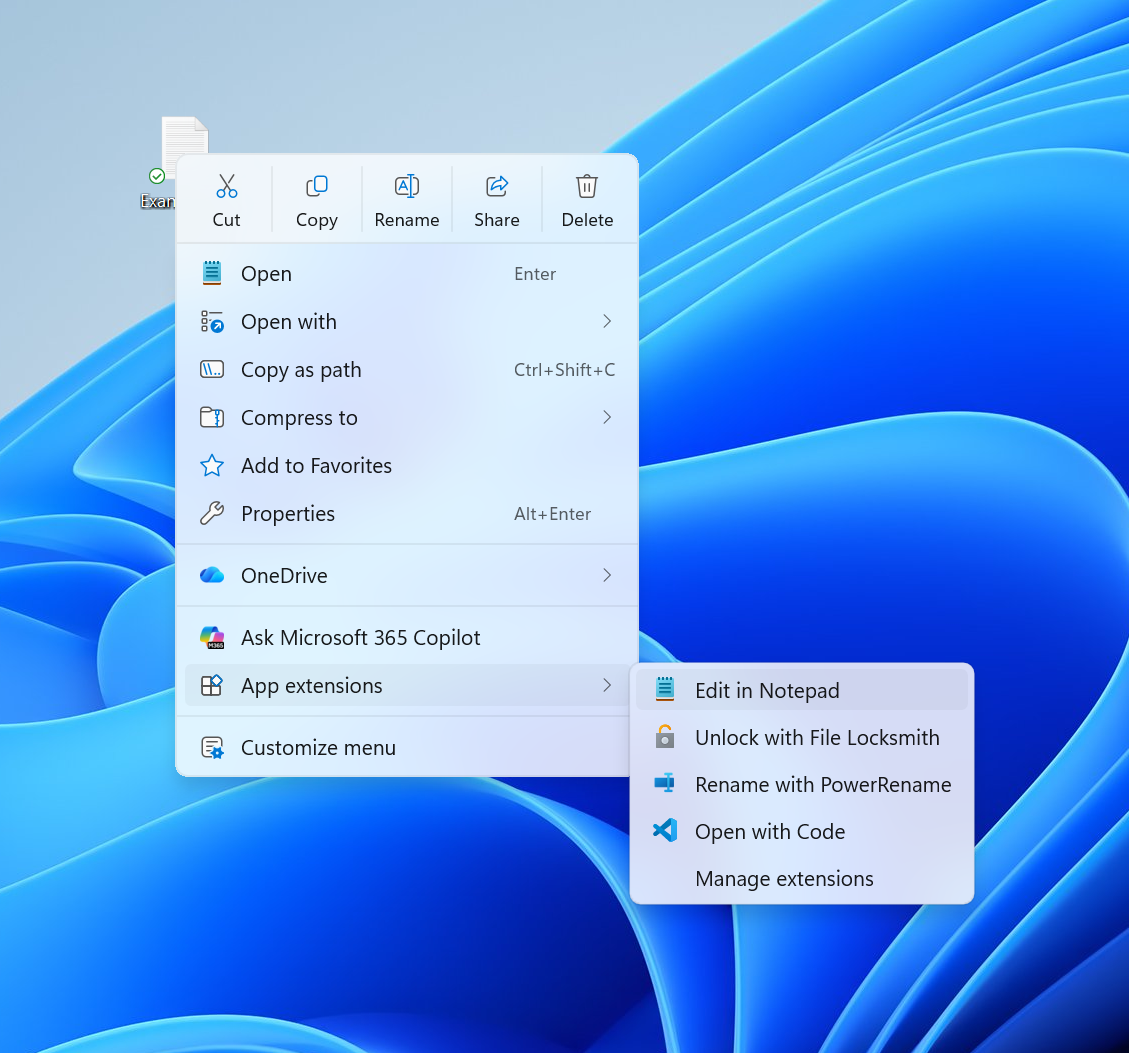
Faster to open
The first thing you’ll notice is that the menu opens much more quickly. For something used as often as the context menu, speed is part of good design. A lot of that comes from behind-the-scenes engineering improvements, and a good part comes from a cleaner default menu, with the full set of options just a click away in Settings.
Clutter isn’t only a visual problem; it slows the menu down because every app that adds its own options can make the menu do extra work each time it opens.
Your menu, your control
Part of the broader push we’re making across Windows 11 is making the operating system calmer by default, with more personalization and control.
Each person uses the context menu in different ways, so we’re adding more customization to allow you to choose the layout that works best for you.
At the bottom of the new context menu, you’ll now find “Customize menu”, as a shortcut to its Settings page, where you can shape the menu around your preferences, your habits, or the years of muscle memory you’ve built with a specific configuration.
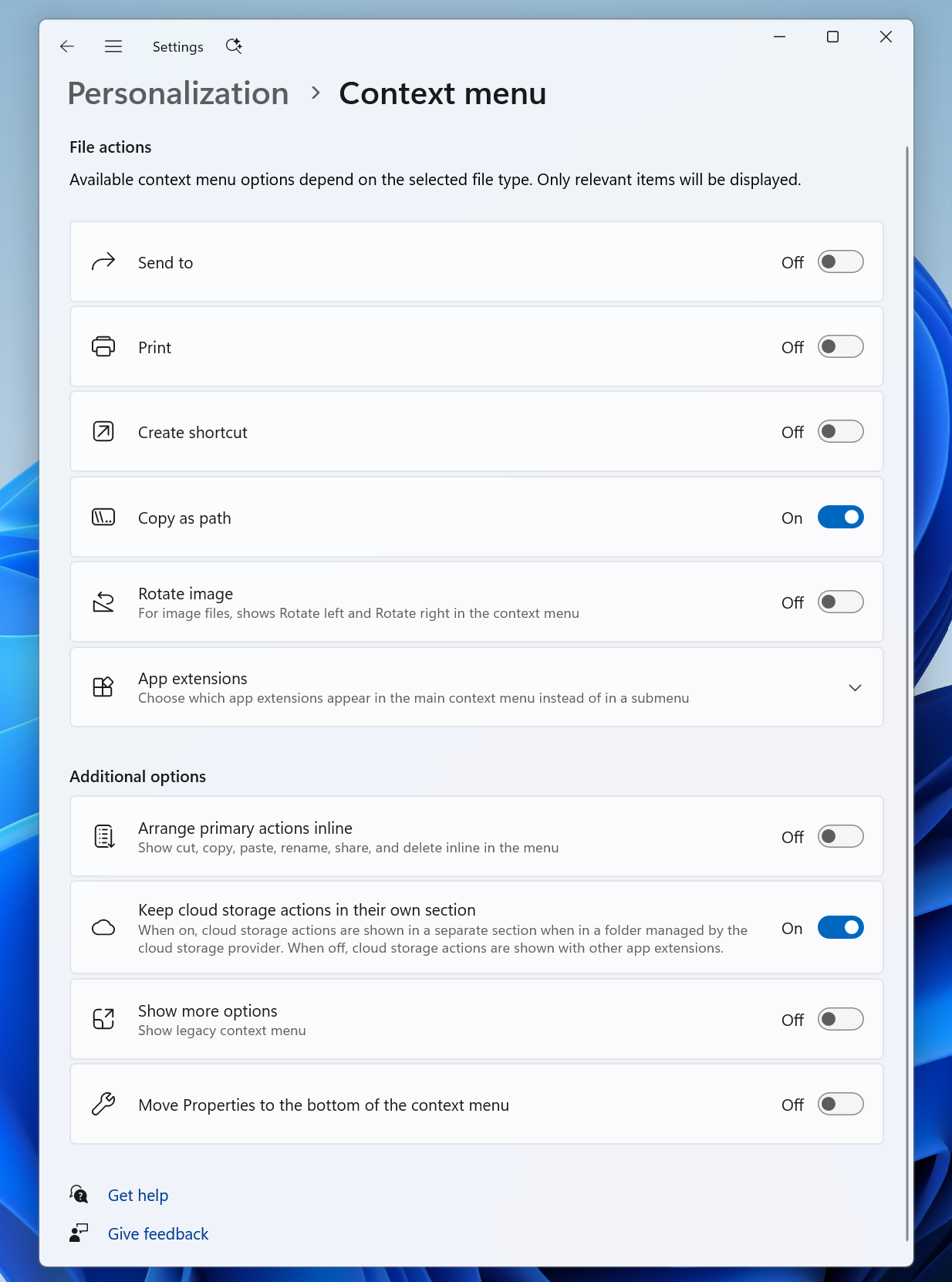
The top section lets you turn built-in Windows commands like Send to or Create shortcut on or off. Some of these commands, like Print, weren’t available in the Windows 11 context menu before and can now be switched on if you want them.
The next section is about options for app extensibility, so you can choose which app extensions appear in the main menu or submenu, including hiding the submenu altogether.
Finally, the last section is about where the most common commands live. We know many people have years of muscle memory from the Windows 10 menu, so we’ve added options to bring that feel back. You can list the main commands (Cut, Copy, Paste, Rename, Delete, and Share) inline directly in the menu instead of as a row of icons, and you can move Properties down to the very bottom.
As we continue refining this experience with Insider feedback, our goal is to make right-click feel more responsive, predictable, and personal.
Building a healthier File Explorer for the long term
We are committed to continue doing the hard work and consistently improving File Explorer month after month. Not every update will be obvious on its own, but together they should make File Explorer feel faster, polished, and more dependable across tasks users do most.
Your feedback continues to shape every step of this journey. Keep it coming through Feedback Hub, and we’ll continue sharing our progress as this work evolves.
The File Explorer team