

Windows Photos adds new Microsoft Designer integration
Hello Windows Insiders,
Today we are introducing the ability to send an image from the Photos app to Microsoft Designer, a cloud based graphic design app that helps you create professional quality social media posts, invitations, digital postcards, graphics, and new visuals with the power of generative AI. This update is available on Windows 11 to start, and is currently limited to users within the US, UK, Australia, Ireland, India, and New Zealand. We are starting to roll this out to Insiders in the Canary and Dev channels.
Photos app integration with Designer
We’re adding a new way to unlock the creative potential of your images through Designer. Simply click the Designer button in the title bar when viewing a single image in the Photos app, and your image will open Designer in the default web browser.
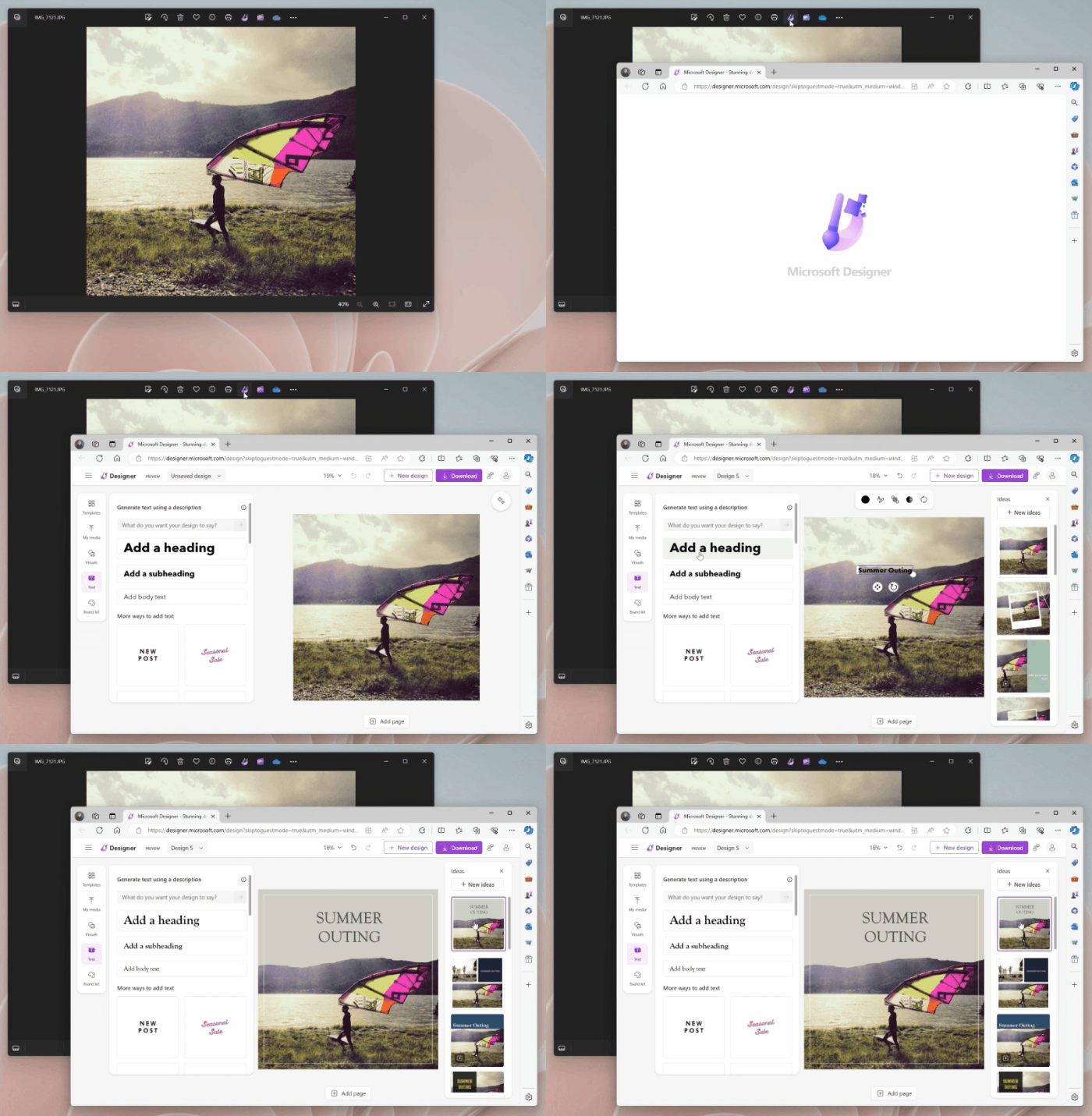
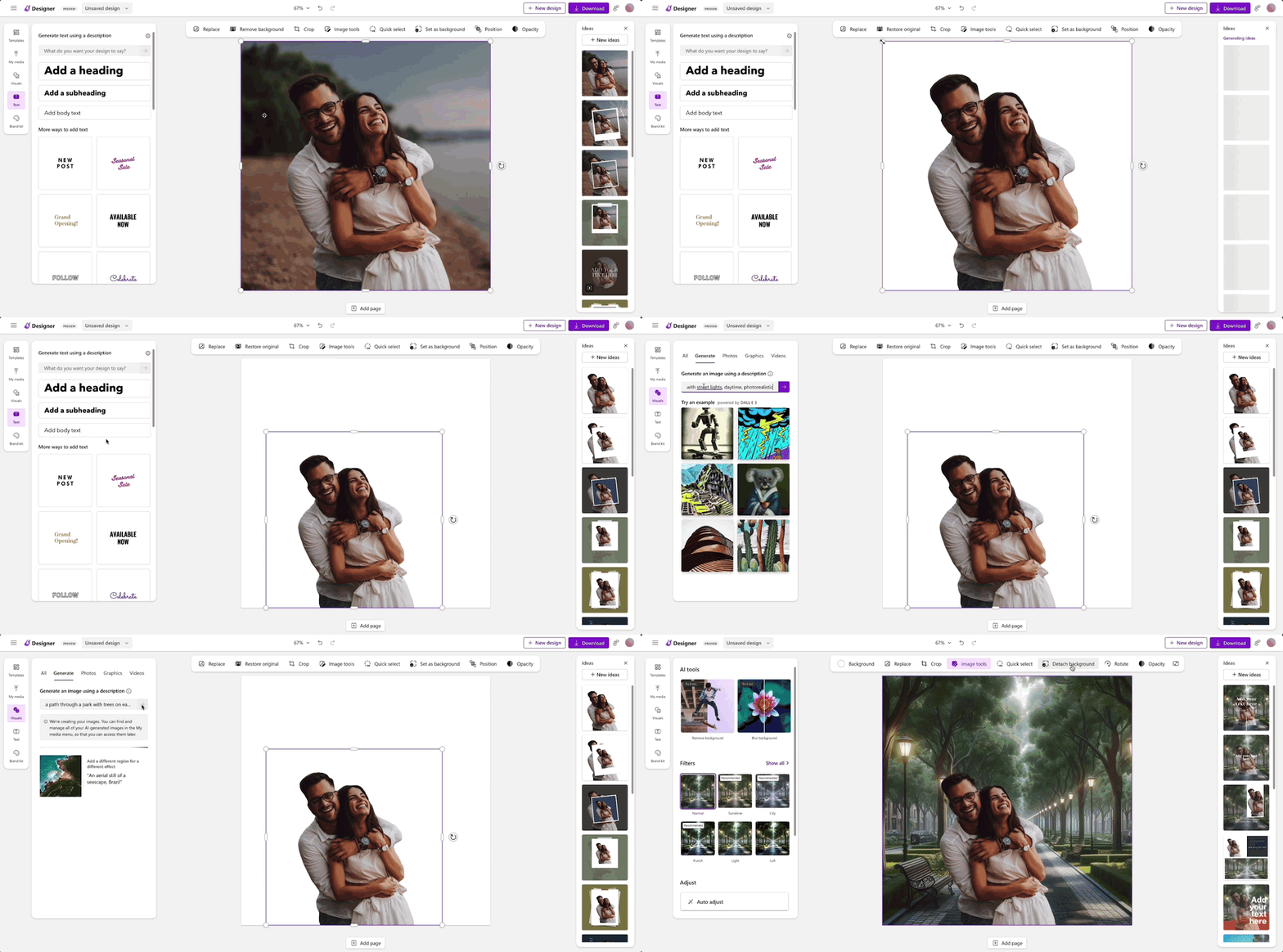
Once in Designer, you can apply templates, add visuals, and use AI tools to help you personalize your photo further. For example, try using AI to generate a new custom background for your photo using these simple steps:
- With your photo selected, click on “Remove background” in the toolbar.
- Click Visuals in the left pane and select Generate to create a custom image background from a prompt.
- Click on the desired generated image to insert it on the canvas.
- From the toolbar, select Set as background to place the generated image behind your photo.
To get the latest Photos experience, update your app to version number 2024.11040.16001.0 or higher. Sign in with a free personal Microsoft account to try Designer’s generative AI features currently in preview, as well as share your creations. We appreciate your comments and suggestions, so please share your feedback with us!
FEEDBACK: Please file feedback in Feedback Hub (WIN + F) under Apps > Photos.
Thanks,
Mala Srivatsa, Senior Product Manager – Windows Photos