

Sharing files between your iPhone® and Windows PC rolling out to Windows Insiders
Hello Windows Insiders,
Today we are beginning to gradually roll out the ability to seamlessly share files between your iPhone® and Windows 11 or Windows 10 PC when they are connected via Phone Link and the Link to Windows app.
To use this feature, you’ll need to meet the following requirements:
- An iPhone® that is running iOS 16 or higher.
- The Link to Windows app on your iPhone (version 1.24112.73 or higher).
- Phone Link version 1.24112.89.0 or higher.
- You are registered for the Windows Insider Program.
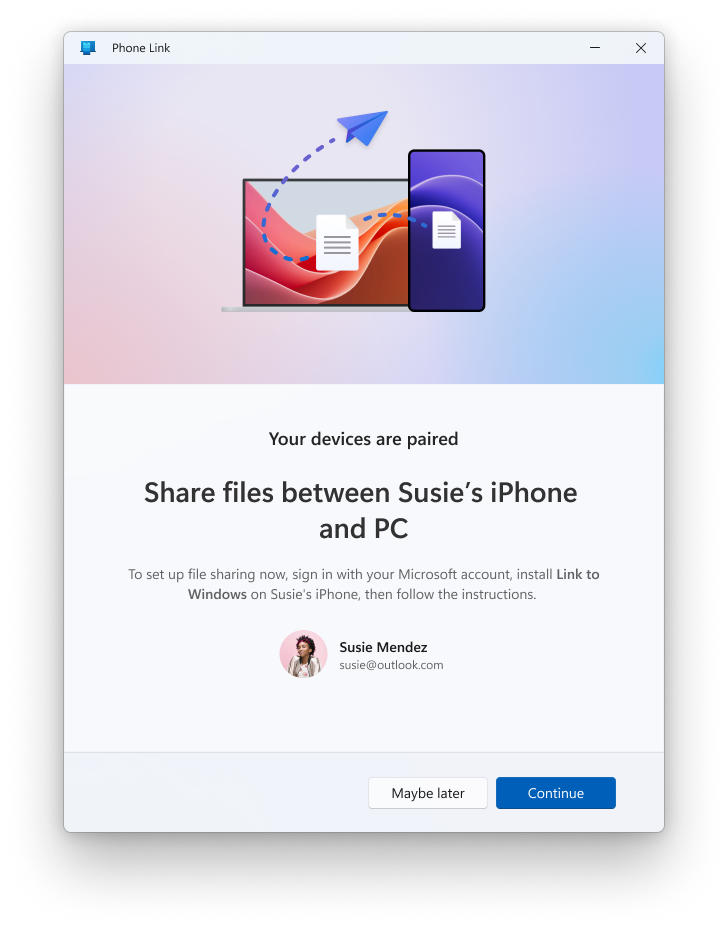
If you haven’t used your iPhone® with Phone Link before, you’ll be offered file sharing during the Phone Link setup process.
If you already have your iPhone® paired with Phone Link, you can set up file sharing by going to aka.ms/addAccount on your PC.
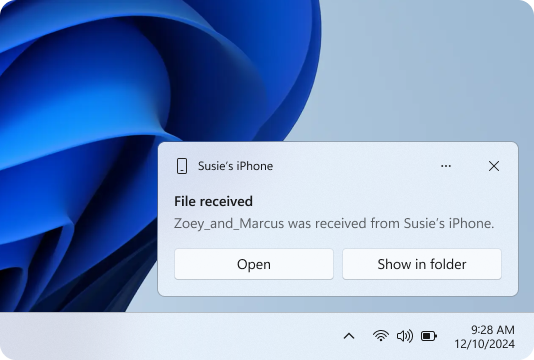
To share a file from your iPhone® to your PC:
- Navigate to a file or set of files you want to share on your iPhone®.
- Tap the share icon.
- Tap “Link to Windows”.
- Tap the device you would like to share your file or files with.
To share a file from your PC to your iPhone®:
- Select the file or files you want to share on your PC (local files only).
- Right-click on the file and select “Share.”
- Select “My Phone”
Note: If you do not see “My Phone”, select Phone Link.
Feedback: Please file feedback in Feedback Hub (WIN + F) under Apps > Phone Link.
Thanks,
Windows Insider Program Team
iPhone® is a trademark of Apple Inc.