

Interaction on a mobile device utilizes a series of finger gestures. Flicking, panning, pinching and tapping, for example, all require finger gestures to successfully navigate an experience. Given the amount of common controls provided by WP7, interactive elements are bound to share similarities in finger gestures. Understanding the use of common controls will ensure an application is free of conflict upon interaction.
Make your life easy
The WP7 SDK provides a set of controls common throughout the platform. Incorporating common controls within your application will save development time and maintain a consistent experience. Re-creating controls that mimic the aesthetics and behaviors may alter the interaction, degrading a familiar experience within the platform. Make your life easy—utilize the controls supplied with the SDK.
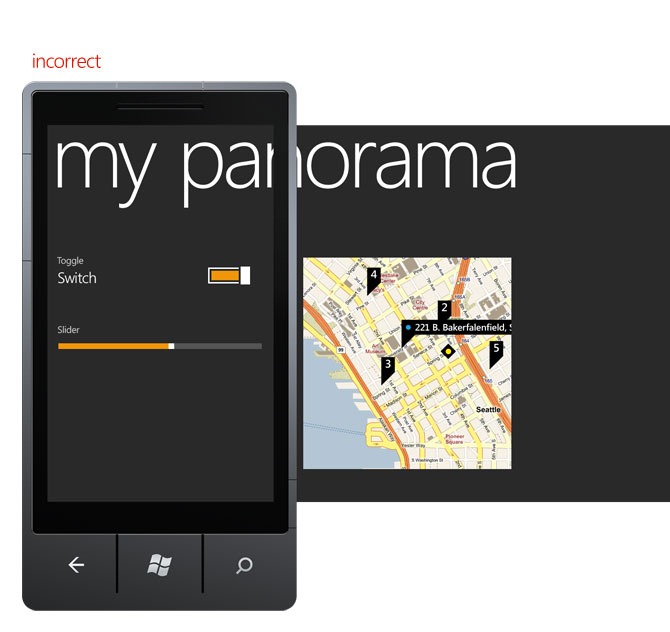
Use them right
Consider the interaction of controls before moving forward, doing so will avoid conflicting gestures. For example, placing a map control in a panorama. Both controls require the same finger gesture to swipe—interacting with one control could potentially override functionality and behavior of the other. Same thing applies for using the toggle or swipe controls on pages with pivots or panoramas.
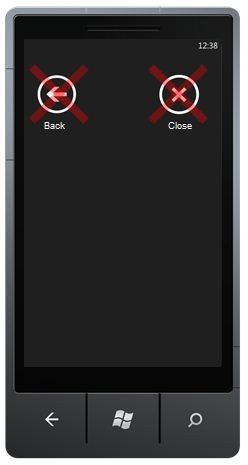
No “Back” or “Close” buttons
A good reminder also when talking about controls, “Back” and “Close” actions are handled by the hardware button therefore no visual affordances should be present within the interface.
Something that the usability guru Jakob Nielsen used to say about the web applies here as well; Users of your app will spend most of their time on other apps and will be expecting your app to behave like those. Those apps wouldn’t have “Back” or “Close” buttons so even if you believe your app needs it, refrain from use them.
– Alfred Astort
Follow the Windows Phone Design Team on Twitter: @WPdesignteam