Skip to main content Skip to main content Windows Experience Devices Windows Developer Microsoft Edge Windows Insider Microsoft 365 Microsoft 365 Azure Copilot Windows Surface Xbox Deals Small Business Support Windows Apps Outlook OneDrive Microsoft Teams OneNote Microsoft Edge Moving from Skype to Teams Computers Shop Xbox Accessories VR & mixed reality Certified Refurbished Trade-in for cash Xbox Game Pass Ultimate PC Game Pass Xbox games PC games Microsoft AI Microsoft Security Dynamics 365 Microsoft 365 for business Microsoft Power Platform Windows 365 Small Business Digital Sovereignty Azure Microsoft Developer Microsoft Learn Support for AI marketplace apps Microsoft Tech Community Microsoft Marketplace Marketplace Rewards Visual Studio Microsoft Rewards Free downloads & security Education Gift cards Licensing Unlocked stories View Sitemap

Windows 10 Tip: Personalize your PC with new themes in the Windows Store

Written By published June 26, 2017

Did you know Windows desktop themes are now free to download in the Windows Store with the Windows 10 Creators Update?


Choose from endless options to make your PC yours, including hundreds of wallpapers, sound options, and custom accent colors. Themes include plants and flowers, landscapes, animals, natural wonders, cityscapes – anything to suit your style. The photography, art, and illustrations you see come from creators across the globe.

Windows 10 is all about letting you express yourself and create, and customizing your PC is a great way to jump into the Creators Update.

Here’s how to find themes in Windows 10:

If you have the Creators Update, you can open Settings, select Personalization, Themes, and then the “Get more themes in the store” link – or, click here to go right to the Windows Store.
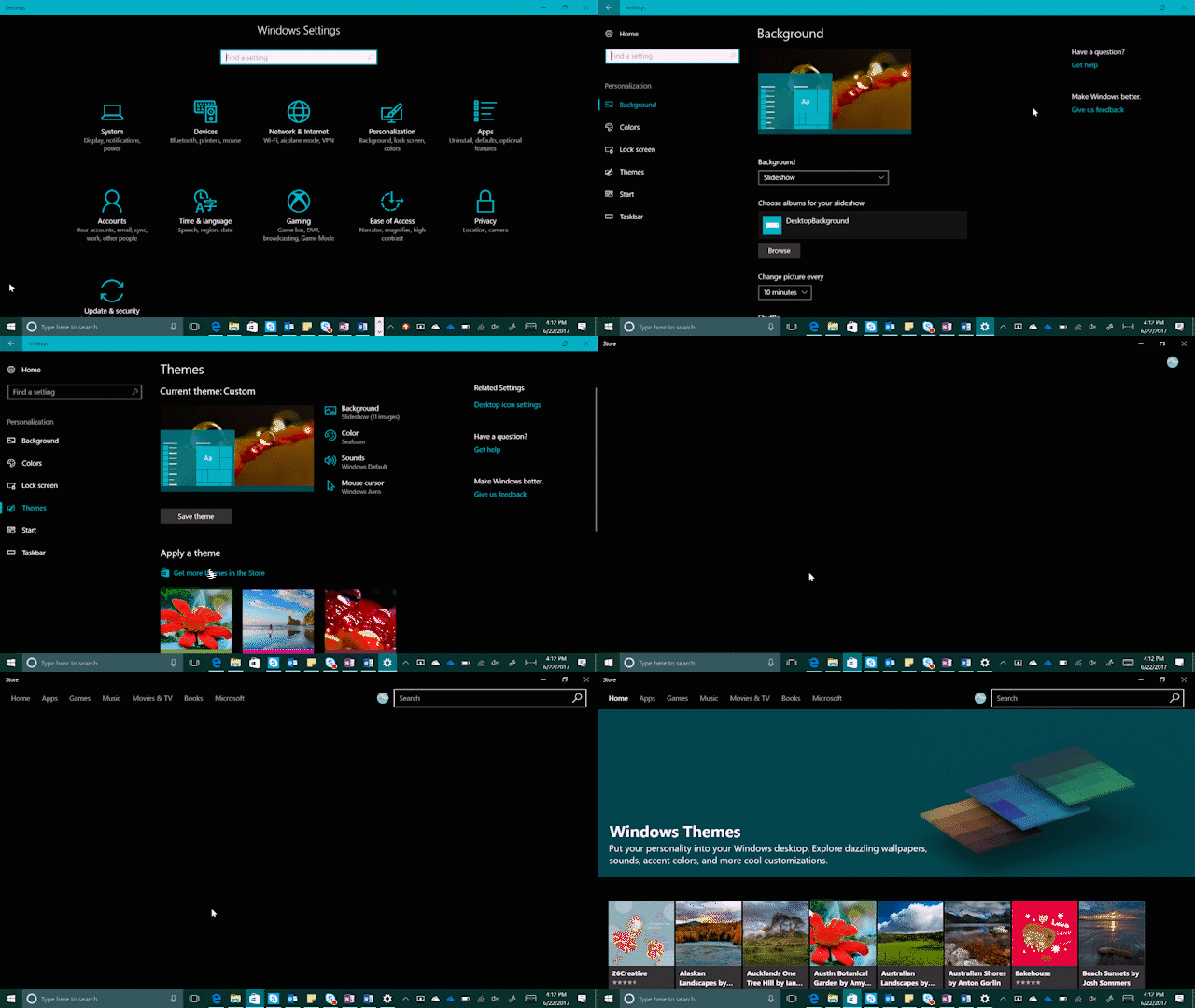
If you have the Creators Update, you can open Settings, select Personalization, Themes, and then the “Get more themes in the store” link

Once downloaded, you can launch your new theme from the Windows Store or click on it in Settings, Personalization, Themes, and Apply a theme.

That’s it! Download as many themes as you’d like.

The theme you choose will automatically assign an accent color to your desktop, but it’s easy to customize your own:

The theme you choose will automatically assign an accent color to your desktop, but it’s easy to customize your own: Open Settings. Select Personalization, then Themes. Select Color, then pick a color, any color!

Open Settings. Select Personalization, then Themes. Select Color, then pick a color, any color! Select Custom color for even more options.

Keep exploring the theme catalogue in Windows Store – we’ll add new themes in each Windows 10 update.

Have a great week!

Your Privacy Choices Opt-Out Icon Your Privacy Choices
Consumer Health Privacy Sitemap Contact Microsoft Privacy Manage cookies Terms of use Trademarks Safety & eco Recycling About our ads