

Windows 10 Tip: Make your movies and games sound better with Windows Sonic
Did you know that with spatial sound, you can experience more immersive audio with the flip of a switch?
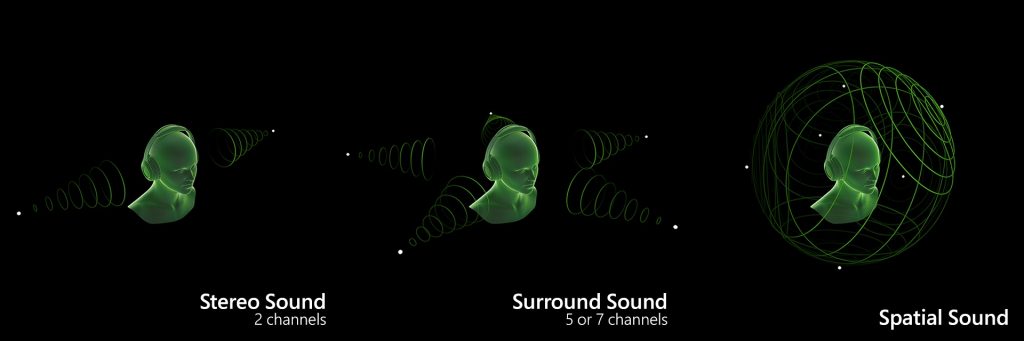
What is Spatial Sound?
Imagine watching a movie or playing a game and hearing helicopters not only fly around you, but also fly directly over you. With spatial sound you can! Spatial sound is an enhanced immersive audio experience where sounds can flow around you, including overhead, in three-dimensional virtual space. Spatial sound provides an enhanced atmosphere which traditional surround sound formats cannot.
With spatial sound, all your movies and games will sound better. Some games, movies, and shows can natively support spatial sound – which provides the highest level of audio immersion and location accuracy. Otherwise, any traditional surround sound content is automatically upscaled to also provide an enhanced audio experience.
What spatial sound formats does Windows support?
You can choose from three different spatial sound providers to hear the benefits: Windows Sonic for Headphones, Dolby Atmos for Headphones, and Dolby Atmos for home theater.*
Windows Sonic for Headphones can be used with any headphones, earbuds or headsets, and makes all your movies and games sound more immersive and enables games to place audio with pinpoint accuracy.
Dolby Atmos brings Dolby’s premium cinema experience to your home or to your device on the go. Dolby Atmos can be experienced over headphones or through your Dolby Atmos enabled home theater system, sound bar, or TV. With Dolby Atmos, you’ll be able to experience powerfully immersive and emotive audio in many of today’s blockbuster movies. Games that take advantage of Dolby Atmos provide new ways to heighten the experience for gamers with stunning detail, precision, and realism.
How do I get Windows Sonic for Headphones or Dolby Atmos?
Windows Sonic for Headphones is available out of the box as part of Windows 10. Simply follow the instructions below to enable it.
To enable Dolby Atmos, just download the Dolby Access app, available for free in the Microsoft Store. You can then enjoy your Dolby Atmos enabled home theater system, sound bar, or TV for free. To enable Dolby Atmos for Headphones, you can purchase it through the Dolby Access app for $14.99, which activates it on up to 10 devices (including Xbox One).
How do I enable Windows Sonic for Headphones or Dolby Atmos on my PC?
To enable spatial sound on your Windows 10 PC:
- Plug your headphones or Dolby Atmos capable audio-video receiver via HDMI to your PC.
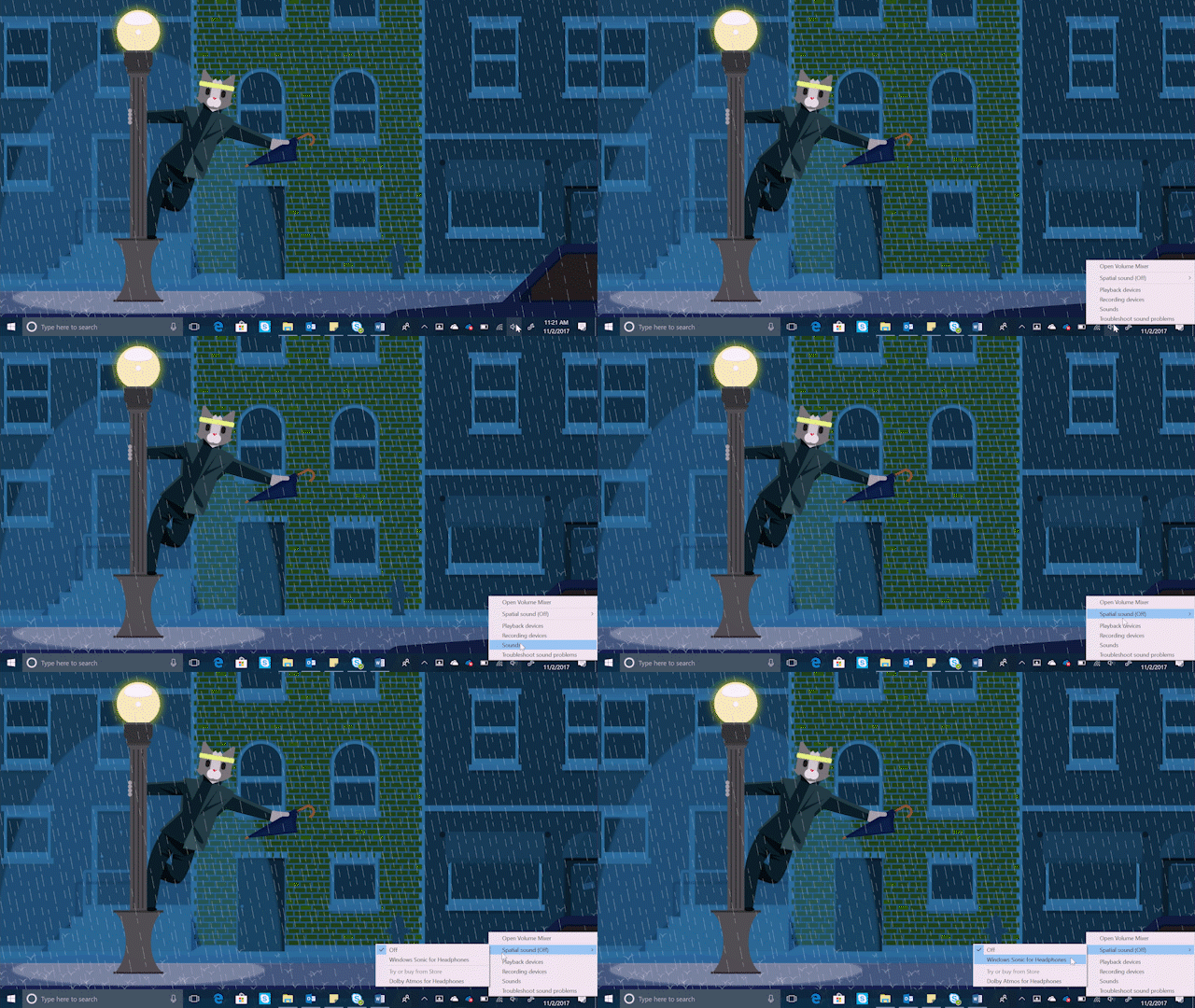
- Right click on the volume icon in the Task Tray, highlight the spatial sound provider you’d like to use. (Note: If you choose Dolby Atmos for Headphones or Dolby Atmos for Home Theater, you will be taken to the store to download the free Dolby Access From there you can follow the instructions to try or buy Dolby Atmos for Headphones or enable Dolby Atmos for Home Theater.)
- Start your favorite movie or game and enjoy!
*Available on select Windows 10 PCs running the Windows 10 Creators Update or higher.