Skip to main content Skip to main content Windows Experience Devices Windows Developer Microsoft Edge Windows Insider Microsoft 365 Microsoft 365 Azure Copilot Windows Surface Xbox Deals Small Business Support Windows Apps Outlook OneDrive Microsoft Teams OneNote Microsoft Edge Moving from Skype to Teams Computers Shop Xbox Accessories VR & mixed reality Certified Refurbished Trade-in for cash Xbox Game Pass Ultimate PC Game Pass Xbox games PC games Microsoft AI Microsoft Security Dynamics 365 Microsoft 365 for business Microsoft Power Platform Windows 365 Small Business Digital Sovereignty Azure Microsoft Developer Microsoft Learn Support for AI marketplace apps Microsoft Tech Community Microsoft Marketplace Marketplace Rewards Visual Studio Microsoft Rewards Free downloads & security Education Gift cards Licensing Unlocked stories View Sitemap

Windows 10 Tip: Get started with Continue on PC in the Microsoft Edge mobile app

Written By published December 4, 2017


You know those websites, searches and articles that you pull up on your iPhone or Android phone? With the Windows 10 Fall Creators Update, you can now forward them to instantly open on your PC, so you can continue what you’re doing – researching that project, shopping for those shoes, finishing that article – with all the benefits of the bigger screen.

Here’s how to get started:

Head to Settings, click on Phone and Add a phone. You’ll need to sign in with your Microsoft Account, if you haven’t already. Type your phone number, and click send.
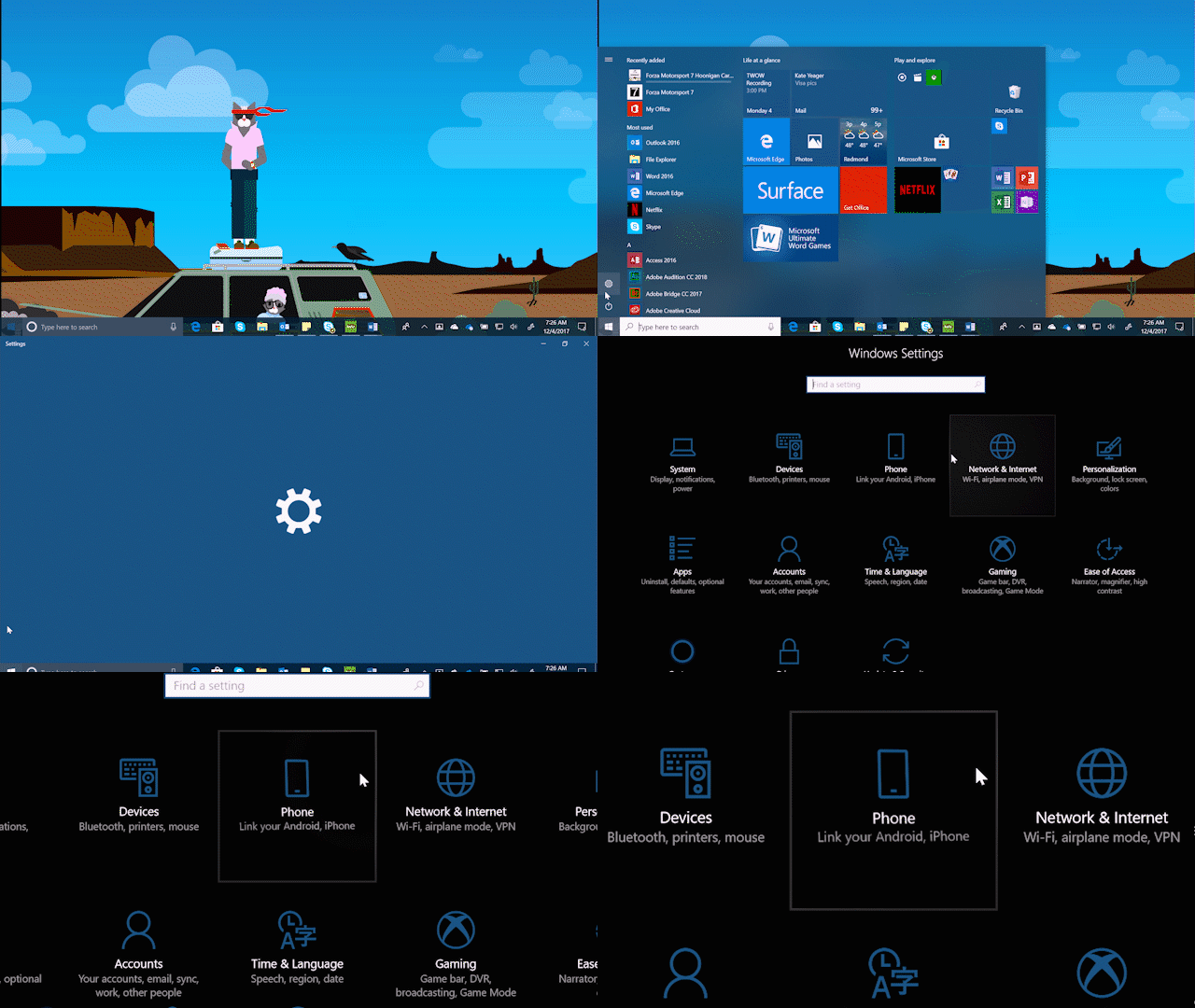
Continue on PC

Once you click send, you’ll receive a text with a link to the app store to download and install an app.

Now, for a seamless browsing experience across your phone and PC, you can download the Microsoft Edge mobile app for free and try out the Continue on PC feature this way! If you’re looking at a website in the app that you want to continue looking at on your PC, simply find the Continue on PC icon on your iPhone or Android phone. Sign in with the same Microsoft Account you’re using on your PC.

Continue on PC

Next it will ask you if you want to “Continue now” or “Continue later.” If you choose “Continue now,” the website will open on the linked PC. If you choose “Continue later,” the website will show up under Action Center for you to get to later when you’re ready.

Head over here for more on what’s new in the Fall Creators Update, and have a great week!

Your Privacy Choices Opt-Out Icon Your Privacy Choices
Consumer Health Privacy Sitemap Contact Microsoft Privacy Manage cookies Terms of use Trademarks Safety & eco Recycling About our ads