Skip to main content Skip to main content Windows Experience Devices Windows Developer Microsoft Edge Windows Insider Microsoft 365 Microsoft 365 Azure Copilot Windows Surface Xbox Deals Small Business Support Windows Apps Outlook OneDrive Microsoft Teams OneNote Microsoft Edge Moving from Skype to Teams Computers Shop Xbox Accessories VR & mixed reality Certified Refurbished Trade-in for cash Xbox Game Pass Ultimate PC Game Pass Xbox games PC games Microsoft AI Microsoft Security Dynamics 365 Microsoft 365 for business Microsoft Power Platform Windows 365 Small Business Digital Sovereignty Azure Microsoft Developer Microsoft Learn Support for AI marketplace apps Microsoft Tech Community Microsoft Marketplace Marketplace Rewards Visual Studio Microsoft Rewards Free downloads & security Education Gift cards Licensing Unlocked stories View Sitemap

Windows 10 Tip: Windows Ink directly in textbox, new in the Windows 10 April 2018 Update

Written By published July 16, 2018


If you prefer to ink instead of type, you can now use your digital pen to write directly in text fields for a more natural experience, thanks to the Windows 10 April 2018 Update.

Just tap a space, like a search box, and it expands to give you a comfortable area in which to write. You can even edit what you’ve written with simple, intuitive gestures.

Go to Settings > Devices > Pen & Windows Ink > select, “Write directly into text field” and then tap on a new text field to try the experience. This works with most Store apps, and also in the search field for the Store.

Here’s how to do it:
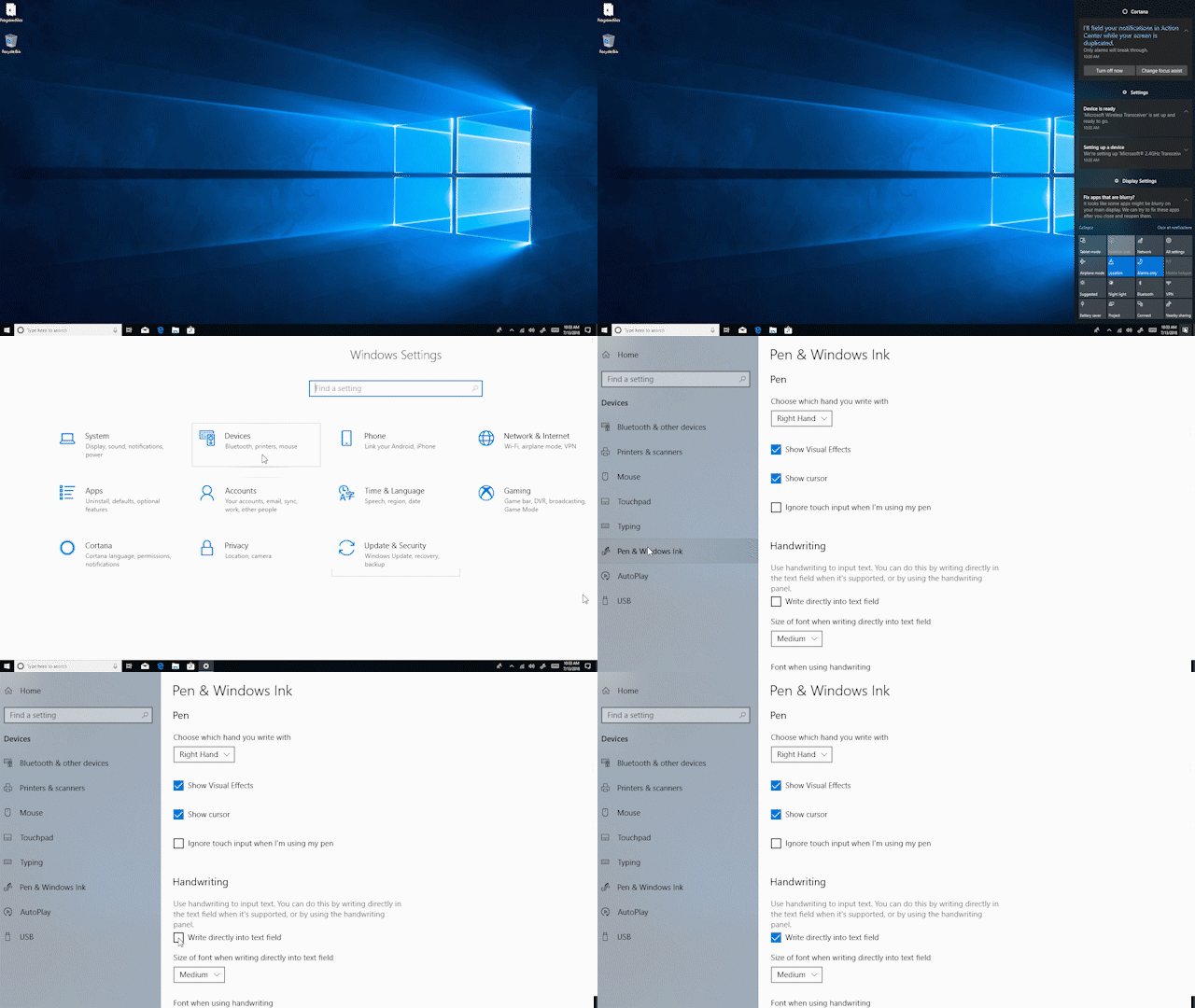
Gif shows the steps it takes it enable writing directly in a text field
Steps to enabling writing directly in a text field.
Gif of Microsoft Store and search box with someone writing in it instead of typing
Open a search box in an app such as Microsoft Store and it expands so you can write directly in it.

Touch-enabled device required; pen accessory may be sold separately. Tap to ink available in UWP and XAML fields. User must enable in pen settings.

If you like this, check out more Windows 10 Tips.

Your Privacy Choices Opt-Out Icon Your Privacy Choices
Consumer Health Privacy Sitemap Contact Microsoft Privacy Manage cookies Terms of use Trademarks Safety & eco Recycling About our ads