Skip to main content Skip to main content Windows Experience Devices Windows Developer Microsoft Edge Windows Insider Microsoft 365 Microsoft 365 Azure Copilot Windows Surface Xbox Deals Small Business Support Windows Apps Outlook OneDrive Microsoft Teams OneNote Microsoft Edge Moving from Skype to Teams Computers Shop Xbox Accessories VR & mixed reality Certified Refurbished Trade-in for cash Xbox Game Pass Ultimate PC Game Pass Xbox games PC games Microsoft AI Microsoft Security Dynamics 365 Microsoft 365 for business Microsoft Power Platform Windows 365 Small Business Digital Sovereignty Azure Microsoft Developer Microsoft Learn Support for AI marketplace apps Microsoft Tech Community Microsoft Marketplace Marketplace Rewards Visual Studio Microsoft Rewards Free downloads & security Education Gift cards Licensing Unlocked stories View Sitemap

Windows 10 Tip: Start, simplified

Written By published June 17, 2019


Editor’s note: We’re back with the summer batch of weekly Windows 10 tips posts, which highlight some of the many helpful features that come with the Windows 10 May 2019 Update. We’ve been working hard behind the scenes to make your daily life easier with a streamlined update process, as well as clean and simple experiences for your desktop.

If you feel like your life is too cluttered, some of you might find respite in the simplified Start layout that comes with the Windows 10 May 2019 Update.

New Windows 10 users – those who have new devices, new user accounts and clean installs – will see the new Start layout by default when they start up. Existing Windows 10 users who upgrade to the Windows 10 May 2019 update can choose to quickly uninstall apps or unpin groups of tiles, as they’ll see their original Start menu layouts carried over.

The simplified layout contains a sleek one-column design and fewer tiles.

Check it out in action:
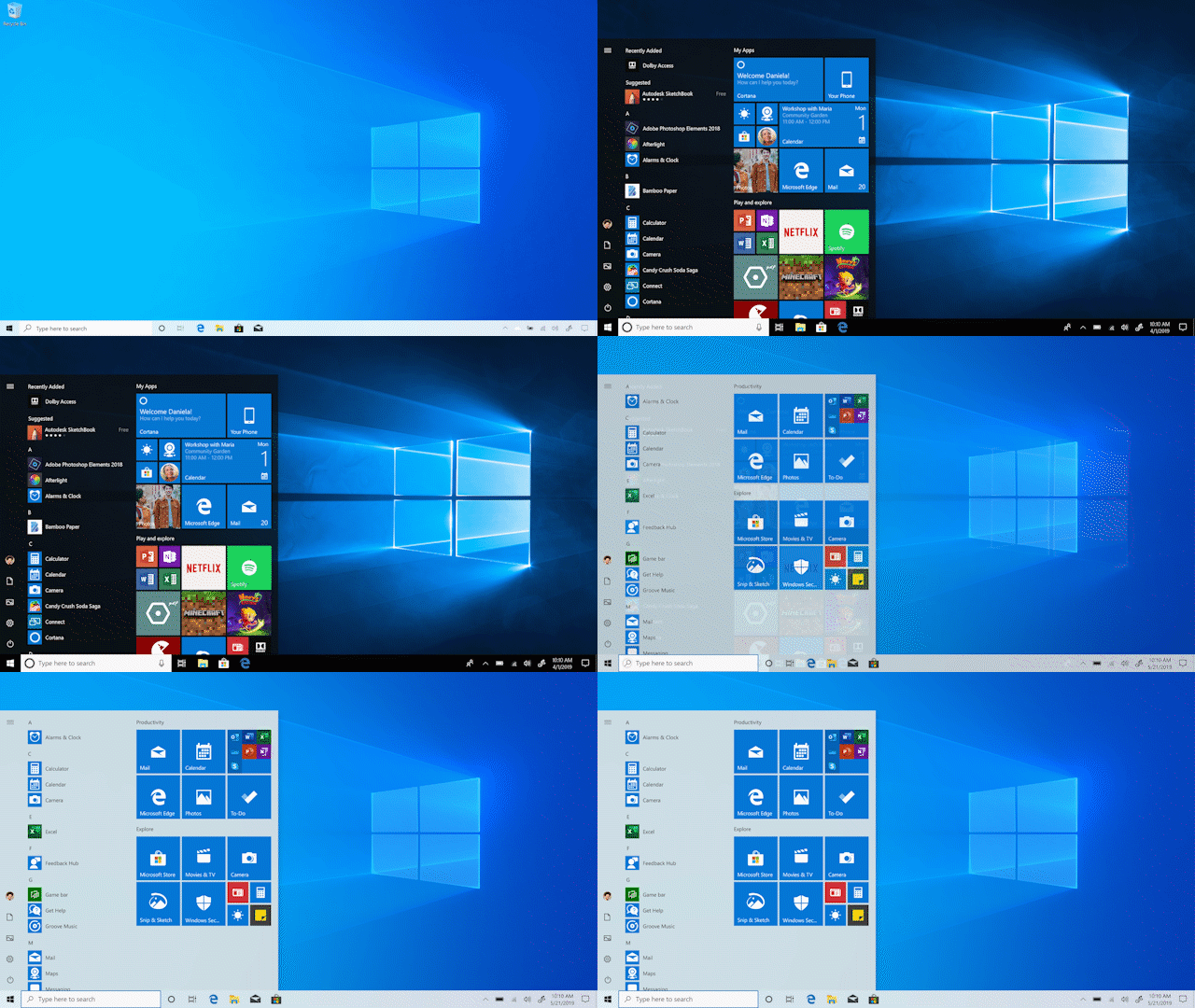
GIF of simplified Start menu

If you like this, check out more Windows 10 Tips.

Your Privacy Choices Opt-Out Icon Your Privacy Choices
Consumer Health Privacy Sitemap Contact Microsoft Privacy Manage cookies Terms of use Trademarks Safety & eco Recycling About our ads