

How to get the Windows 10 Anniversary Update
Starting today the Windows 10 Anniversary Update will begin rolling out for our customers around the world*. The Windows 10 Anniversary Update is full of new features and innovations that bring Windows Ink and Cortana** to life; a faster, more accessible and more power-efficient Microsoft Edge browser; advanced security features; new gaming experiences and more. The Windows 10 Anniversary Update will start rolling out to Windows 10 Mobile phones in the coming weeks.
The Windows 10 Anniversary Update is being rolled out to Windows 10 PCs across the world in phases starting with the newer machines first. You don’t have to do anything to get the Windows 10 Anniversary Update, it will roll out automatically to you through Windows Update if you’ve chosen to have updates installed automatically on your device. However, if you don’t want to wait for the update to roll out to you, you can manually get the update yourself on your personal PC. If you’re using a Windows 10 PC at work, you will need to check with your IT administrator for details on your organization’s specific plans to update.
Here are a couple ways you can manually get the Windows 10 Anniversary Update
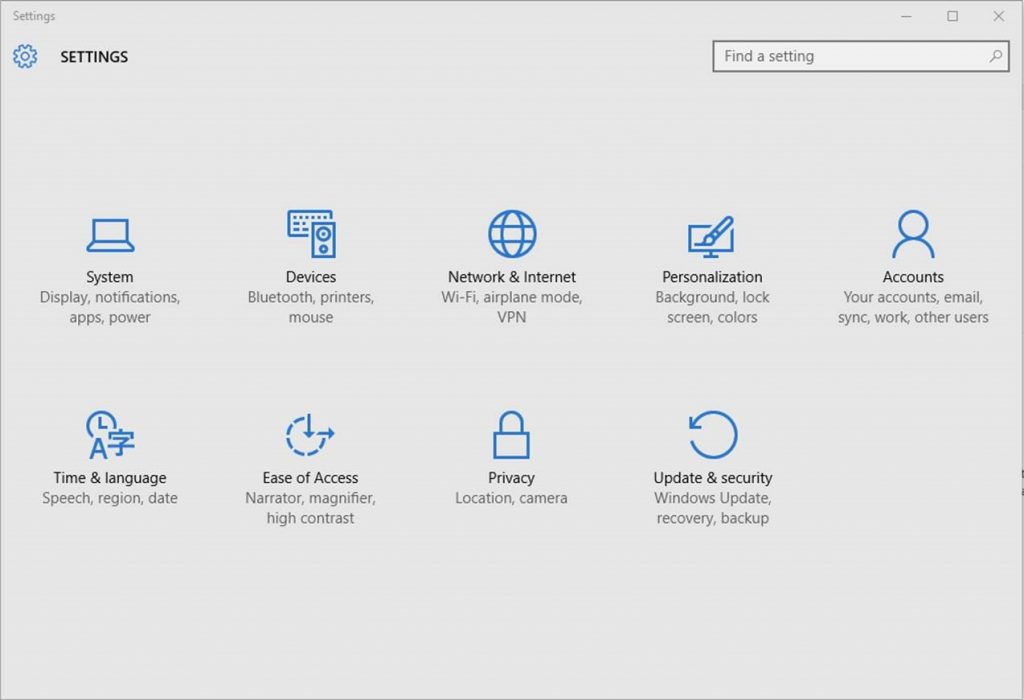
Go to Settings > Updates & Security > Windows Update
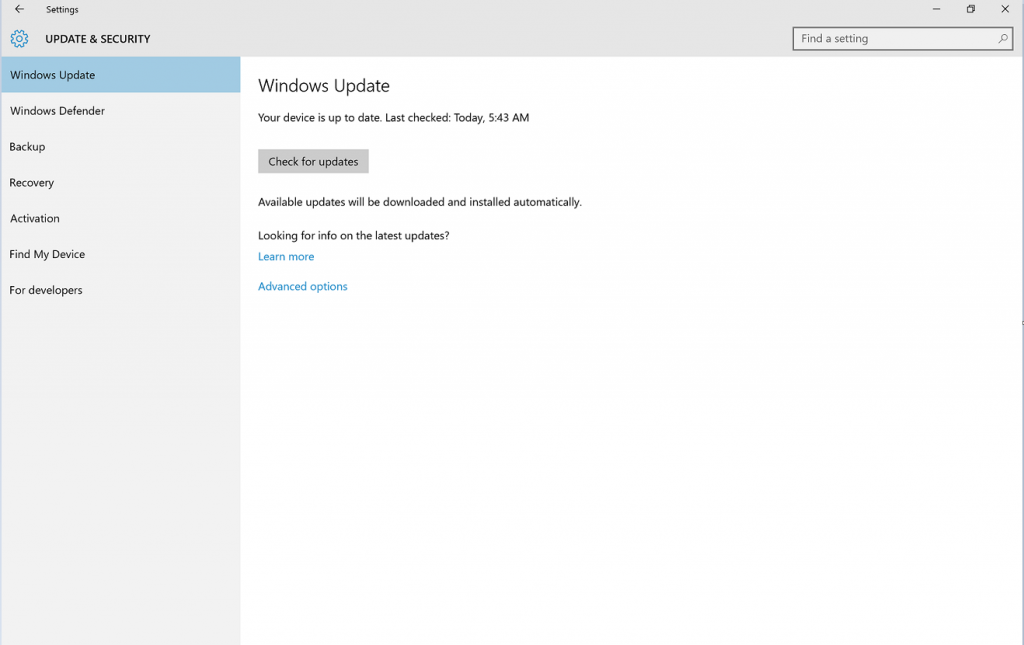
1. In Windows Update simply click Check for Updates.
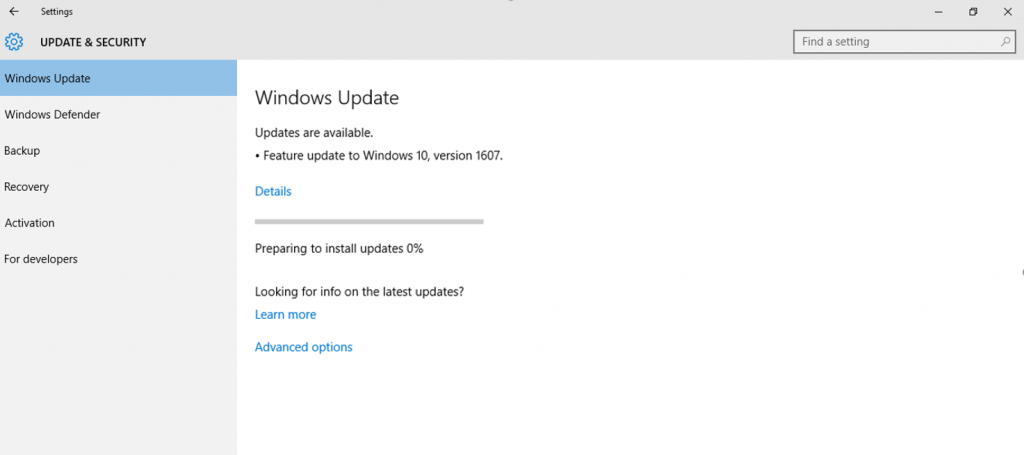
2. The Anniversary Update will appear as, Feature update to Windows 10, version 1607. Click update and the update will begin downloading and installing.
Another way to get the Windows 10 Anniversary Update will be by clicking “Learn more” just below the “Looking for info on the latest updates? In Windows Update.
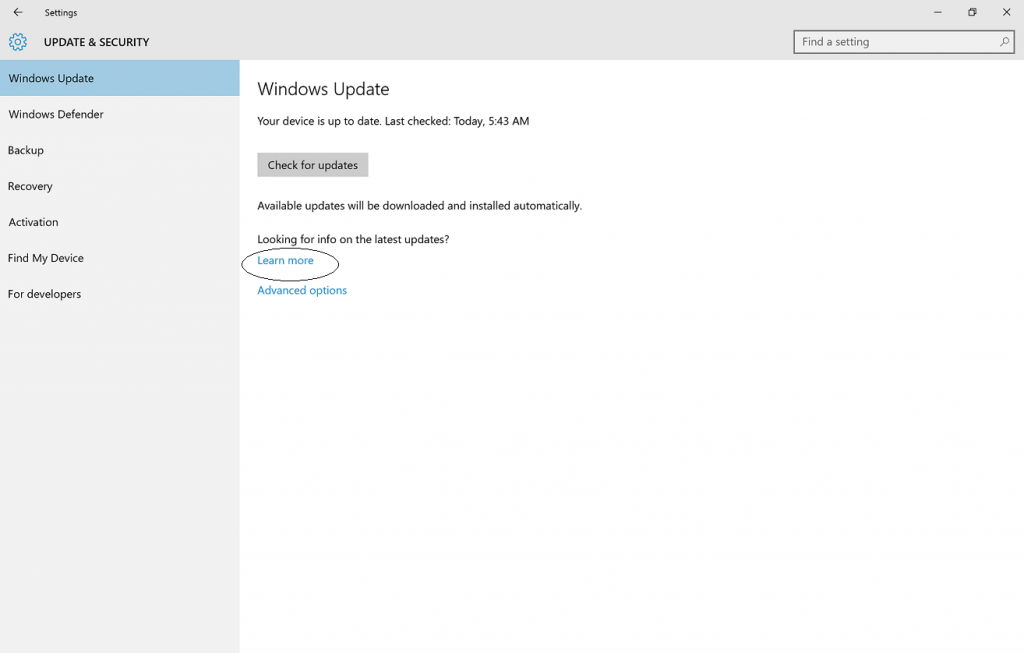
From there you’ll be taken to a support page on Microsoft.com that will allow you to download the ISO file to your PC.
We hope you enjoy the Windows 10 Anniversary Update!
*Windows 10 Anniversary Update will be available in all countries where Windows 10 is available.
**Cortana available in select markets


