Skip to main content Skip to main content Windows Experience Devices Windows Developer Microsoft Edge Windows Insider Microsoft 365 Microsoft 365 Azure Copilot Windows Surface Xbox Deals Small Business Support Windows Apps Outlook OneDrive Microsoft Teams OneNote Microsoft Edge Moving from Skype to Teams Computers Shop Xbox Accessories VR & mixed reality Certified Refurbished Trade-in for cash Xbox Game Pass Ultimate PC Game Pass Xbox games PC games Microsoft AI Microsoft Security Dynamics 365 Microsoft 365 for business Microsoft Power Platform Windows 365 Small Business Digital Sovereignty Azure Microsoft Developer Microsoft Learn Support for AI marketplace apps Microsoft Tech Community Microsoft Marketplace Marketplace Rewards Visual Studio Microsoft Rewards Free downloads & security Education Gift cards Licensing Unlocked stories View Sitemap

Windows 10 Tip: How to enable Windows Spotlight images on your lock screen

Written By published September 19, 2016


Today’s Windows 10 tip is all enabling beautiful photography to show up automatically on your lock screen with Windows Spotlight images. Windows Spotlight updates daily with images that highlight beautiful scenery from around the globe. Images are also selected to depict a spirit of action, whether it is discovery and exploration, creating, curiosity or fearlessness. Windows Spotlight is also used to help you get the most out of Windows, including sharing tips and tricks.

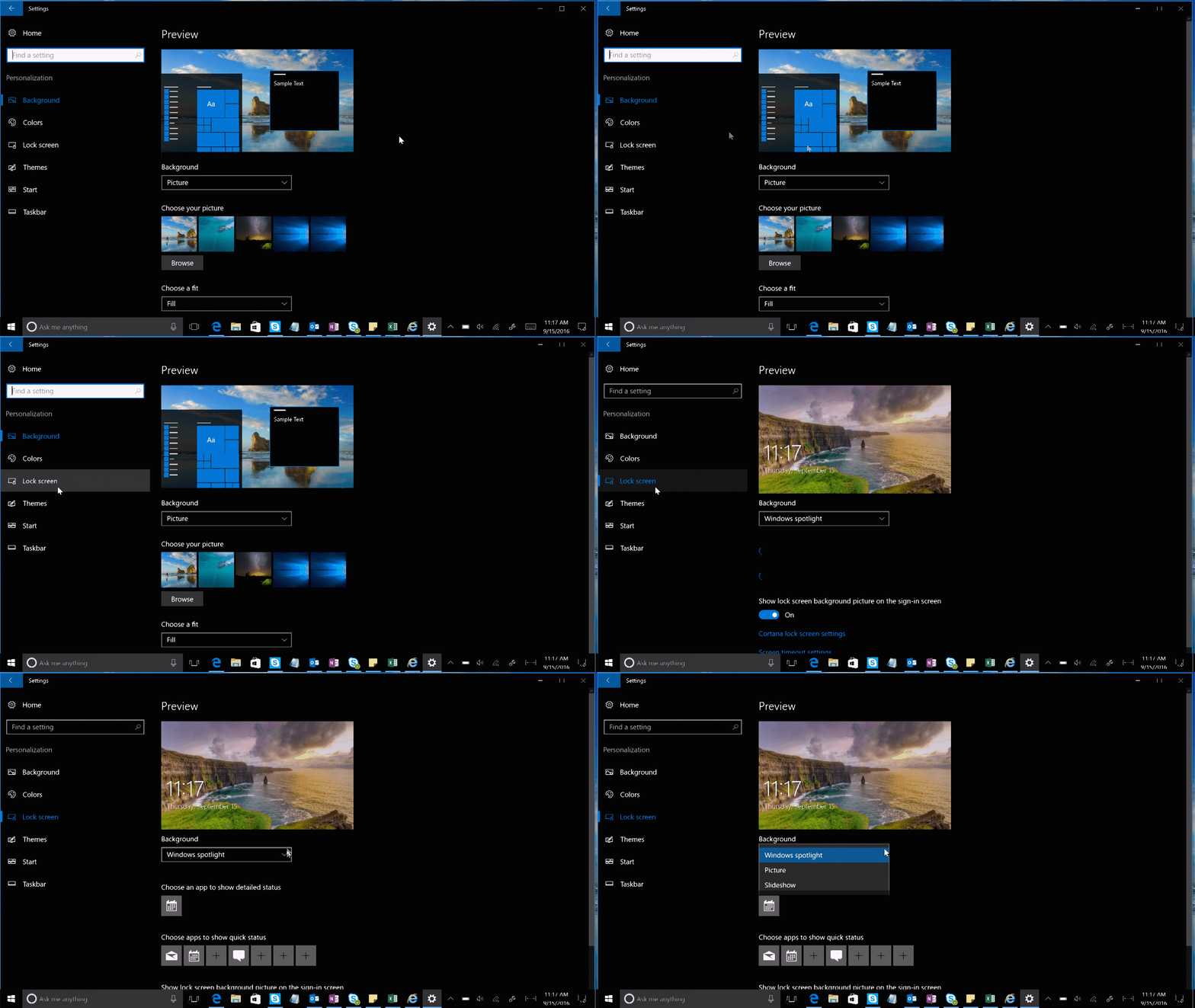
twow_ep8_windowsspotlight_5fps

To enable Windows Spotlight images on your lock screen simply head to Settings > Personalization > Lock screen and where you see the background drop down menu select Windows Spotlight.

Your Privacy Choices Opt-Out Icon Your Privacy Choices
Consumer Health Privacy Sitemap Contact Microsoft Privacy Manage cookies Terms of use Trademarks Safety & eco Recycling About our ads