

I used Search all the time in Windows 8. It was the easiest way to find just about anything on my PC. No matter where I was on my PC, I could swipe in from the right to bring in the charms and tap Search. Or even easier–just start typing from the Start screen.
I’ve been using Windows 8.1 for a few months now (the perks of working for Windows) and I’ve found that Bing Smart Search makes the Search charm I grew to love in Windows 8 even better.
Search everywhere with Bing Smart Search

What is Bing Smart Search? In Windows 8.1, when I tap on the Search charm and enter a term to search on, Bing Smart Search searches not only my PC, but also the web and SkyDrive, plus some apps and the Windows Store. I get a list of search results and suggestions as I type, or I can click the Search button to see all of the search results.
Automatic filtering
Filtering search results also works a little differently now—instead of leaving it to me to sort through filters, most of the work is done for me. If all my search results are in a single area, the filter is automatically applied, so searches are more accurate. However, if I know where I want to search, I can pick where to look, too, by clicking the arrow next to “Everywhere”:

The other day I was thinking about taking a trip down to San Diego. The last time I went, I ate some of the best burritos I’ve ever had in my life. I also remembered going to a beautiful park I couldn’t remember the name of. So, I opened the search charm and typed “San Diego.”
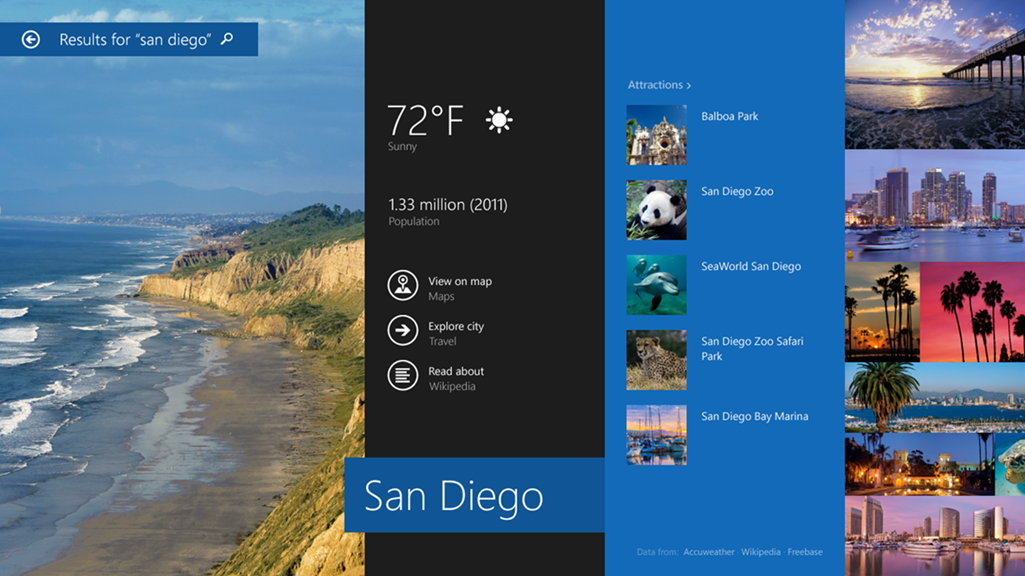
Look at that beautiful results page. I saw photos from around the city, a list of attractions (that place I couldn’t remember, Balboa Park, was at the top of the list), and the current weather. Quick links to seeing the city on a map, the Wikipedia article on it, and lots more information to scroll through.
Bing Smart Search is a great way to find what I need both on my PC and on the web. It helps me find documents, pictures, music, and web results in just a few taps or clicks. When I want to listen to an album, I just search for the album and launch it in the Xbox Music app right from the search results—I don’t have to open the Xbox Music app and search from there. Little efficiencies like that make using my PC feel faster, easier, and quite honestly, cooler than it ever has before. I’ve noticed that the results page comes in especially handy when I’m using my Surface or my touch laptop as a tablet—it’s convenient to be able to see previews of web sites before I visit them—I can thumb through the results and flip through image searches with ease.
If you want to find out more about using Bing Smart Search and a couple of the other things you can do with the charms in Windows 8.1, check out Search, Share, Print and more and Search, Reinvented. And let me know what you think of Bing Smart Search in the comments!