

(You probably already know how to resize/move/add/remove Tiles on Start, but I have you covered if you need a refresher on Tile basics.)
Here are some of the ways I feng shui my Start screen:
1. Picture this – I’m a sentimental guy. I like having pictures of my loved ones and cool places I’ve been within easy reach. The Start screen has always had a bevy of color options, but in Windows Phone 8.1 my Start screen can now have a picture of a waterfall I hiked to a few weeks ago. Much better!
Go to Settings > Start + theme to add a photo from your Camera Roll (waterfall time!), pick one of the snazzy professional shots in Backgrounds, or hunt Facebook or another social network account for Start screen-quality material.
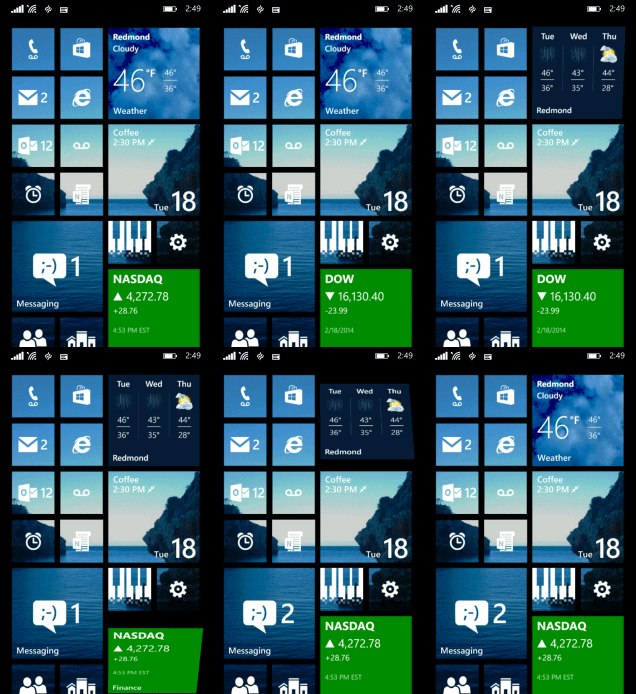
2. Think outside the app – It’s not just apps that show up on Start. I’m in the (stressful) process of moving, so I have a OneNote note titled “Moving checklist” pinned to my Start screen so I’m only one tap away from seeing the next item on my list. Music albums I have on heavy rotation often get pinned for easy access as well. Websites, maps, or shortcuts to your close contacts can also be pinned to Start.
3. Start with more – I tend to keep my Start screen fairly minimalist, but for all you pin pushers and app accumulators there’s now a way to fit more Tiles on Start, which means less scrolling and more Tile-y goodness. Just go to Settings > Start + theme and turn on Show more Tiles.
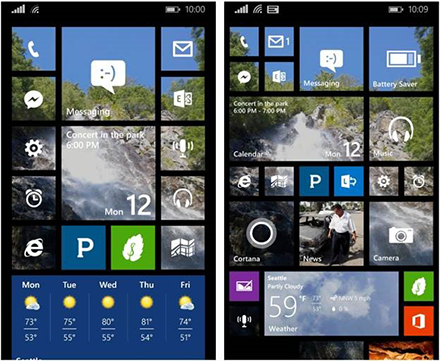
4. Take app-vantage of apps – There’s personalization, and then there’s customization. If you want even more control over your Start screen, plenty of apps are available to help. Turn existing apps’ Tiles into transparent Tiles with Transparency Tiles, create blank filler Tiles and new colors with Start Screen Customizer, or create custom Tiles with notes using Note Pro and StickyTiles.