Skip to main content Skip to main content Windows Experience Devices Windows Developer Microsoft Edge Windows Insider Microsoft 365 Microsoft 365 Azure Copilot Windows Surface XBOX Deals Small Business Support Windows Apps Outlook OneDrive Microsoft Teams OneNote Microsoft Edge Moving from Skype to Teams Computers Shop Xbox Accessories VR & mixed reality Certified Refurbished Trade-in for cash Xbox Game Pass Ultimate PC Game Pass Xbox games PC games Microsoft AI Microsoft Security Dynamics 365 Microsoft 365 for business Microsoft Power Platform Windows 365 Small Business Digital Sovereignty Azure Microsoft Developer Microsoft Learn Support for AI marketplace apps Microsoft Tech Community Microsoft Marketplace Software companies Visual Studio Microsoft Rewards Free downloads & security Education Gift cards Licensing Unlocked stories View Sitemap
PC
March 13, 2017

Windows 10 Tip: Six keyboard shortcuts to help you work faster

Did you know there’s a world of keyboard shortcuts available to you with Windows 10?


You can check out the full list of keyboard shortcuts here, but here are six to help you get started working faster and smarter:

Minimize all your open windows with Windows key + M
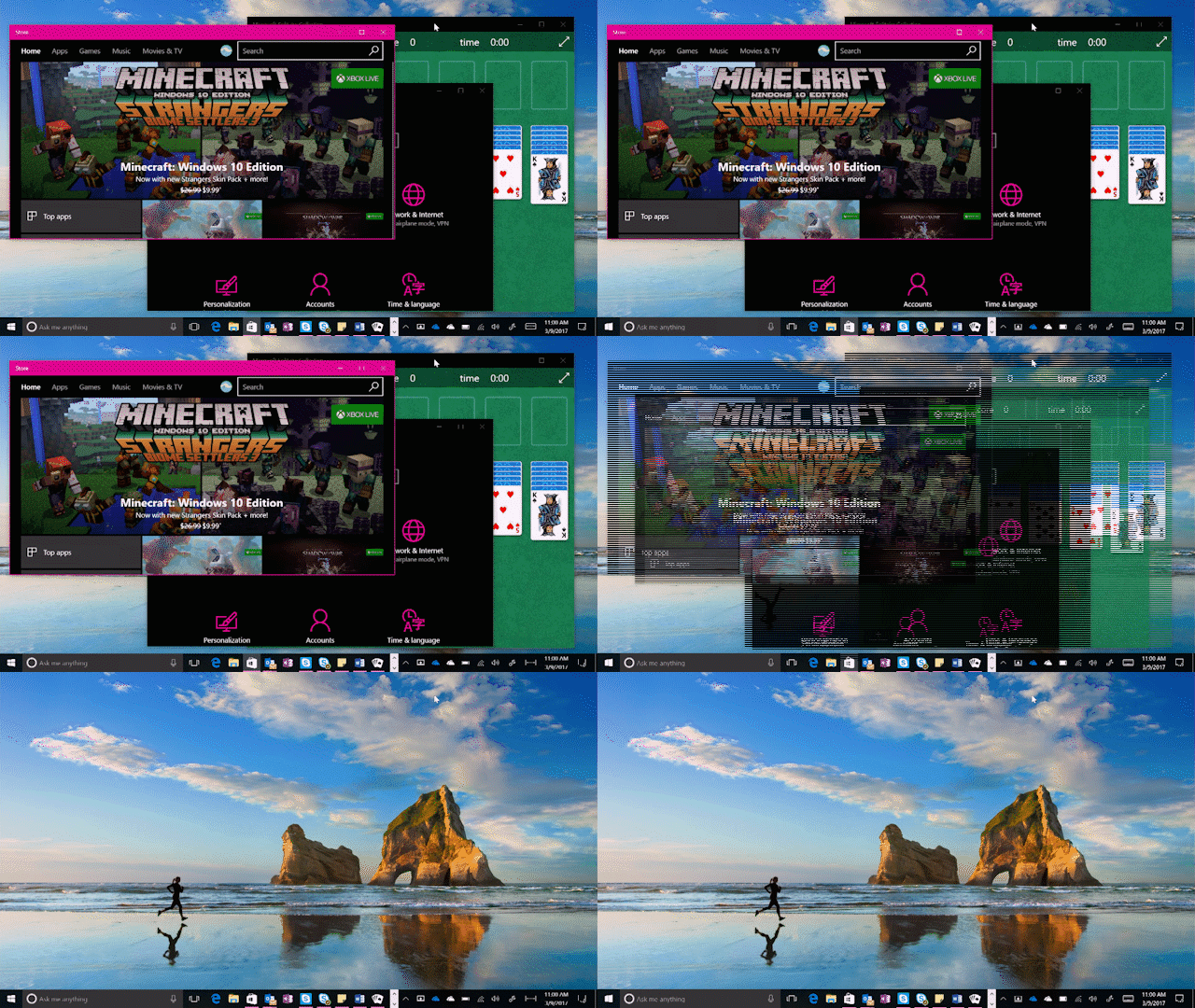
Minimize all your open windows with Windows key + M

Snap one window to exactly half of your screen with Windows key + either of the side arrow keys, and magically snap a second window side-by-side for easy multitasking.

Snap one window to exactly half of your screen with Windows key + either of the side arrow keys, and magically snap a second window side-by-side for easy multitasking. Need one more window? Press Windows key + the “up” arrow to snap a third.

Need one more window? Press Windows key + the “up” arrow to snap a third.

Open Cortana* in listening (voice-command) mode with Windows key + Shift + C

Open Cortana* in listening (voice-command) mode with Windows key + Shift + C

Open Settings with Windows Key + I

Open Settings with Windows Key + I

Open the first item you have pinned on the Taskbar with Windows Key + T, then use arrow keys to move between other pinned apps
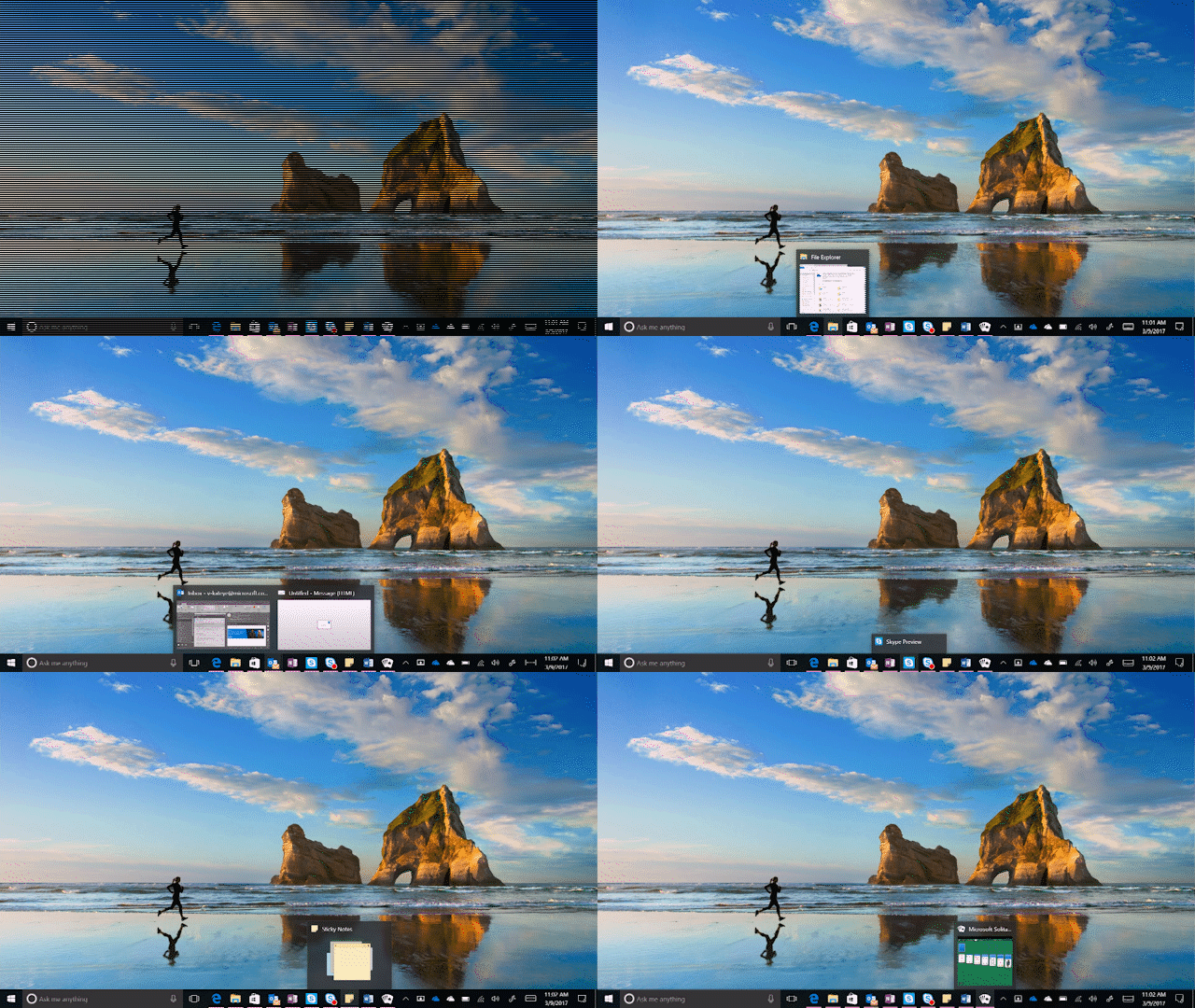
Open the first item you have pinned on the Taskbar with Windows Key + T, then use arrow keys to move between other pinned apps

Open the Action Center to view your notifications with Windows Key + A
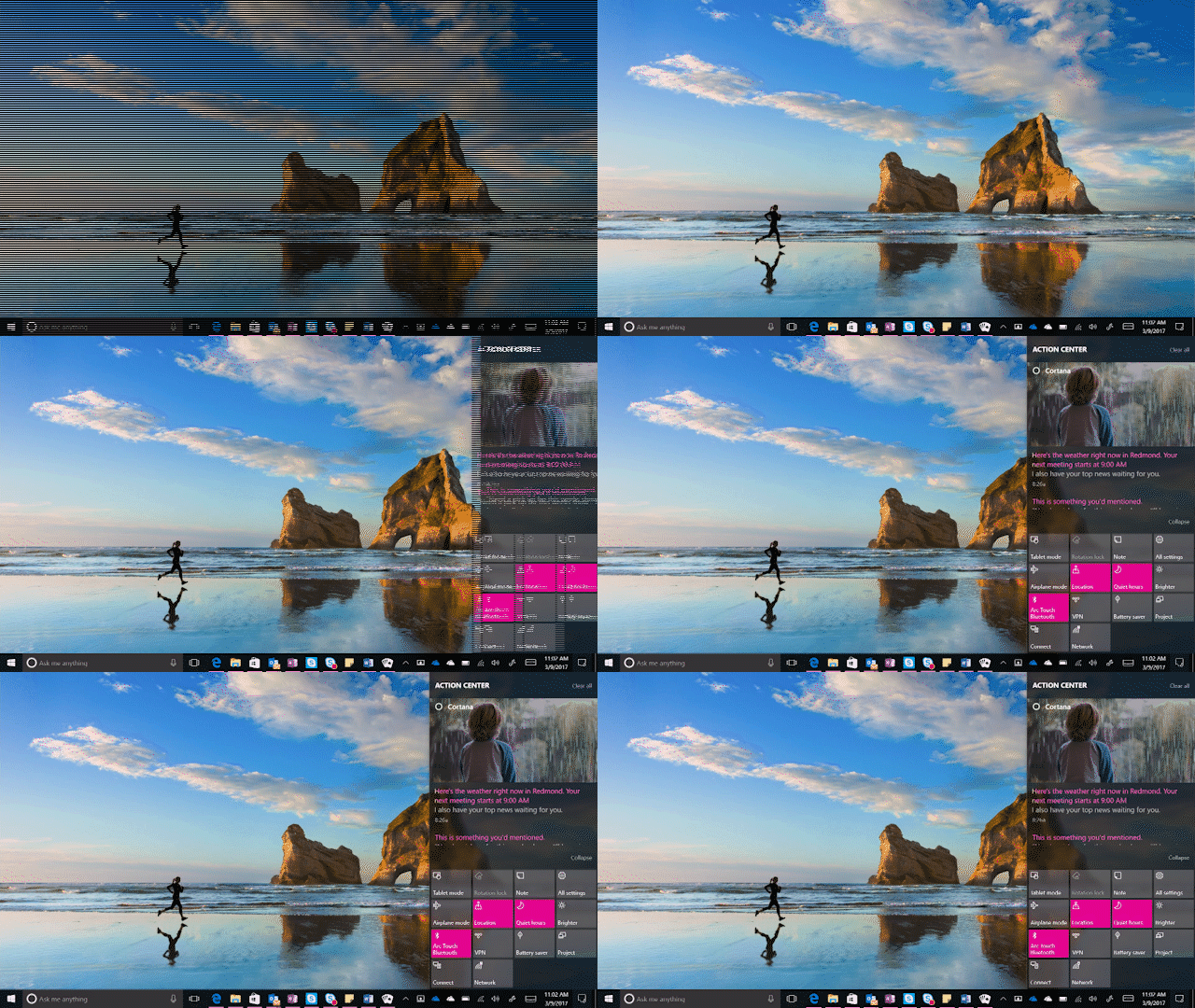
Open the Action Center to view your notifications with Windows Key + A

Head over here for a full list of keyboard shortcuts, and have a great week!

*Cortana available in select markets

Your Privacy Choices Opt-Out Icon Your Privacy Choices
Consumer Health Privacy Sitemap Contact Microsoft Privacy Manage cookies Terms of use Trademarks Safety & eco Recycling About our ads