Skip to main content Skip to main content Windows Experience Devices Windows Developer Microsoft Edge Windows Insider Microsoft 365 Microsoft 365 Azure Copilot Windows Surface Xbox Deals Small Business Support Windows Apps Outlook OneDrive Microsoft Teams OneNote Microsoft Edge Moving from Skype to Teams Computers Shop Xbox Accessories VR & mixed reality Certified Refurbished Trade-in for cash Xbox Game Pass Ultimate PC Game Pass Xbox games PC games Microsoft AI Microsoft Security Dynamics 365 Microsoft 365 for business Microsoft Power Platform Windows 365 Small Business Digital Sovereignty Azure Microsoft Developer Microsoft Learn Support for AI marketplace apps Microsoft Tech Community Microsoft Marketplace Marketplace Rewards Visual Studio Microsoft Rewards Free downloads & security Education Gift cards Licensing Unlocked stories View Sitemap

Windows 10 Tip: Set up family features on your Windows 10 PC

Written By published September 18, 2017


Did you know you can add family members to each Windows 10 PC you sign in to with your Microsoft account faster than ever?

You can manage family settings online at account.microsoft.com/family, and changes will be applied to any Windows 10 device the child signs in to.

Set up a PC for people already in your Microsoft family

Select the Start button, then select Settings > Accounts > Family & other people. Select their accounts to add them to this PC. The first time they sign in, they’ll need to enter the password for their Microsoft account.

Add someone to your family
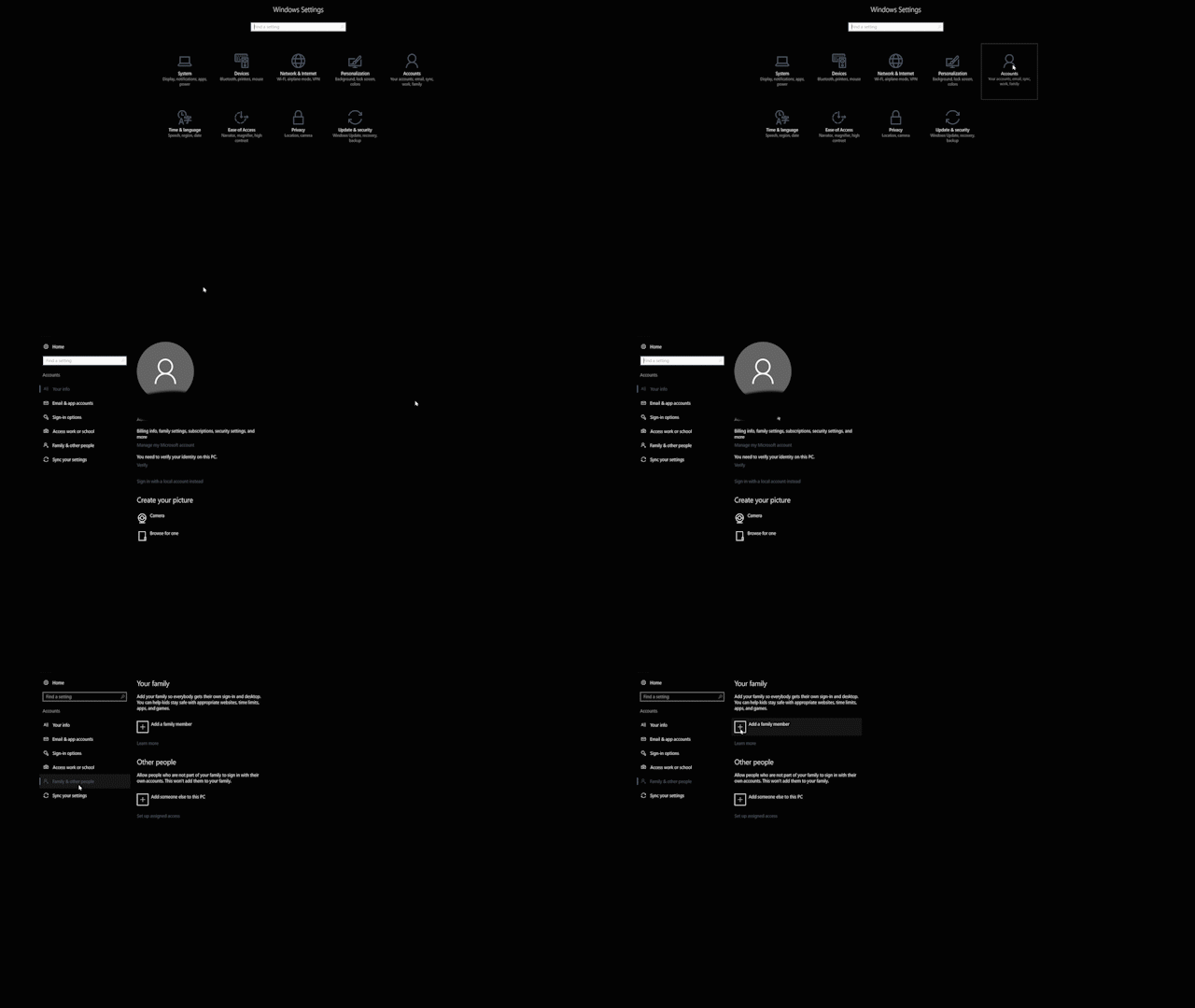
Add someone to your family

On your Windows 10 PC, select the Start button, then select Settings > Accounts > Family & other people. (You’ll need to be signed in to Windows with a Microsoft account.)

Select Add a family member.

Select Add a child or Add an adult.

Type the email address of the person to send them an invitation to join. If they don’t have an email address, select The person I want to invite doesn’t have an email address and follow the directions to set up a new account.

Have a great week!
Your Privacy Choices Opt-Out Icon Your Privacy Choices
Consumer Health Privacy Sitemap Contact Microsoft Privacy Manage cookies Terms of use Trademarks Safety & eco Recycling About our ads