Skip to main content Skip to main content Windows Experience Devices Windows Developer Microsoft Edge Windows Insider Microsoft 365 Microsoft 365 Azure Copilot Windows Surface Xbox Deals Small Business Support Windows Apps Outlook OneDrive Microsoft Teams OneNote Microsoft Edge Moving from Skype to Teams Computers Shop Xbox Accessories VR & mixed reality Certified Refurbished Trade-in for cash Xbox Game Pass Ultimate PC Game Pass Xbox games PC games Microsoft AI Microsoft Security Dynamics 365 Microsoft 365 for business Microsoft Power Platform Windows 365 Small Business Digital Sovereignty Azure Microsoft Developer Microsoft Learn Support for AI marketplace apps Microsoft Tech Community Microsoft Marketplace Marketplace Rewards Visual Studio Microsoft Rewards Free downloads & security Education Gift cards Licensing Unlocked stories View Sitemap

Windows 10 Tip: Head back to school with five tips for using Microsoft Word

Written By published September 5, 2017


School is starting up and that means projects, papers and creating docs in Microsoft Word! Here’s a quick refresher course on some top tips.

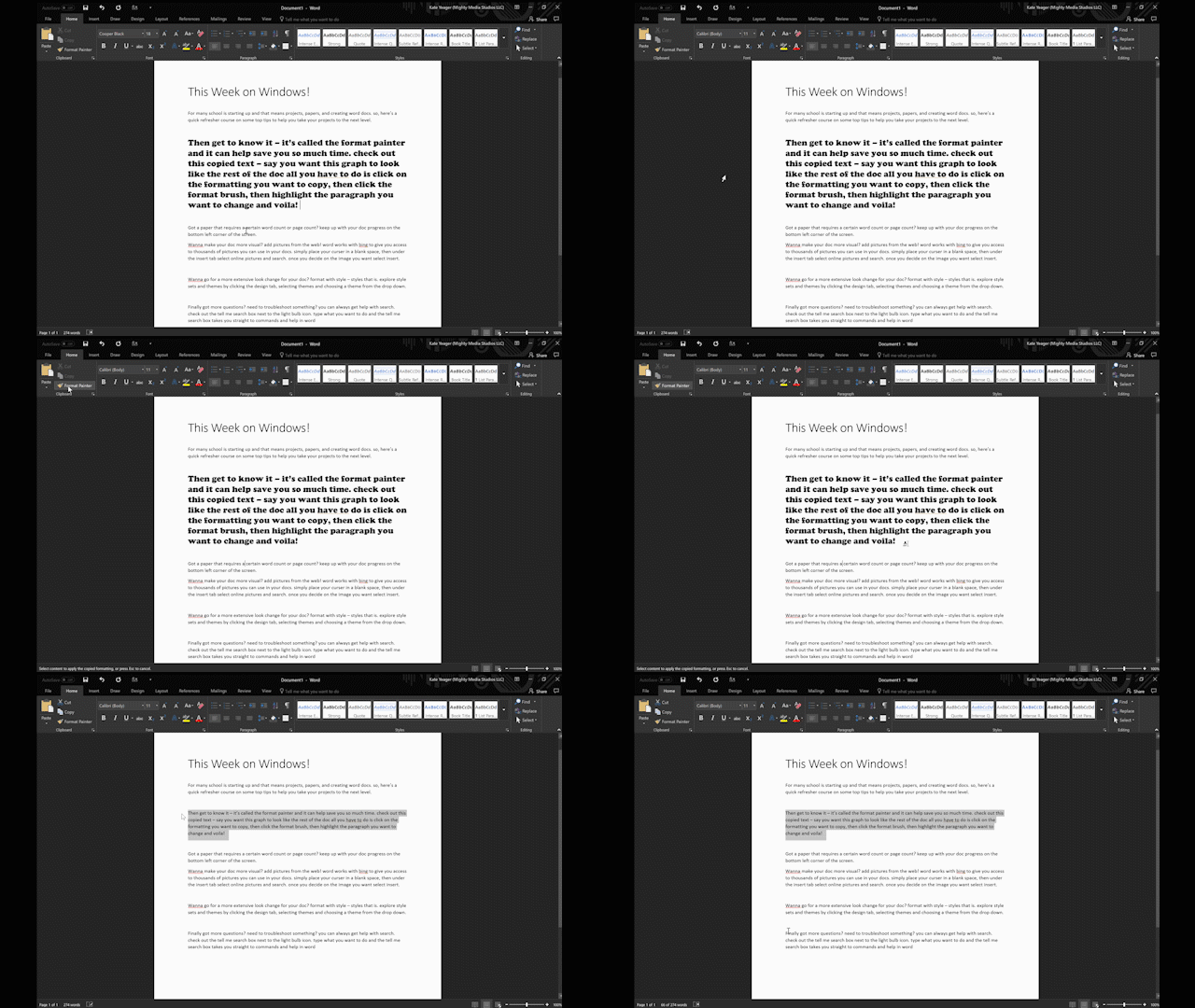
Save time with the Format Painter

Format Painter

Say you want one paragraph to look like the rest of the doc. All you have to do is click on the formatting you want to copy, then click the format brush, then highlight the paragraph you want to change – and voila!

Keep up with your word count progress on the bottom left-hand corner of the screen
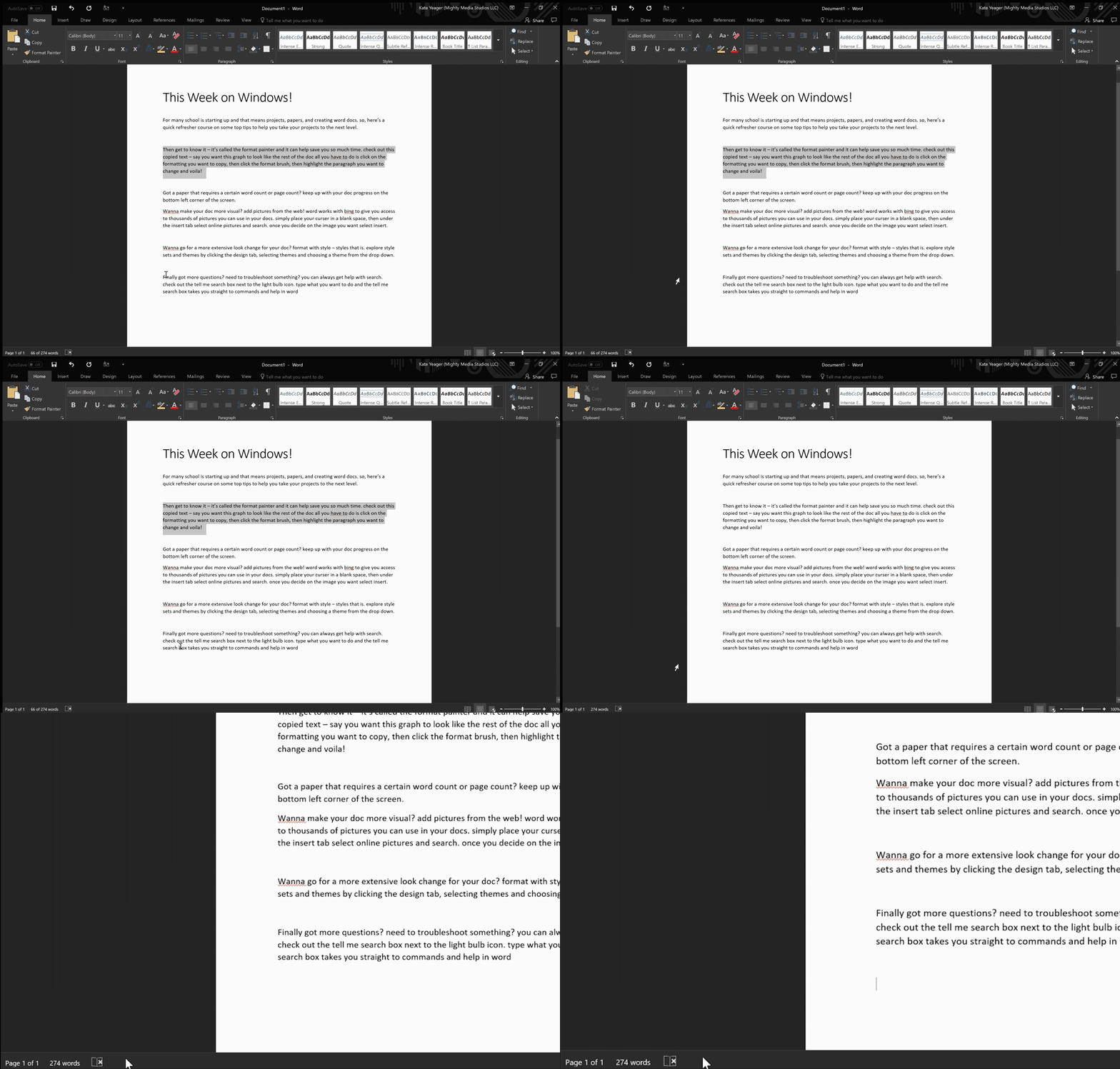
Keep up with your word count progress

Add pictures from the web

Add pictures from the web

Word works with Bing to give you access to thousands of pictures you can use in your docs. Simply place your cursor in a blank space, then under the Insert tab select Online Pictures and search. Once you decide on the image you want, select Insert.

Choose a style
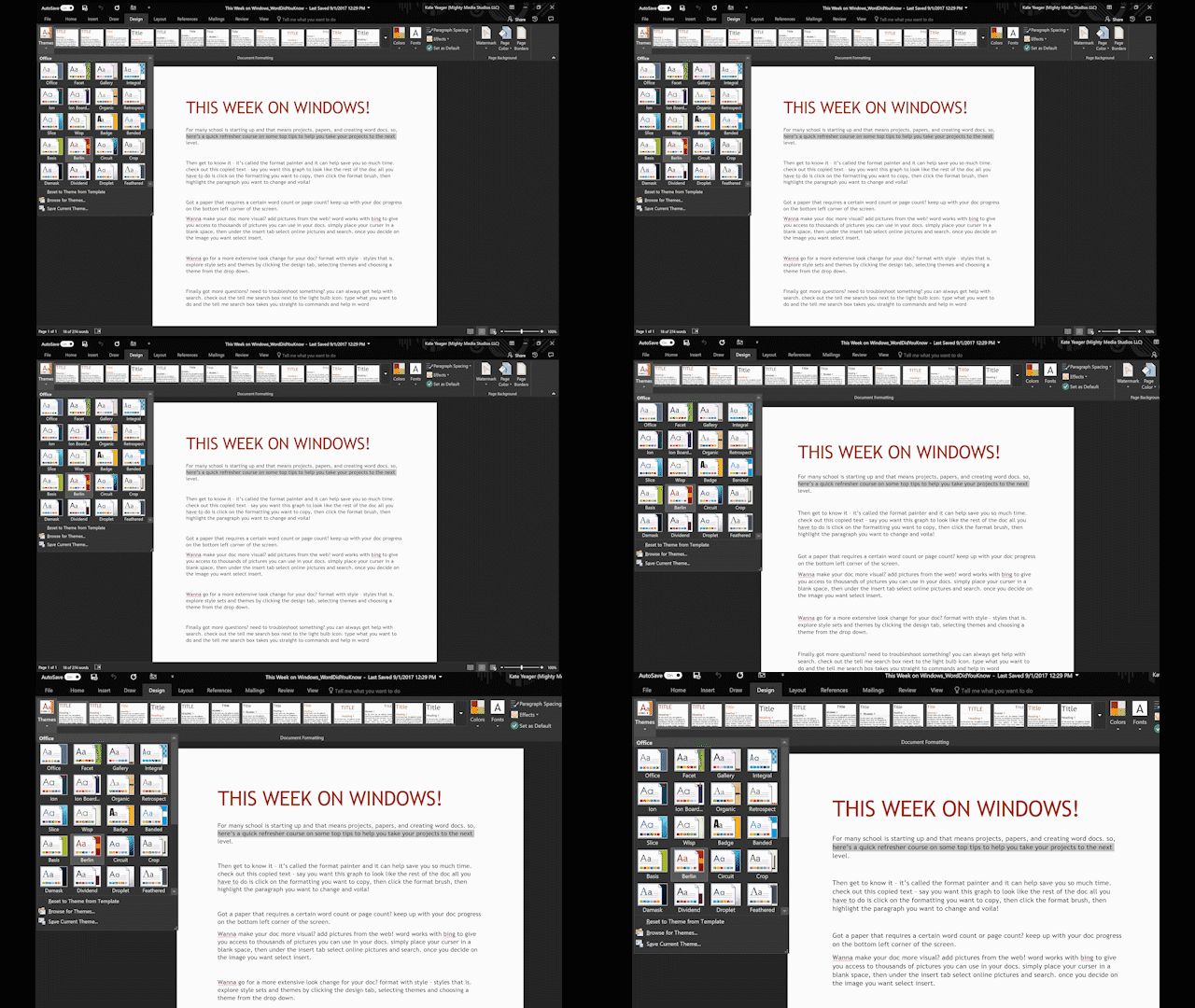
Choose a style

Explore style sets and themes by clicking the Design tab, selecting Themes and choosing a theme from the drop down.

Have questions?

Have questions?

Check out the “Tell me” search box, next to the light bulb icon. Type what you want to do, and the search box will take you straight to commands and help in Word.

In case you missed it, here’s last week’s Windows 10 Tip:

Windows 10 Tip: Five ways to personalize notifications on your PC

Have a great week!

Your Privacy Choices Opt-Out Icon Your Privacy Choices
Consumer Health Privacy Sitemap Contact Microsoft Privacy Manage cookies Terms of use Trademarks Safety & eco Recycling About our ads