Skip to main content Skip to main content Windows Experience Devices Windows Developer Microsoft Edge Windows Insider Microsoft 365 Microsoft 365 Azure Copilot Windows Surface Xbox Deals Small Business Support Windows Apps Outlook OneDrive Microsoft Teams OneNote Microsoft Edge Moving from Skype to Teams Computers Shop Xbox Accessories VR & mixed reality Certified Refurbished Trade-in for cash Xbox Game Pass Ultimate PC Game Pass Xbox games PC games Microsoft AI Microsoft Security Dynamics 365 Microsoft 365 for business Microsoft Power Platform Windows 365 Small Business Digital Sovereignty Azure Microsoft Developer Microsoft Learn Support for AI marketplace apps Microsoft Tech Community Microsoft Marketplace Marketplace Rewards Visual Studio Microsoft Rewards Free downloads & security Education Gift cards Licensing Unlocked stories View Sitemap

Windows 10 Tip: Three ways to get started with OneNote

Written By published August 21, 2017

Did you know with OneNote, you can easily create, revise and share notes – all in one place?


OneNote is a great way to collect important information from various sources and organize it for reference later, from thoughts and ideas to homework, meetings, and more!

Start by customizing your pens:

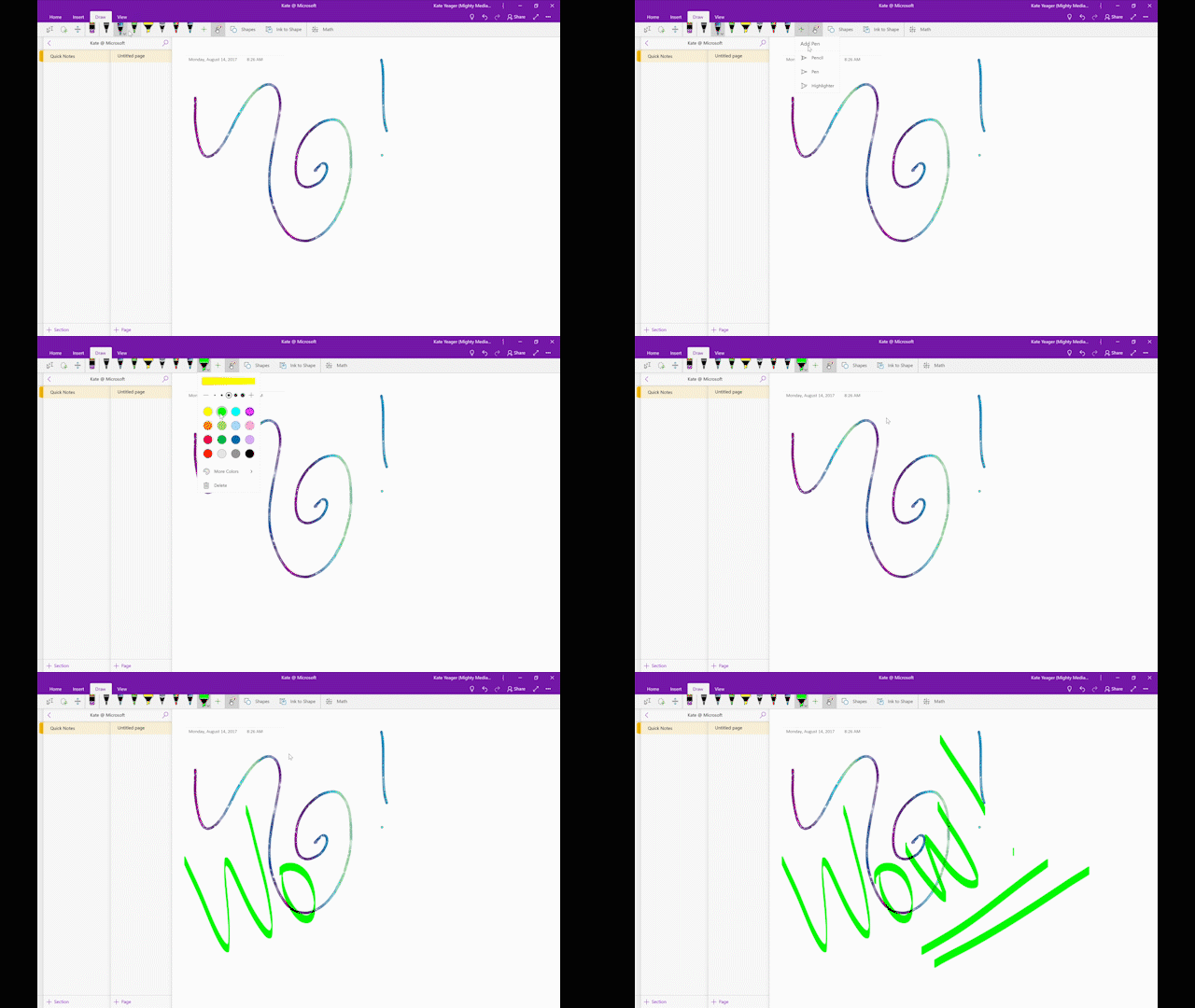
Choose Draw, then click the Add Pen button and select your favorite tool.

Choose a personal set of pens, pencils, and highlighters for inking. Choose Draw, then click the Add Pen button and select your favorite tool. From here, you can also choose the size and color, including fun effects for the pen like Rainbow, Galaxy, Silver, and Gold. Easily organize your pen gallery by dragging and dropping tools in the ribbon.

View multiple pages at once:
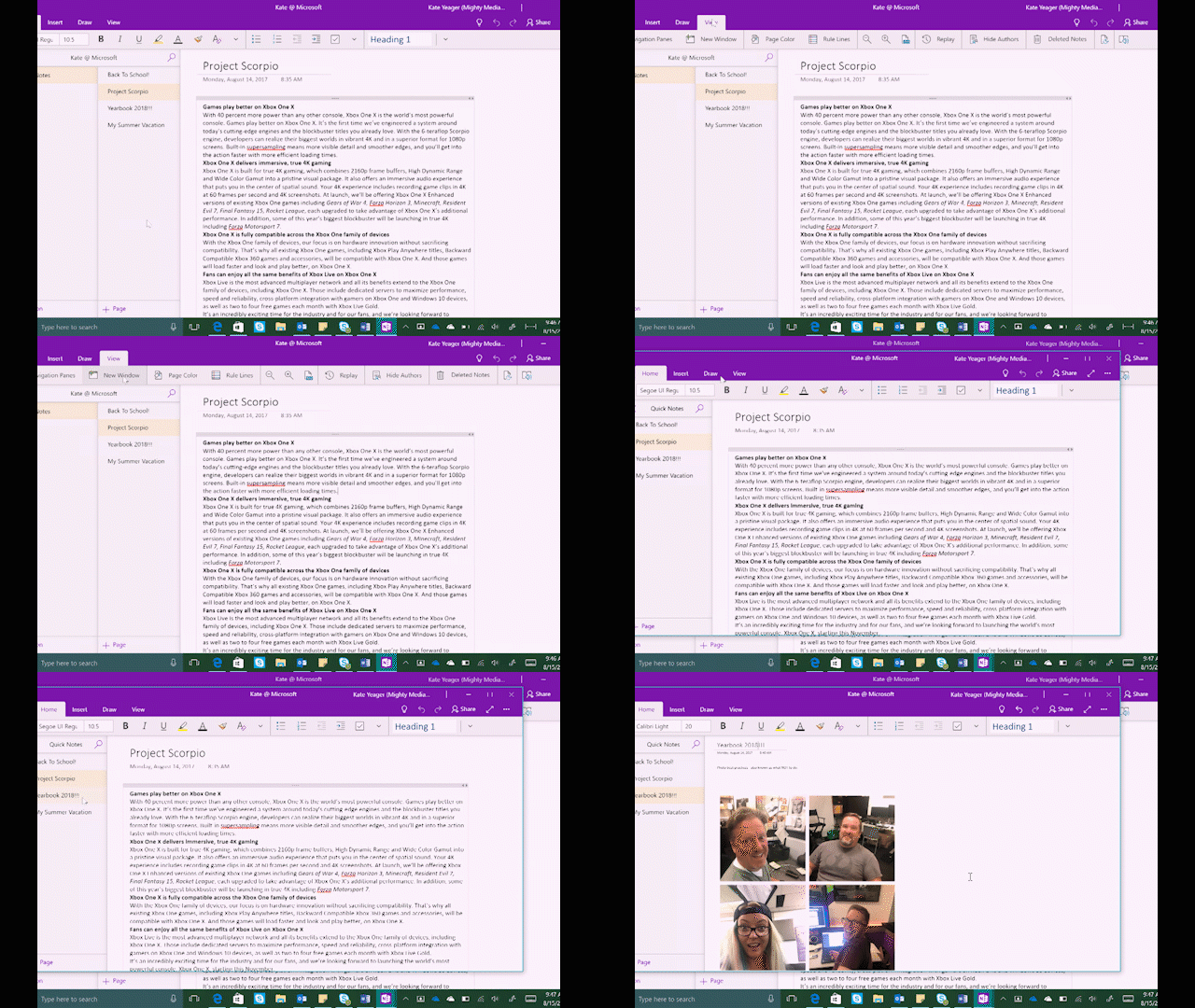
Click the View tab, then New Window – or, just press CTRL + M.

You can also look at multiple pages at once by clicking the View tab, then New Window – or, just press CTRL + M.

Check out the immersive reader:

Immersive Reader boosts comprehension by providing a distraction-free reading environment and breaking apart sentences into syllables, nouns, verbs, and adjectives. It’ll even read the text aloud to help with pronunciation! You can also improve your focus by switching to a dark or colored theme, making the columns narrower, adjusting text spacing, and more.

Click View and choose Immersive Reader

To get started, click View, choose Immersive Reader, and then customize your text and voice options. Best of all, Immersive Reader can read aloud text in images, so you can snap a photo of a book and reap the reading rewards.

In case you missed it, head over here for last week’s Windows 10 Tip:

Windows 10 Tip: See your 3D creations take life in Remix 3D

Have a great week!

Your Privacy Choices Opt-Out Icon Your Privacy Choices
Consumer Health Privacy Sitemap Contact Microsoft Privacy Manage cookies Terms of use Trademarks Safety & eco Recycling About our ads