

How to control your Lumia with your voice
You can make a call, send a text message, search the web, or open an app on your Lumia using just your voice.
Do you often use your phone when your hands are full (cappuccino in one hand and sandwich in other)?
If Cortana isn’t available in your country or is turned off on your Lumia, you can use your Windows Phone’s Speech
feature to control it with your voice. Press and hold the Search button on your Windows Phone 8.1 to start Speech.
If you’re using Speech for first time, your Lumia will ask you to enable the speech recognition service. This helps Microsoft to better understand the words you speak and provide supporting data, such as recent contacts.
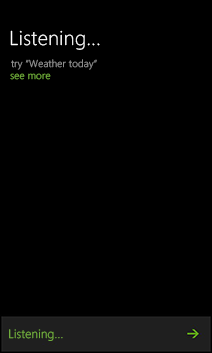
When you open Speech, your phone listens for a voice command. For instance, you can say, “Help” to display some examples of how to use it:
- Call a contact: “Call Chuck”
- Redial the last number: “Redial” (By default the last number you called gets dialed again)
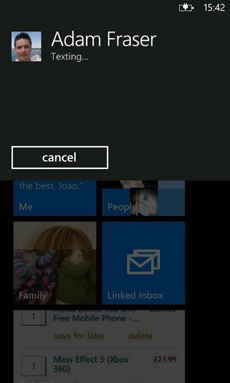
- Send a text message: “Text Adam” (When you’ve finished, say “Send”)
- Take a note: “Note, pick up bread on the way home.” (Your note will be saved and opened in OneNote)
- Open an app: “Open Calendar”
- Search the web: “Find Eiffel Tower” or “Search for hotels in San Francisco”
- Call your voicemail: “Call voicemail”
Here are some tips to get the most out of the Speech settings on your Lumia:
- To use Speech when your Lumia is locked, go to Settings, tap Speech and tick the “Allow speech above lock”
- To cancel a Speech command, press the Back button on your phone or say “Cancel” on any listening screen.
- Some apps support voice commands. Press and hold the Search button and say “Help” to see a list of supported apps.
- Dictate an email message in the email editor by pressing the microphone button.
Do you talk to your Lumia? Do you use any other voice commands? Let us know below.