

Client-side threat detection: how Scareware blocker uncovered malicious notification abuse
Website notifications were designed to help us stay informed. They can alert you to a new message, remind you of an upcoming event, or share an important update from a service you trust.
But scammers are turning this useful browser feature into a persistent channel for fake virus warnings, security alerts, and other scams. They take advantage of our busy lives to persuade us to allow notifications from malicious sites. Selecting “Allow” can give a malicious site repeated opportunities to send fake virus warnings and deceptive security alerts. Even after you close the original page, notifications can lead back to the scam again and again.
Edge has been fighting notification spam for years and there are multiple workstreams actively detecting and blocking them by the billions. But now we’re improving protections using intelligence in the Edge browser and making it easier to report scams.
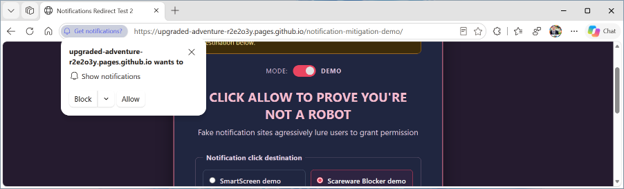
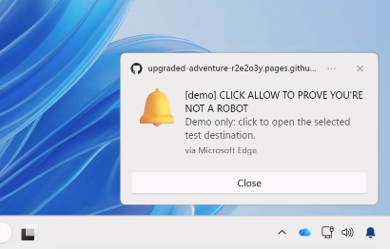
How Scareware reports uncovered malicious notification abuse
Enabled by default on qualifying PCs for just over a year, Scareware blocker in Edge directly protects tens of thousands of users per day against new scams. But Scareware blocker also enables protection for millions more users per day because we can then protect other users with Microsoft Defender SmartScreen. We saw in our preview that each report can help protect 50 more users and the impact of Scareware blocker just keeps growing.
As we reviewed user-submitted reports from Scareware blocker, we noticed a pattern: many scams started with a website notification. These notifications did more than interrupt users. They kept drawing users back to scam pages that SmartScreen or Scareware blocker could detect.
That pattern pointed to another way to protect users: stop the notifications sites that send users to a scam.
Connecting the dots to stop repeat notification abuse
As of last month’s rollout of Edge 156, when Microsoft Defender SmartScreen or Scareware blocker detect a scam that was pushed through a notification, Edge will automatically disable notifications from the site that sent it. The next time Edge starts, an information bar explains what happened. If you believe a site was blocked incorrectly, you can review sites with blocked notifications and unblock them from Edge Settings, keeping you in control.
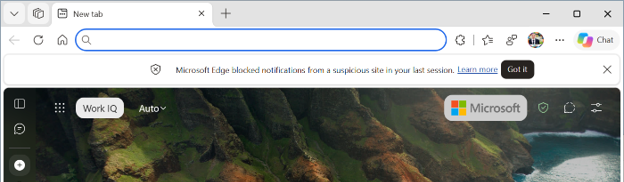
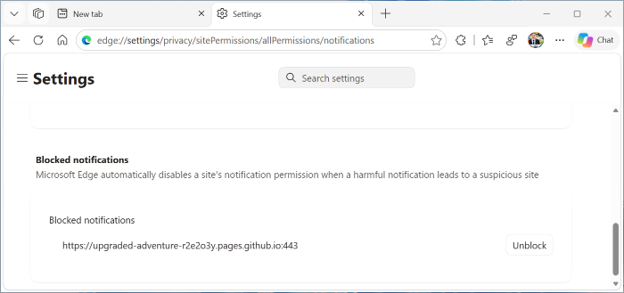
Report the notification lure before the abuse begins
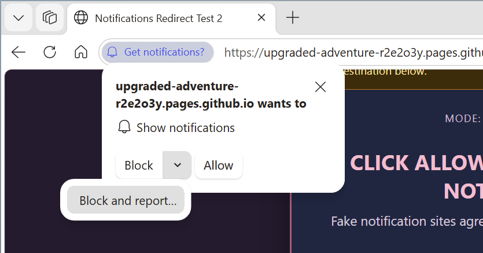
Edge now includes a “Block and report” option for notification permission requests to disrupt the threat at its root. Notification abuse often starts with a page that asks you to give it permission to show notifications, but the page is often misleading asking you to prove you are not a robot, or complete another misleading step by selecting the “Allow” option for notifications.
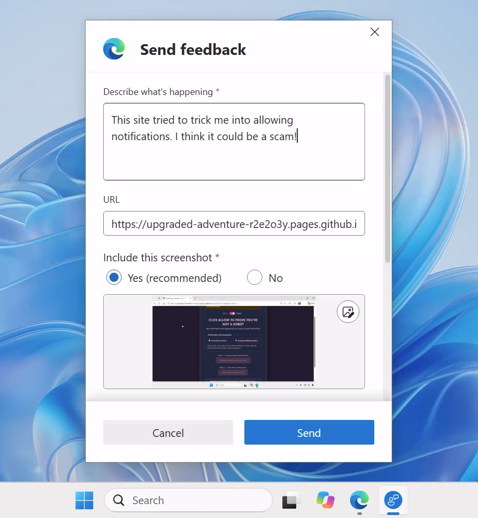
Now from the notification permission prompt, you can open the menu next to “Block” and select “Block and report”. In your report, you can include the requesting URL and a screenshot of the page that tried to persuade you to enable notifications. This can give SmartScreen additional evidence before the first abusive notification is delivered.
Reminder, you are always in control
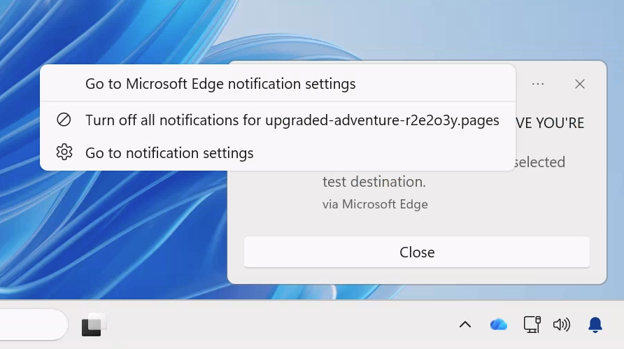
Even if Edge does not detect an unwanted notification, you still have the power to block notifications from that site. From any website notification, you can select the “…” menu on the notification and then disable future notifications from that site. Unfortunately, since fake alerts are designed to be confusing, clicking other buttons on the alert may simply open more popup windows.
Help Edge provide stronger protection
The browser has a unique role to play in threat protection because it sits at the point where many attacks become visible. By connecting on-device detection, user-submitted reports, and cloud reputation, Edge can turn an individual threat signal into broader protection for users.
Thank you for helping us make Edge safer. As scammers find new ways to take advantage of our busy lives, your reports help us keep improving the protections that stand in their way.