

Windows Image Format Boot, or WIMBoot, is a technology that provides significant capacity savings for low-cost devices. The basic idea is that the OS image is compressed by default and is only de-compressed if it needs to be modified in any way. This is not a concern, of course, for apps that are installed after OS deployment. For full-trust desktop applications and pre-loaded apps, however, that can interact with OS or pre-loaded files, they must be mindful of how their activity might impact stability and performance.
Let’s look at how a system can be identified as a WIMBoot installation, how best to interact with files backed by the compressed image, and how to identify potential issues.
For more info about setting up a WIMBoot system, see What is Windows Image Boot (WIMBoot?) on the Springboard Series Blog.
How WIMBoot works
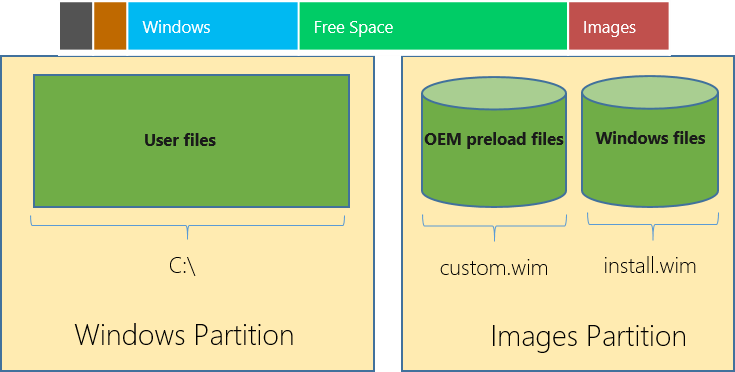
WIMBoot keeps the OS image compressed in a WIM file in the recovery partition on the primary storage device, which provides the bulk of the capacity savings. To minimize the impact to existing and legacy applications, placeholder files are created on the C: volume (user partition) that represent the files in the compressed image. Under the covers, the OS links the placeholder files to the respective locations in the WIM, decompressing files on the fly when necessary.
When a placeholder file is opened with write access, we must assume that a modification of the file will occur (otherwise it would have been opened for read access). In this case, the placeholder file is replaced with the full, decompressed copy in the WIM, such that edits and modifications are possible. As a result, applications should be aware that opening such files for write access consume additional space on the C: volume, which should be avoided.
This diagram shows the standard WIMBoot installation with two WIM images (OEM and System) and the respective partitions they reside in.
Identifying a WIMBoot installation
Rather than labeling a system WIMBoot or not WIMBoot, APIs were added in Windows 8.1 Update that allow a caller to query whether or not a given volume or file is backed by a WIM. These are specifically the FSCTL_ENUM_OVERLAY and FSCTL_ENUM_EXTERNAL_BACKING control codes for the FtsFsControlFile routine.
To query a volume for its backing, use the FSCTL_ENUM_OVERLAY control code. Called on a volume, it will return all sources backing this volume.
In order to query which individual files are currently backed by a compressed image, use the FSCTL_ENUM_EXTERNAL_BACKING control code. Called successively, it enumerates all files in the directory structure that are currently backed by a compressed image.
How to interact well with files
With WIMBoot’s unique behavior on opening files for write access, applications should only open OS or pre-loaded files for read-access. While many applications won’t have an issue with this, or only modify files they create in the first place, there are applications that might walk the entire file tree and inspect every file or many files (e.g. antivirus, indexers, defragmentation utilities, etc.). Such tools should open files for read-access only.
Debugging
To determine what impact your application has on a WIMBoot system, you can perform very basic testing as follows:
- Enumerate all WIM-backed files using the FSCTL_ENUM_EXTERNAL_BACKING control code.
- Install your application.
- Run through various scenarios, tests, and experiences your app was designed for.
- Enumerate all WIM-backed files using the FSCTL_ENUM_EXTERNAL_BACKING control code.
- Compare the lists of files from steps 1 and 4 to determine which were modified and thus no longer WIM-backed.
- Check how you’re using the files on that list in your code—if you’re not making any modifications to an affected file, be sure to change its access mode to read-only.
Note: Make sure that this basic testing does not coincide with the daily maintenance or Windows Update, which may modify system files and thus make your measurements less accurate.
Conclusion
WIMBoot provides significant capacity savings by keeping the OS image compressed. To take long-term advantage of these savings, it’s important that applications avoid opening OS or WIM-backed files for write access, which causes them to be decompressed.