

Make the most of your listing
1. Include video trailers
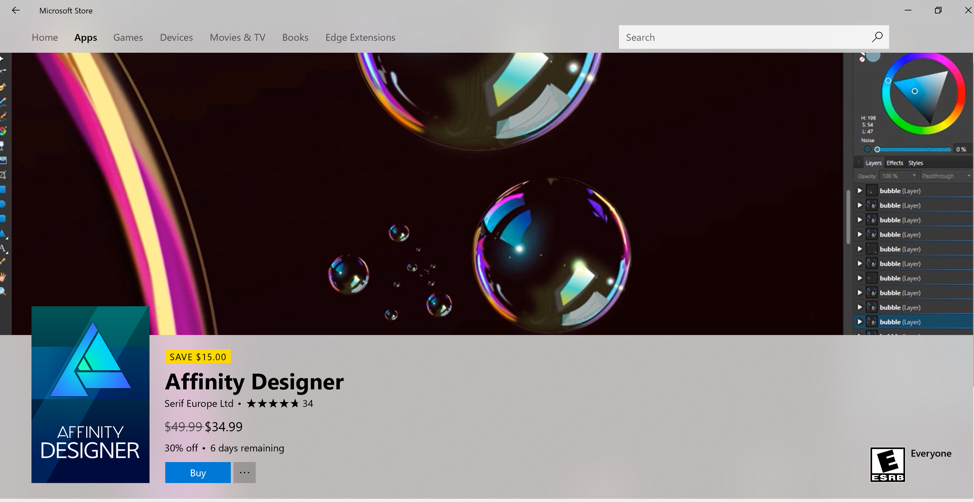
Video trailers are short videos that spotlight your product and give your customers a quick look at what it does. On average, including one or more video trailers can increase downloads by up to 11%.
Check out Affinity Designer’s trailer for an example that really shows off what the app can do.
Quick trailer tips:
- Focus on high quality and short length (60 seconds or less).
- Use different thumbnails for each trailer.
- Keep key messaging short and centered in each frame.
- When using trailers, you must also provide a 1920 x 1080 pixel image (16:9) in the Promotional images section in order for your trailers to appear at the top of your Store listing. This image will appear after your trailers have finished playing.
Note that trailers are only shown to customers on Windows 10, version 1607 or later (which includes Xbox).
See more information and tips here.
2. Create a great app description
The description is the first thing your customer reads about your app in the Microsoft Store, and it may also appear in search results and algorithm lists—so make it count.
Quick description tips:
- Start with the value prop: Why should your customer buy this?
- Focus on your app’s appeal with plain, clear language.
- Localize for all your markets.
Read more here.
3. Include an eye-catching logo
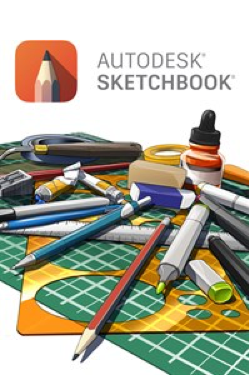
Your logo is the main image displayed on Windows 10 and Xbox, and in searches or collections and we strongly recommend providing both a 9:16 poster art and 1:1 box art image. A good logo can visually “pop” and lead customers to see more.
We recommend providing these logo images to create an optimal appearance in the Store. In particular, the 9:16 Poster art image is required for proper display for customers on Windows 10 and Xbox devices. You also have the option to upload additional logo images that will be used in the Store (instead of images taken from your app’s packages) to create a more customized display.
Quick logo tips:
- Include your app name as a key part of the image.
- Provide .png files no larger than 50MB each.
- Provide all requested formats and sizes for optimal display across devices.
More details on all the display options here.
4. Keep your customers up to date
When you update your app it’s always a good idea to let customers know what you’ve improved in the latest release, especially if you’ve fixed bugs or improved the app based on customer feedback. Use the What’s new in this version text box to share that information with your customers. In addition to letting your current customers know what’s changed, this also shows potential new customers that you’re listening to feedback and continuing to add new features.
Get started now
Whether you’re submitting your app for the first time or making an update to an app that’s in the Store, we hope you’ll find these tips useful. For more details on all of these options, along with other ways you can create great Microsoft Store listings, start here.