

Windows 10 Tip: Stay on top of your day with the Calendar app
Did you know Windows 10 has a built-in app to help you manage your time commitments?
The Calendar app is available offline, so you can check your schedule even when you’re not connected to the internet. Unlike online calendars you check using a web browser, the Calendar app doesn’t require you to login every time.
Here are a few ways to get the most out of the Calendar app:
View multiple calendars – all in one place:
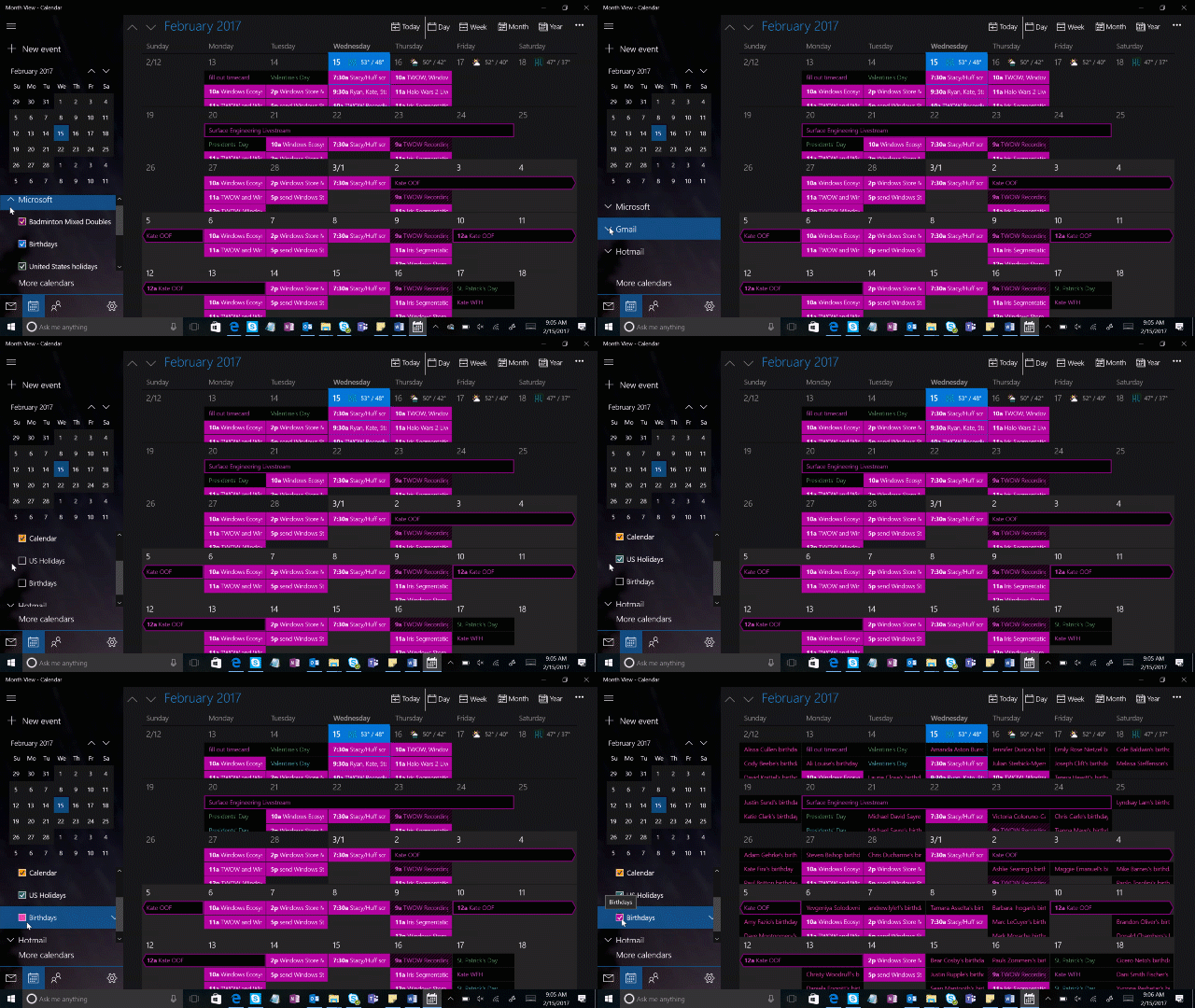
Manage all your calendars – from Outlook.com, Gmail, Yahoo, work, school or other accounts – all in one place, so you can plan your day and week better. Add as many calendars as you’d like to see in the Calendar app by going to Settings > Manage Accounts > Add Account.
Take a quick glance at your upcoming schedule with one click:
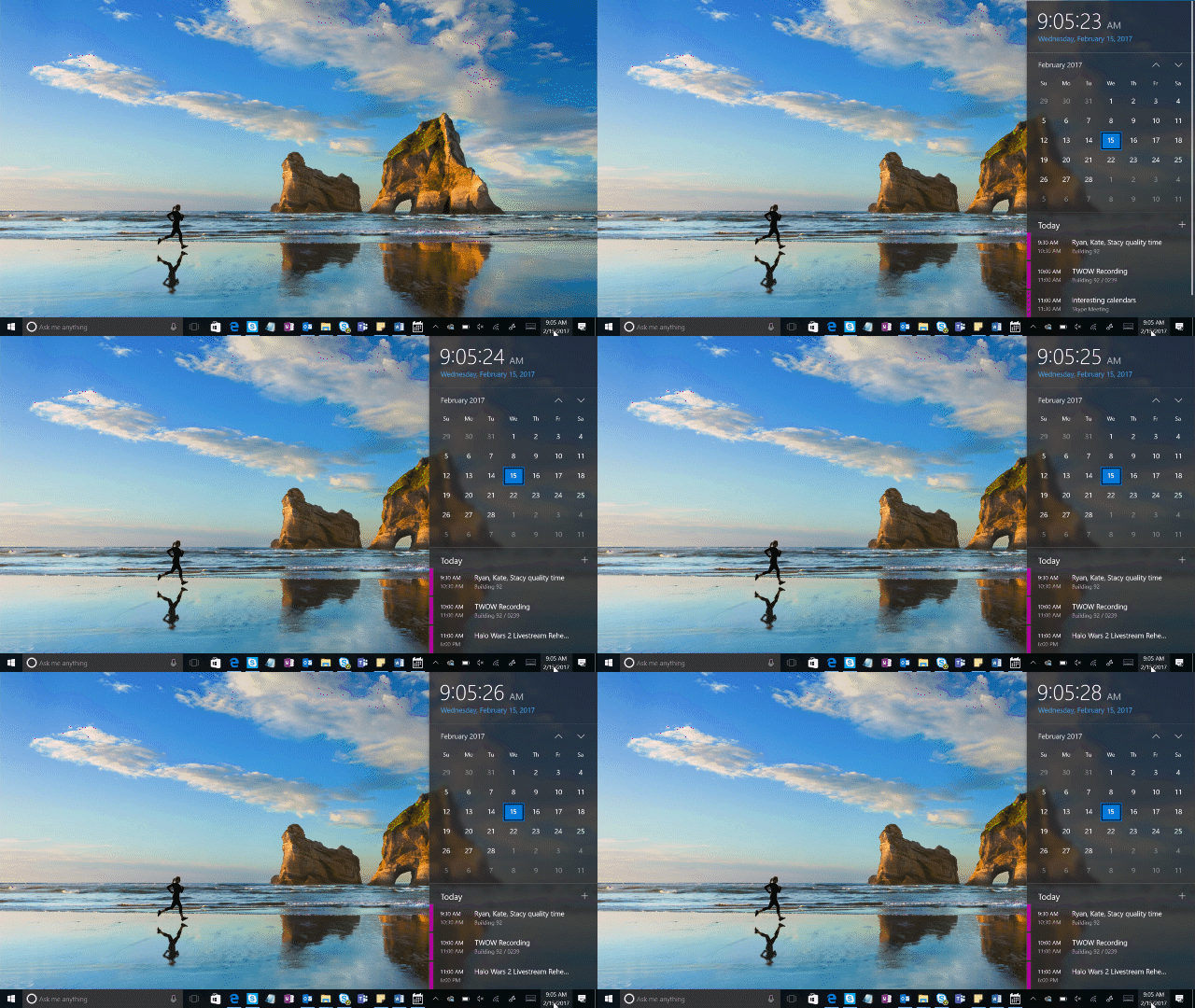
Want a quick snapshot of your day? The Calendar app is integrated with your Windows 10 taskbar calendar, so you can easily view your upcoming appointments. Just click on the taskbar, where the date and time are shown, and your schedule will appear.
Set up reminders using just your voice:
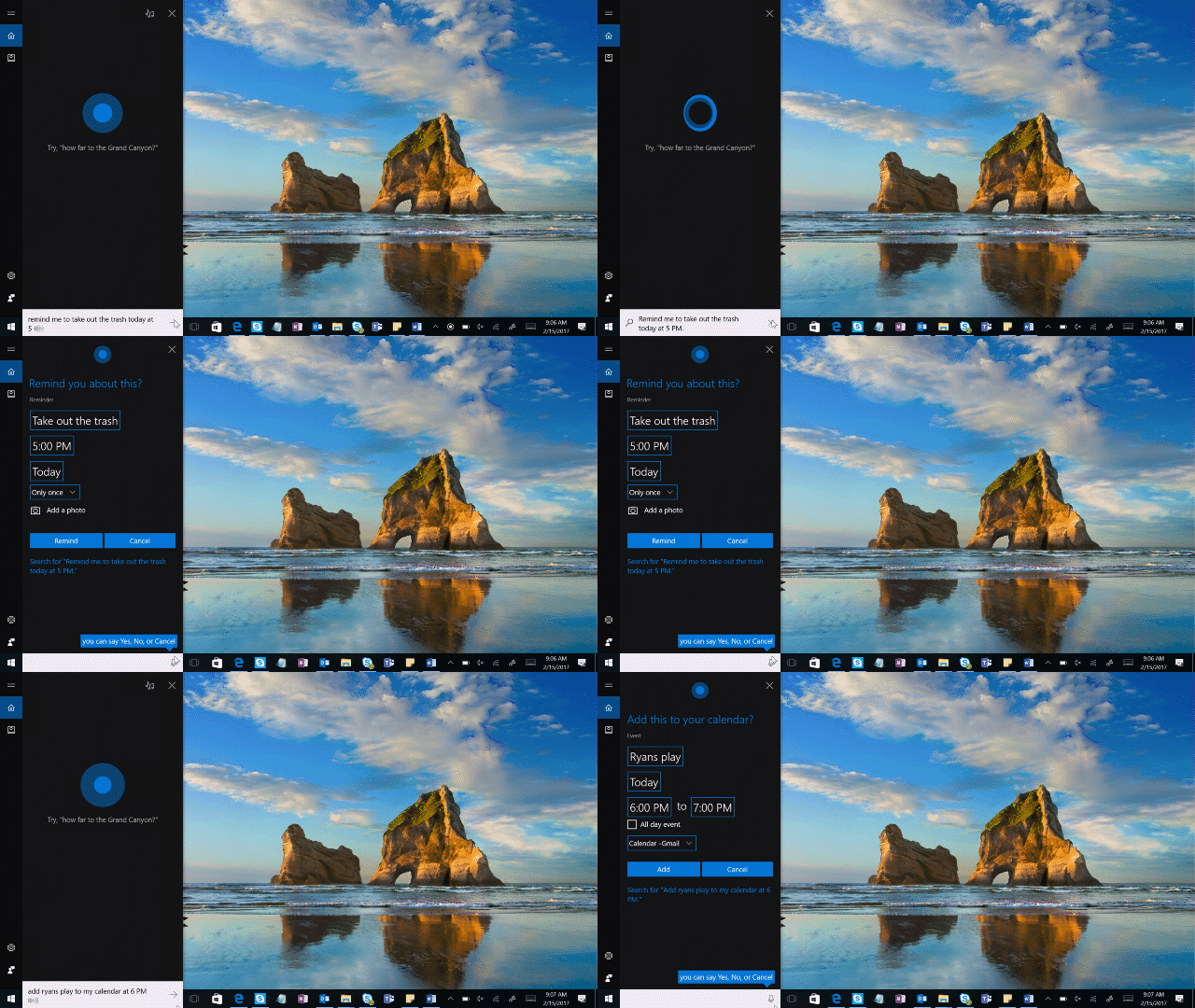
Add reminders and events to your Calendar with Cortana*, your personal digital assistant. Just say something like, “Hey Cortana. Remind me to take out the trash at 5 p.m.” or “Hey Cortana. Add Stacy’s school play to my calendar for tomorrow at 6 p.m.” Cortana will confirm with you the appointments or actions you like to be reminded about, and add them to Calendar app.
Have a great week!
*Cortana available in select markets. Enable “Hey Cortana” in Settings to let Cortana to respond to your voice.