Skip to main content Skip to main content Windows Experience Devices Windows Developer Microsoft Edge Windows Insider Microsoft 365 Microsoft 365 Azure Copilot Windows Surface XBOX Deals Small Business Support Windows Apps Outlook OneDrive Microsoft Teams OneNote Microsoft Edge Moving from Skype to Teams Computers Shop XBOX Accessories VR & mixed reality Certified Refurbished Trade-in for cash XBOX Game Pass Ultimate PC Game Pass XBOX games PC games Microsoft AI Microsoft Security Dynamics 365 Microsoft 365 for business Microsoft Power Platform Windows 365 Small Business Digital Sovereignty Azure Microsoft Developer Microsoft Learn Support for AI marketplace apps Microsoft Tech Community Microsoft Marketplace Software companies Visual Studio Microsoft Rewards Free downloads & security Education Gift cards Licensing Unlocked stories View Sitemap

Windows 10 Tip: Four ways to customize the Start menu

Written By published November 7, 2016


Today, we’re talking all about getting faster access to your favorite apps with the Start menu! With the Start menu, you can pin your go-to apps and files, get updated info from Live Tiles – like weather and headlines, so you don’t even need to open the app – and more! Here are a few ways you can customize it.

Pin your favorite content so it’s always at the ready
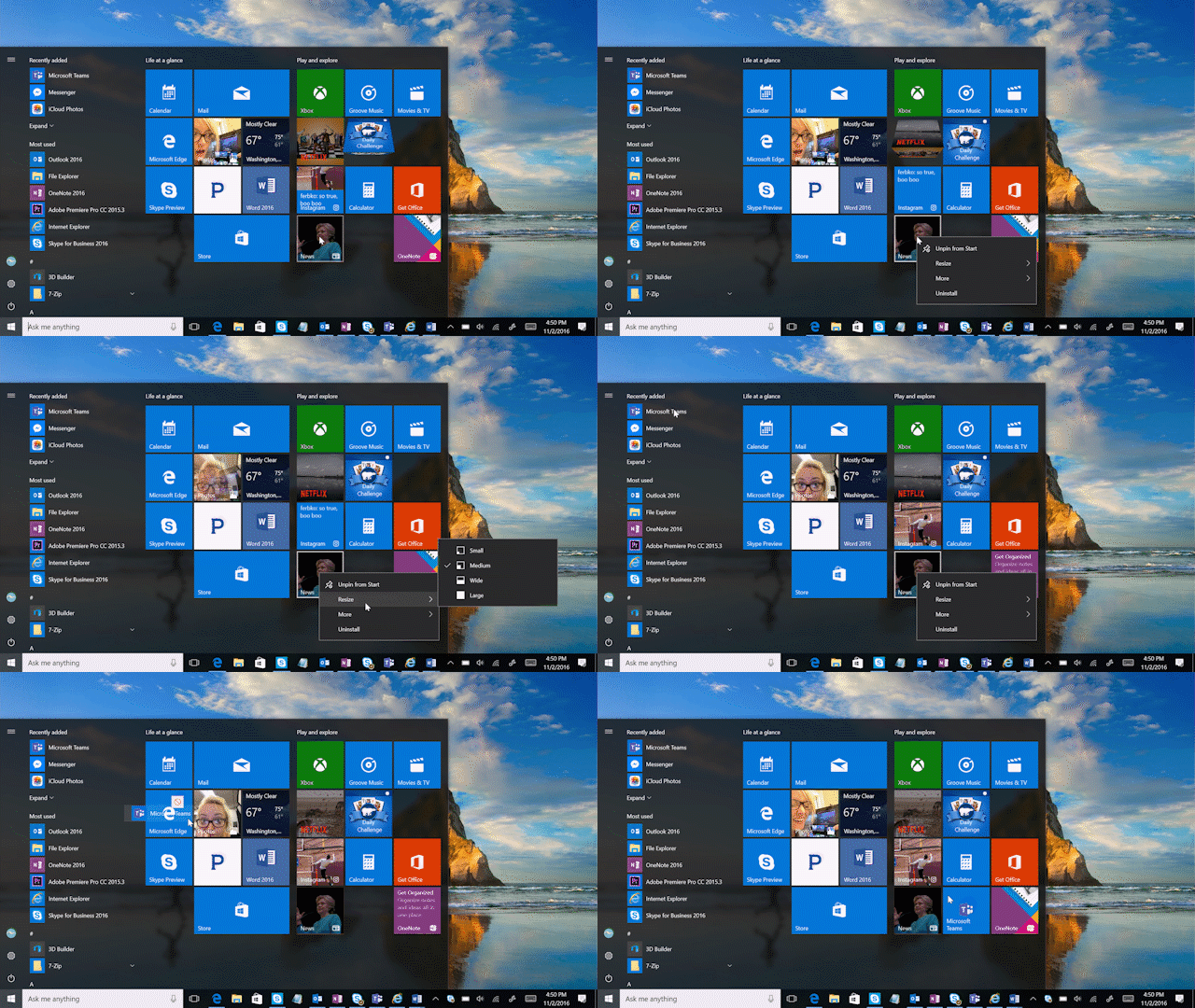
Windows 10 Tip: Start menu

Easily pin or unpin apps to the Start menu by dragging and dropping an app from list, or by right-clicking and selecting “Pin to Start.” After that, you can click and drag to move apps around or right-click the app to resize. Live Tiles will even surface updates so you can stay up to speed without having to open the app.

Organize into groups so you can easily find what you’re looking for

Windows 10 Tip: Start menu


Simply drag and drop an app on the Start menu to create and name a new group of apps.

 Change the tile colors

Windows 10 Tip: Start menu

Head to Settings > Personalization > Colors to choose a new color for all your tiles.

Easily show or hide apps

Windows 10 Tip: Start menu

You can personalize your apps list by going to Settings > Personalization > Start and choosing “Show most used apps” or “Show recently added apps.”

Check out last week’s Windows 10 Tip: How to set up Windows Hello on your PC.

Have a great week!

Your Privacy Choices Opt-Out Icon Your Privacy Choices
Consumer Health Privacy Sitemap Contact Microsoft Privacy Manage cookies Terms of use Trademarks Safety & eco Recycling About our ads