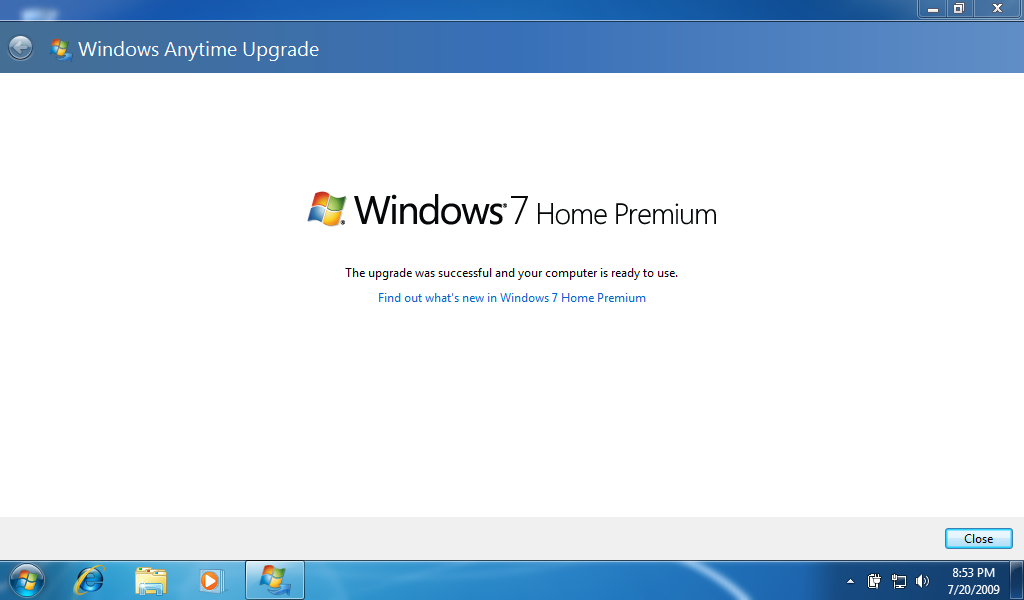
This is the step-by-step experience of going through an upgrade from a lower edition of Windows 7 to a higher edition of Windows 7.
STEP 1:
When a customer launches Windows Anytime Upgrade (WAU) from Windows 7, they are presented with 2 options: purchase a WAU product key online or enter a WAU product key from a WAU retail package purchased in a store.
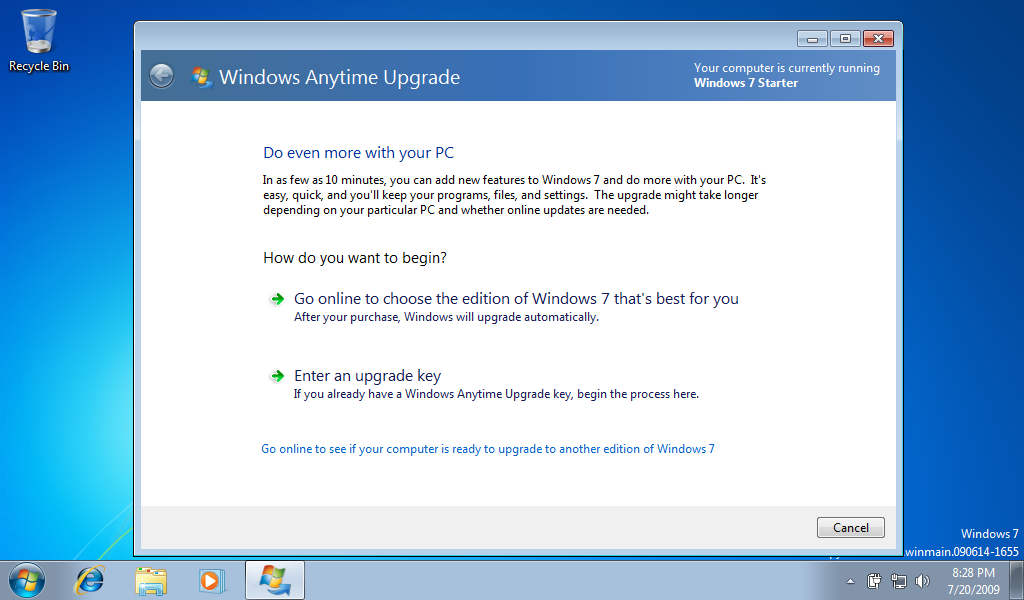
If a customer has a WAU product key, they will choose “Enter an upgrade key” to proceed with the upgrade.
STEP 2:
Customer will enter their WAU product key.
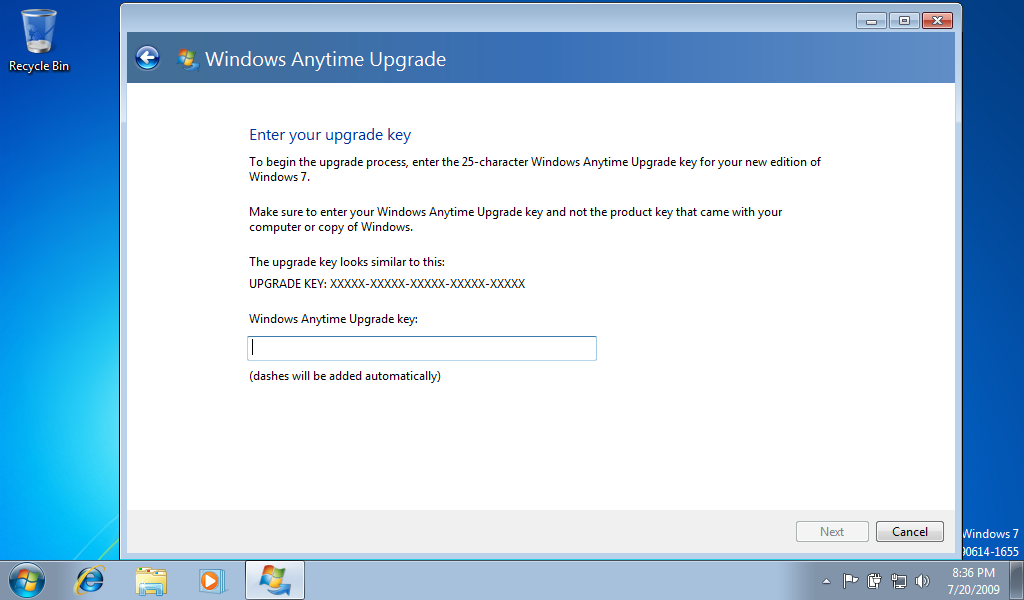
STEP 3:
The WAU product key the customer entered will be verified as valid.
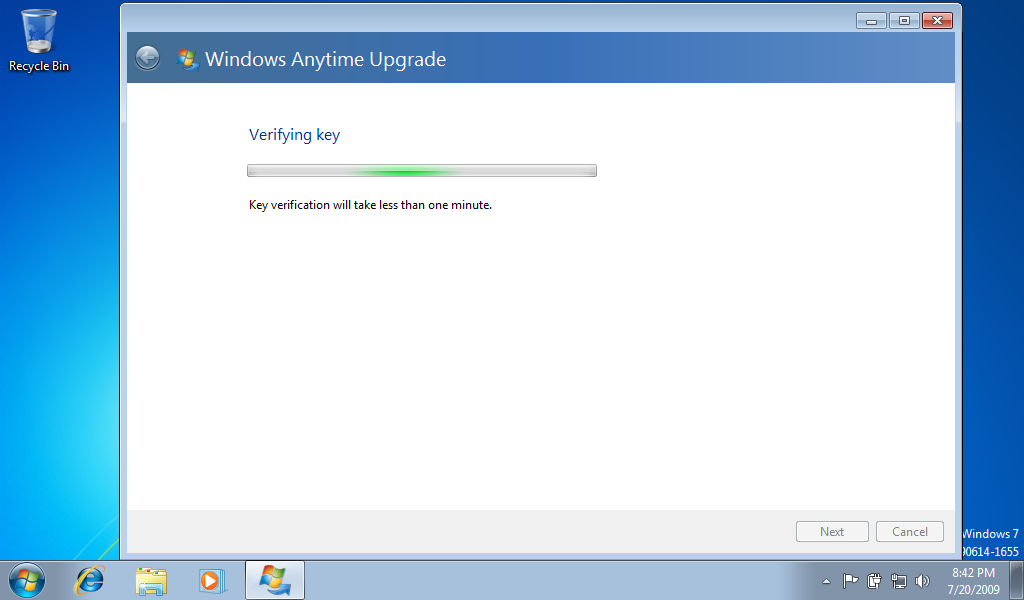
NOTE: Step 2 and 3 do not happen for people who choose to purchase a WUA product key online. The process of buying a WUA product key automates these 2 steps and takes you directly to Step 4 after the purchase. After making a WUA purchase online, you are given the ability to print out a receipt and are also sent a copy via email.
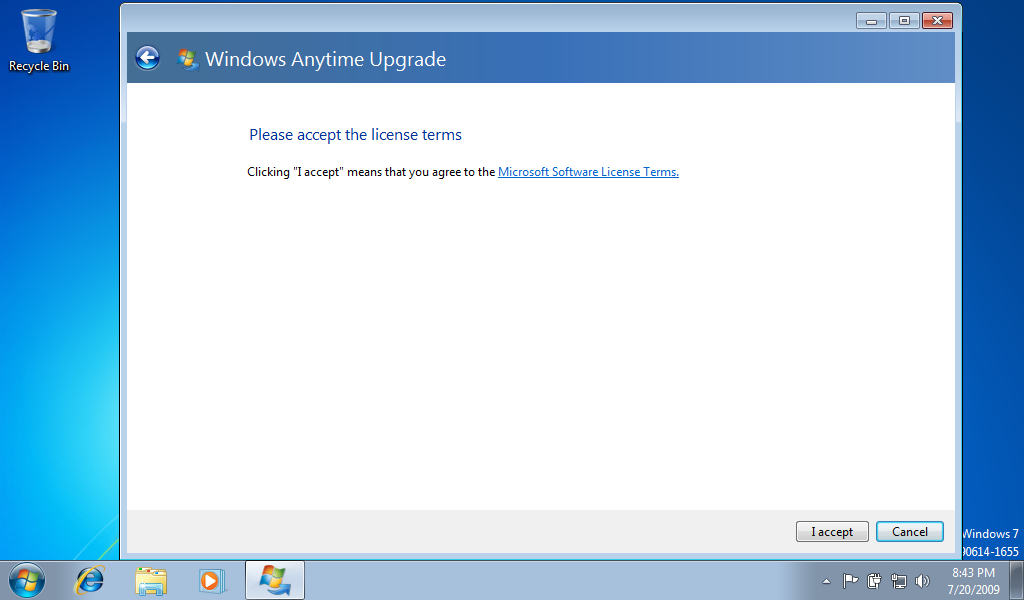
STEP 4:
Customer will accept license terms to proceed.
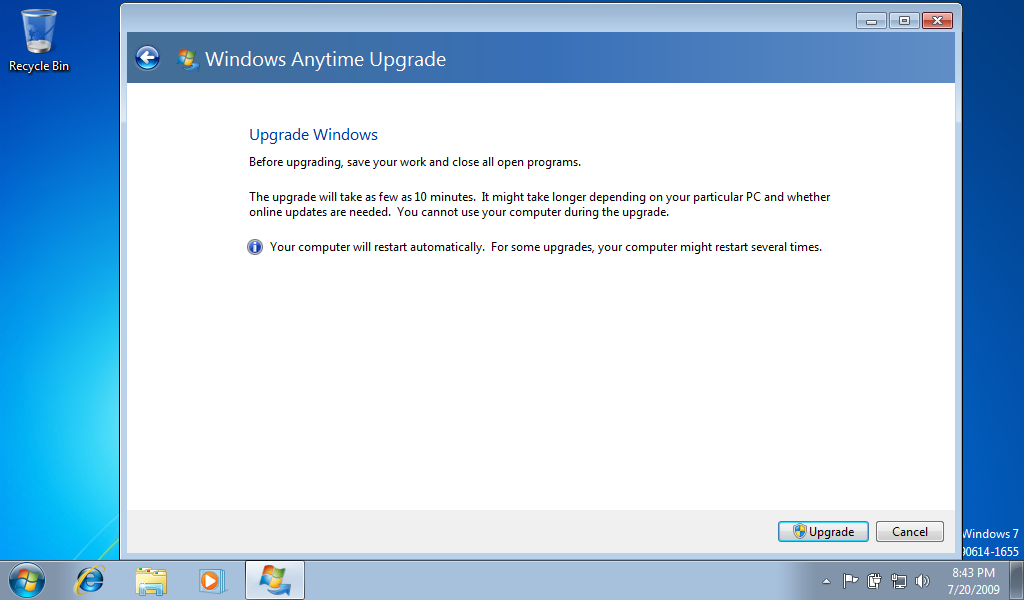
STEP 5:
Customer will be asked to save their work and close all programs. To proceed, the customer will click the “Upgrade” button.
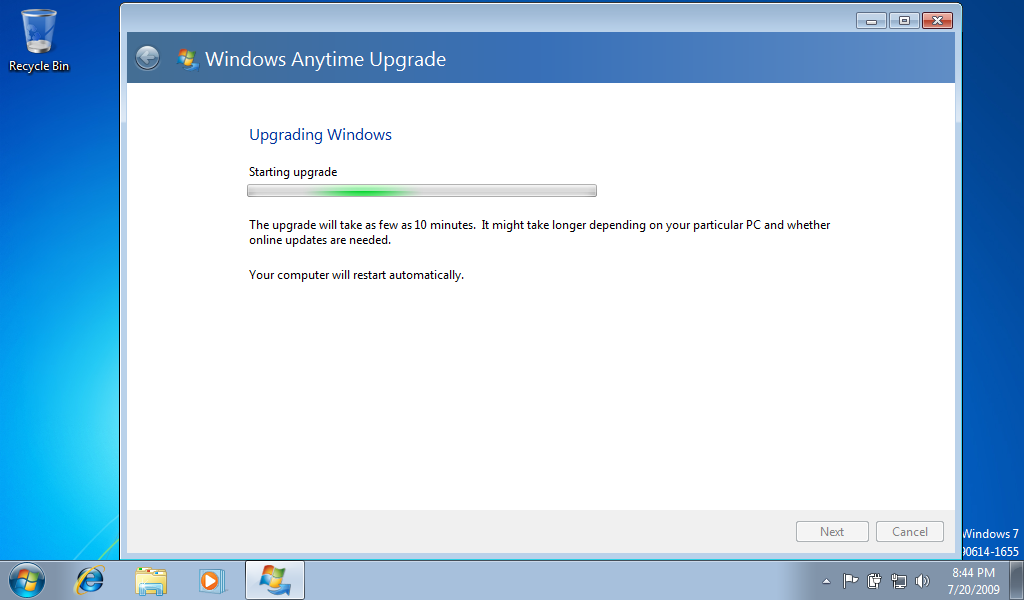
STEP 6:
The upgrade takes place! The customer’s PC will reboot.
STEP 7:
The upgrade finishes and the customer is now running the version of Windows 7 they upgraded to with all its features!