Skip to main content Skip to main content Windows Experience Devices Windows Developer Microsoft Edge Windows Insider Microsoft 365 Microsoft 365 Azure Copilot Windows Surface Xbox Deals Small Business Support Windows Apps Outlook OneDrive Microsoft Teams OneNote Microsoft Edge Moving from Skype to Teams Computers Shop Xbox Accessories VR & mixed reality Certified Refurbished Trade-in for cash Xbox Game Pass Ultimate PC Game Pass Xbox games PC games Microsoft AI Microsoft Security Dynamics 365 Microsoft 365 for business Microsoft Power Platform Windows 365 Small Business Digital Sovereignty Azure Microsoft Developer Microsoft Learn Support for AI marketplace apps Microsoft Tech Community Microsoft Marketplace Marketplace Rewards Visual Studio Microsoft Rewards Free downloads & security Education Gift cards Licensing Unlocked stories View Sitemap

Windows 10 Tip: Turn text into timelines in PowerPoint

Written By published August 14, 2017


Did you know with July’s updates to Office 365, it’s easier than ever to create high-impact presentations?

Now PowerPoint Designer recognizes times, dates and topics on your slides and intelligently redesigns your content into professional-looking timelines.*

Here’s how to get started:
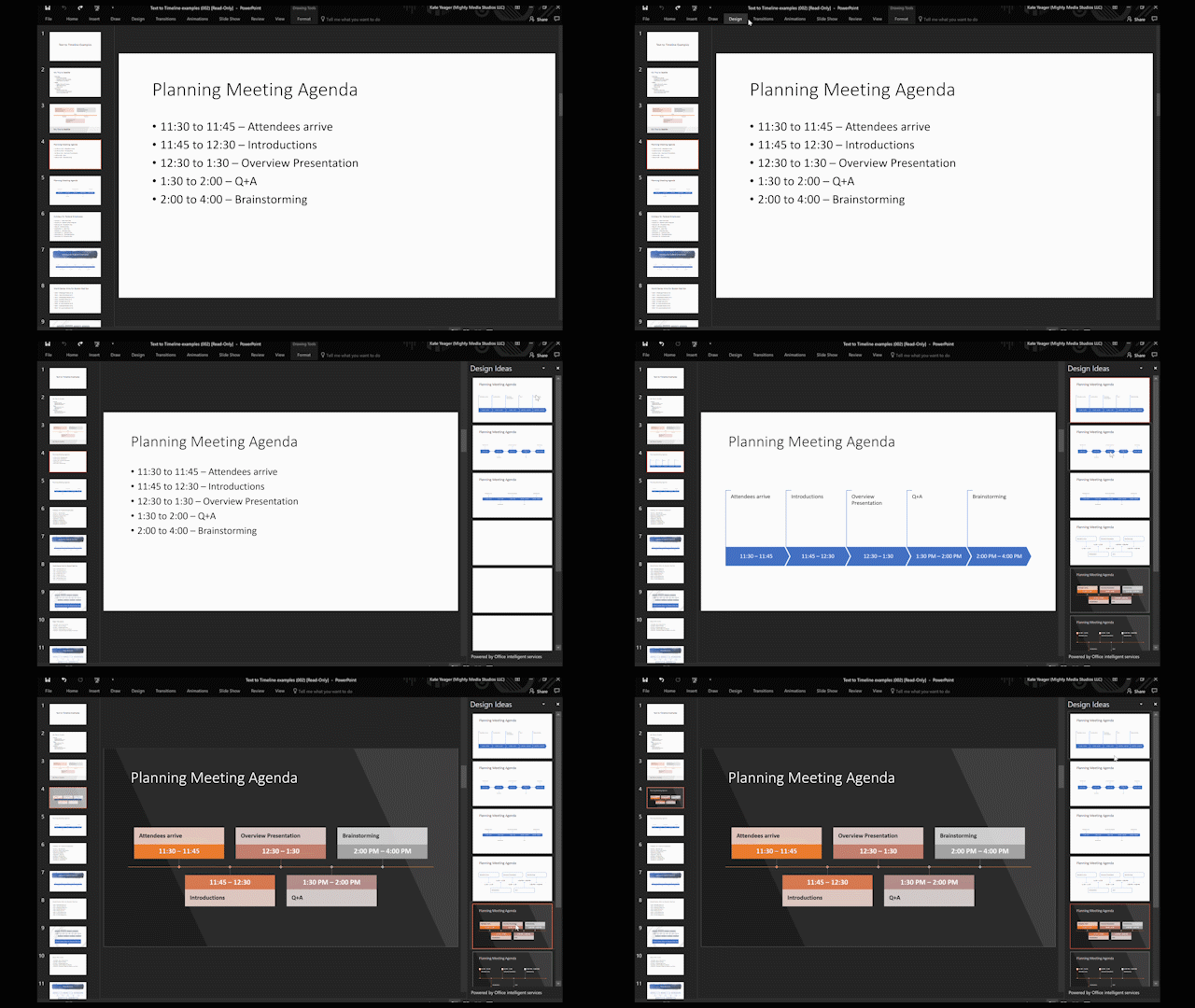
Select Design Ideas in the Design tab

Start with a list of dates, then simply select Design Ideas in the Design tab and choose your favorite layout from the set of suggestions!

In case you missed it, head over here to read last week’s Windows 10 Tip:

Windows 10 Tip: See your 3D creations take life in Remix 3D

Have a great week!

*PowerPoint Designer support for timelines is available in English and Spanish.
Your Privacy Choices Opt-Out Icon Your Privacy Choices
Consumer Health Privacy Sitemap Contact Microsoft Privacy Manage cookies Terms of use Trademarks Safety & eco Recycling About our ads