Windows 10 Tip: Get started with Windows Help Me Choose
That’s why the Windows team created Help Me Choose: an interactive tool on Windows.com that makes it easy to find the best PC that will meet your needs.
We designed Windows to be the place you love to create and play, with the tools to help you make your mark on the world – whether you’re a student, gamer, artist or mobile professional.
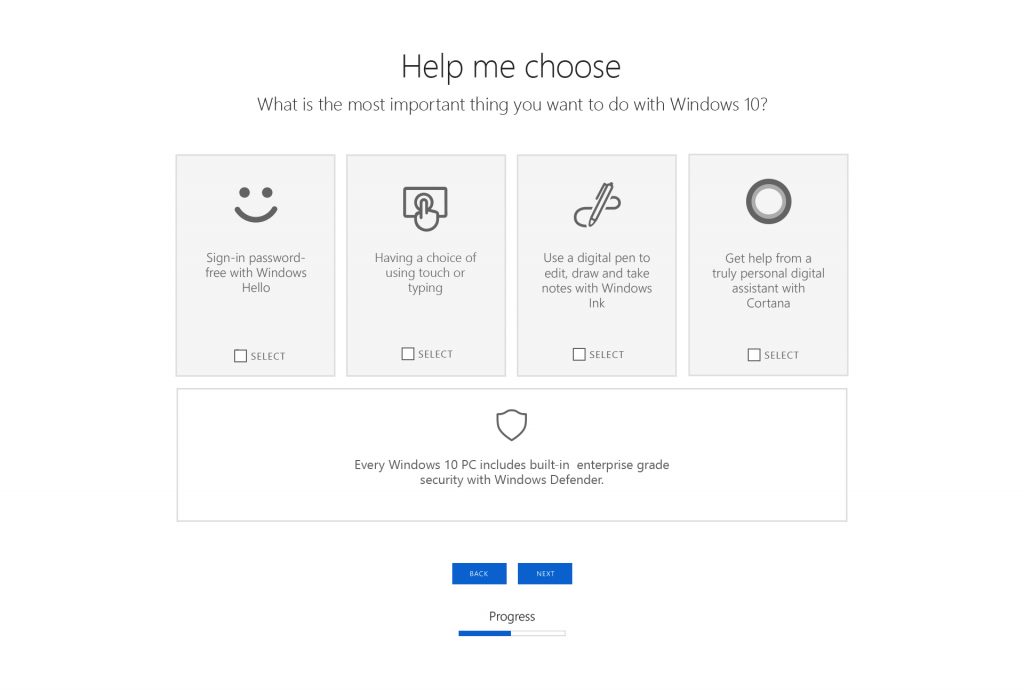
Here’s how to use Help Me Choose:
Shop for a new Windows 10 PC
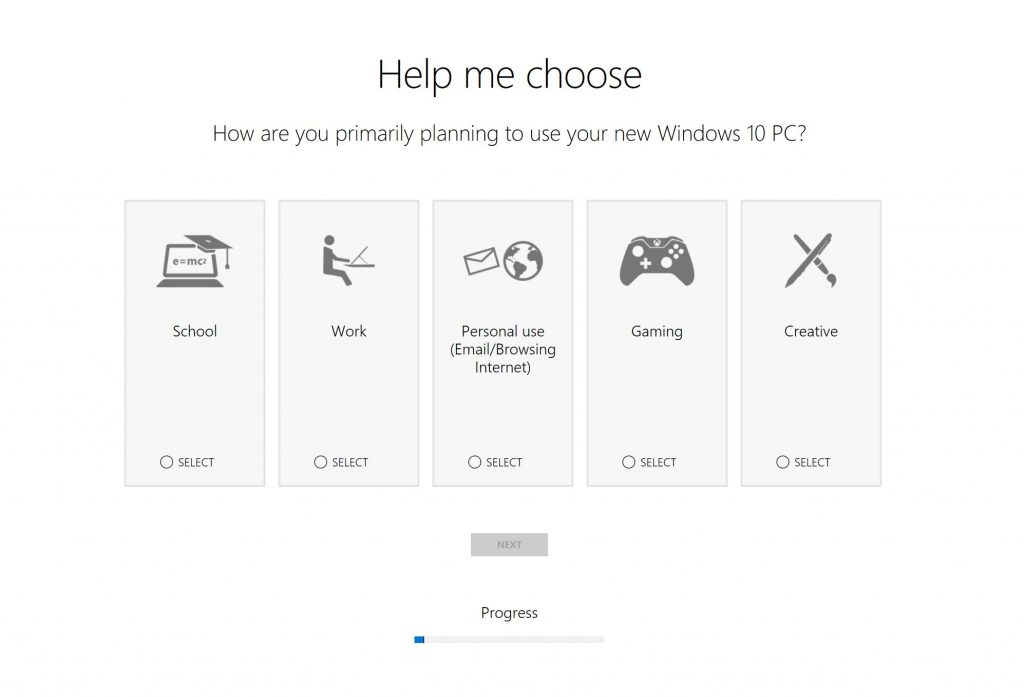
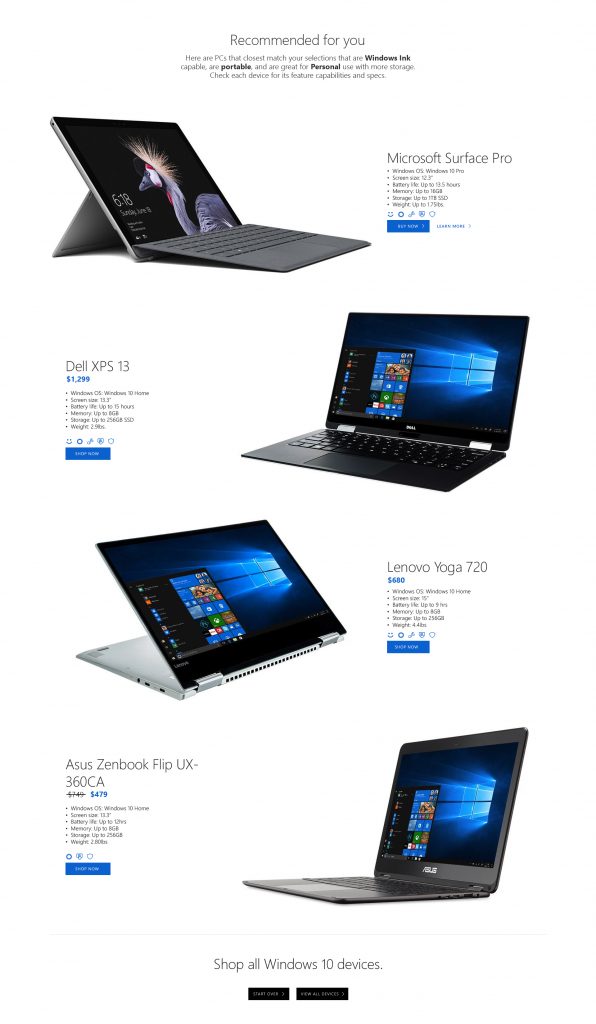
Simply click on “Shop for a new Windows 10 PC,” and you’ll be asked a couple questions about how you’ll be using your PC, and what features are most important to you – like having a choice of using touch or typing, or signing-in password-free with Windows Hello, for example. Then, Help Me Choose will share a couple different PCs for you based on your needs.
Learn more about Windows 10 features
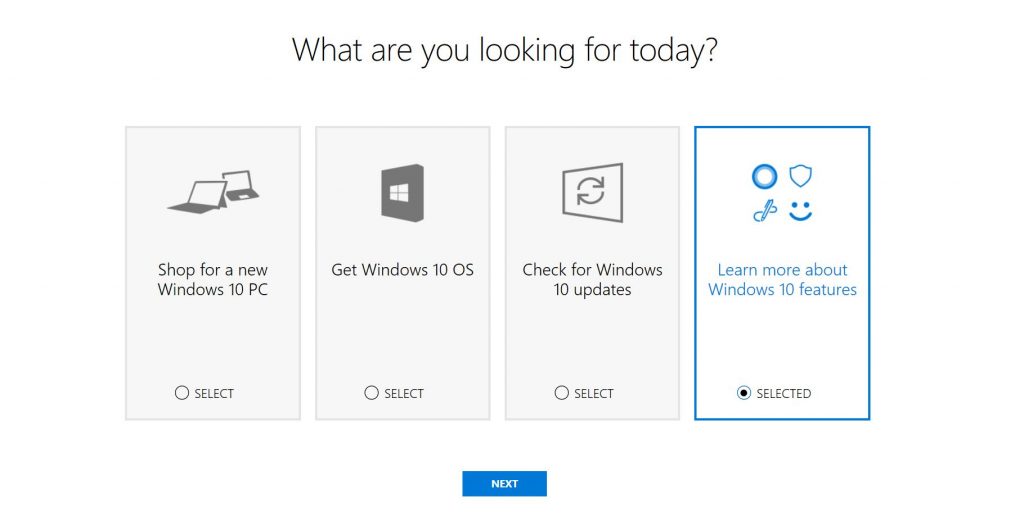
With Help Me Choose, you can also learn more about all the awesome features in Windows 10 – including Paint 3D, Windows Hello*, Cortana** and more!
Check for Windows 10 updates
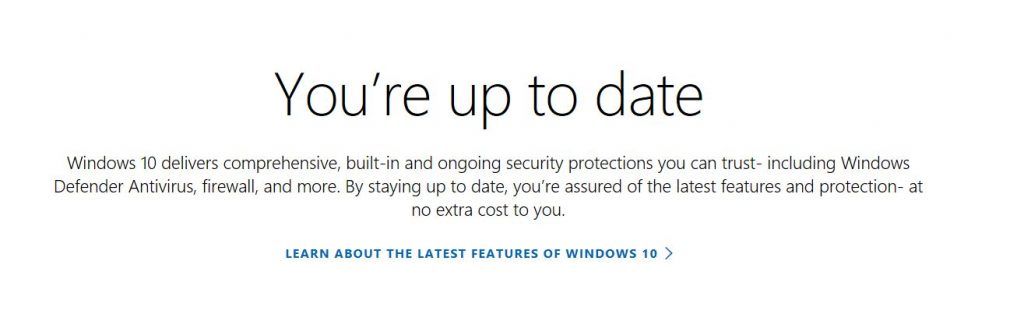
Just click on “Check for Windows 10 updates,” and then “Verify you’re updated” to make sure you have all the latest features and protection. Every Windows 10 PC includes built-in enterprise grade security with Windows Defender.
Head over here to get started with Help Me Choose, or here for more Windows 10 Tips. ICYMI – here’s last week’s Windows 10 Tip.
Have a great week!
*Windows Hello requires specialized hardware, including fingerprint reader, illuminated IR sensor or other biometric sensors and capable devices.
**Cortana available in select markets.