How to use the new Surface Pen
These tips for the new Surface Pen can help you #DoGreatThings with your Surface Pro 3, Surface Pro 4, or Surface Book.
https://youtu.be/g6Y9moAKegM
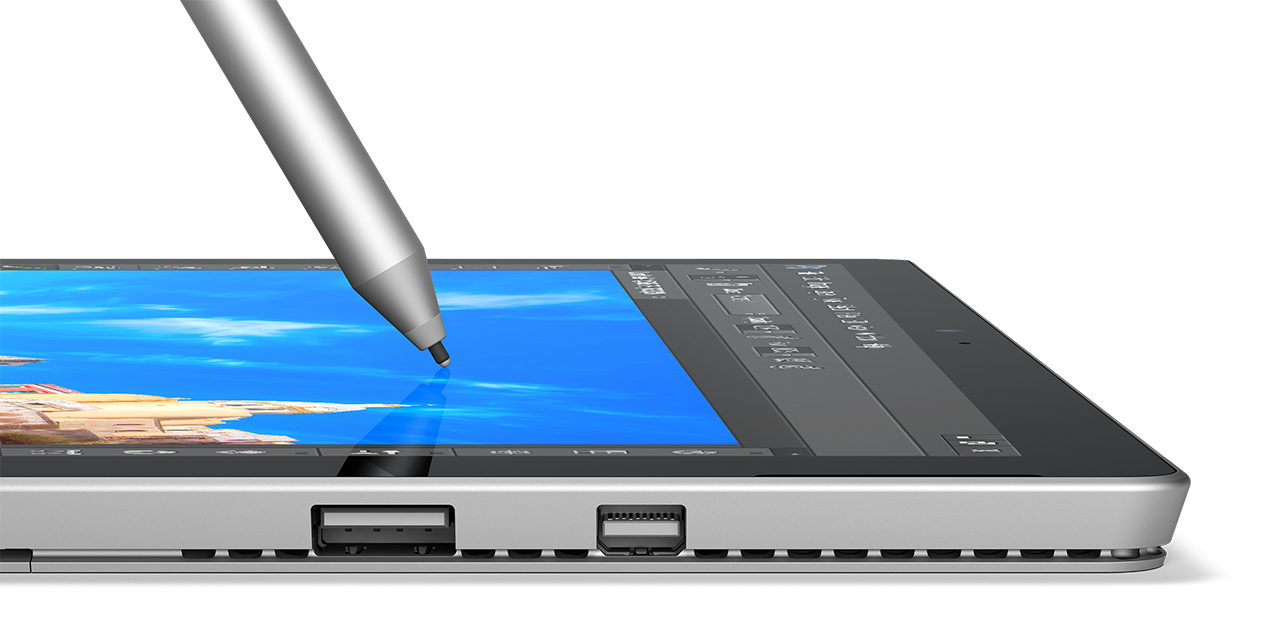
The new Surface Pen changes the way you connect with your Surface. Write and draw naturally with precision ink on one end and an eraser on the other.
Here are a few tips for getting the most out of your Surface Pen:

One click to OneNote
Click the eraser button on the Surface Pen once to launch a blank OneNote page on your Surface. It’s a fast way to start a handwritten note or jot down a few items for your grocery list.
Double click for screen capture
Click the eraser button on the Surface Pen twice to snap a picture of whatever is on your Surface screen. OneNote will also automatically launch so you can edit what you captured—or maybe draw or write on it with your Surface Pen.
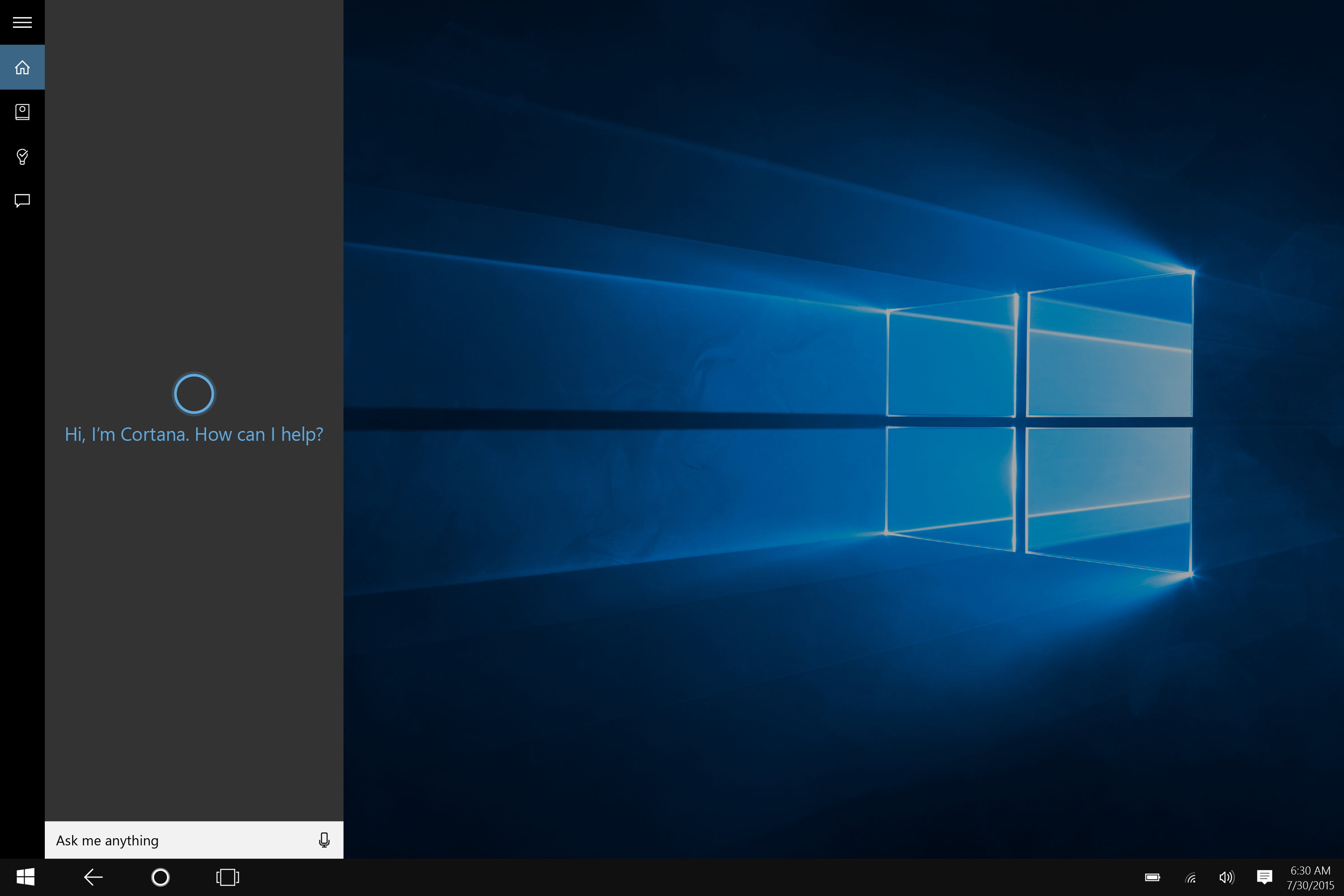
Click and hold for Cortana
Hold down the eraser button on the Surface Pen to activate Cortana, your personal digital assistant.
Cortana can help you find files or apps on your Surface, look up weather conditions, manage your calendar, remind you about important events, book dinner reservations, and even let you know when to leave for the airport to catch a flight.
And with the recent November update to Windows 10, you can handwrite reminders directly into Cortana with your Surface Pen.
Change Surface Pen tips
The new Surface Pen allows you to change the size and feel of your pen tip with the Surface Pen Tip Kit.
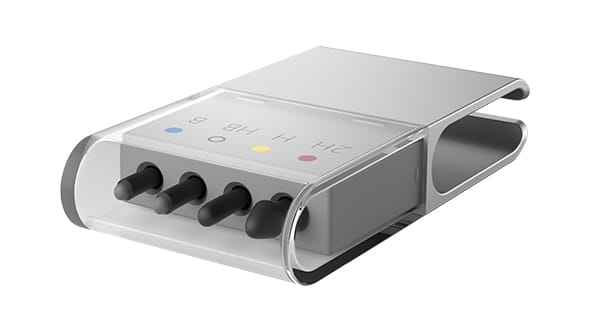
The Surface Pen Tip Kit comes with four tips to match your artistic style and comfort. Stay with the medium tip for the familiarity of a no. 2 pencil, or swap it with a low-friction tip similar to a fine-point pen.
https://youtu.be/vpp4h154ySk
To change the tip in your Surface Pen, pull the current tip out with your fingers or use the tweezers at the bottom of the kit to squeeze and pull out the tip. Grab a new tip, insert it, and you’re ready to create!
How does the Surface Pen help you? Let us know on Twitter via @Surface.
-
December 17, 2015
How to set up Windows Hello on your Surface device
-
December 16, 2015
How to connect your Surface to a TV, monitor, or projector
-
December 15, 2015
How to pair your Surface Pen with your Surface
-
December 14, 2015
How to safely detach the keyboard from Surface Book
-
December 1, 2015
How to use Cortana on your Surface